

Appearance
AI Discovery
AI Discovery finds the AI systems that your organization runs in Azure, Microsoft Copilot Studio, and Databricks. Each system that a scan finds becomes a candidate. You then make a decision on each candidate: accept it as an AI System, reject it, or snooze it.
What this is
The AI Registry has only the AI Systems that a person registers. AI Discovery reads the accounts that the organization connects and shows the agents, model deployments, and AI resources in them. Thus you can see AI systems that no person registered.
The work has these steps:
- Connect organization Sources Connect Azure, Microsoft Copilot Studio, or Databricks one time for the organization.
- Run a scan Modulos reads each Source and shows what it finds.
- Review each candidate Accept, reject, or snooze each candidate.
- Complete the registration An accepted candidate is a Draft AI System. Complete it in the registration wizard.
A scan only reads: it changes nothing in a Source.
Where in Modulos
Go to AI Registry → AI Discovery.
Who sees AI Discovery
Only Organization Admins see AI Discovery, and only when AI Discovery is available for the organization. If you do not see it, contact Modulos.
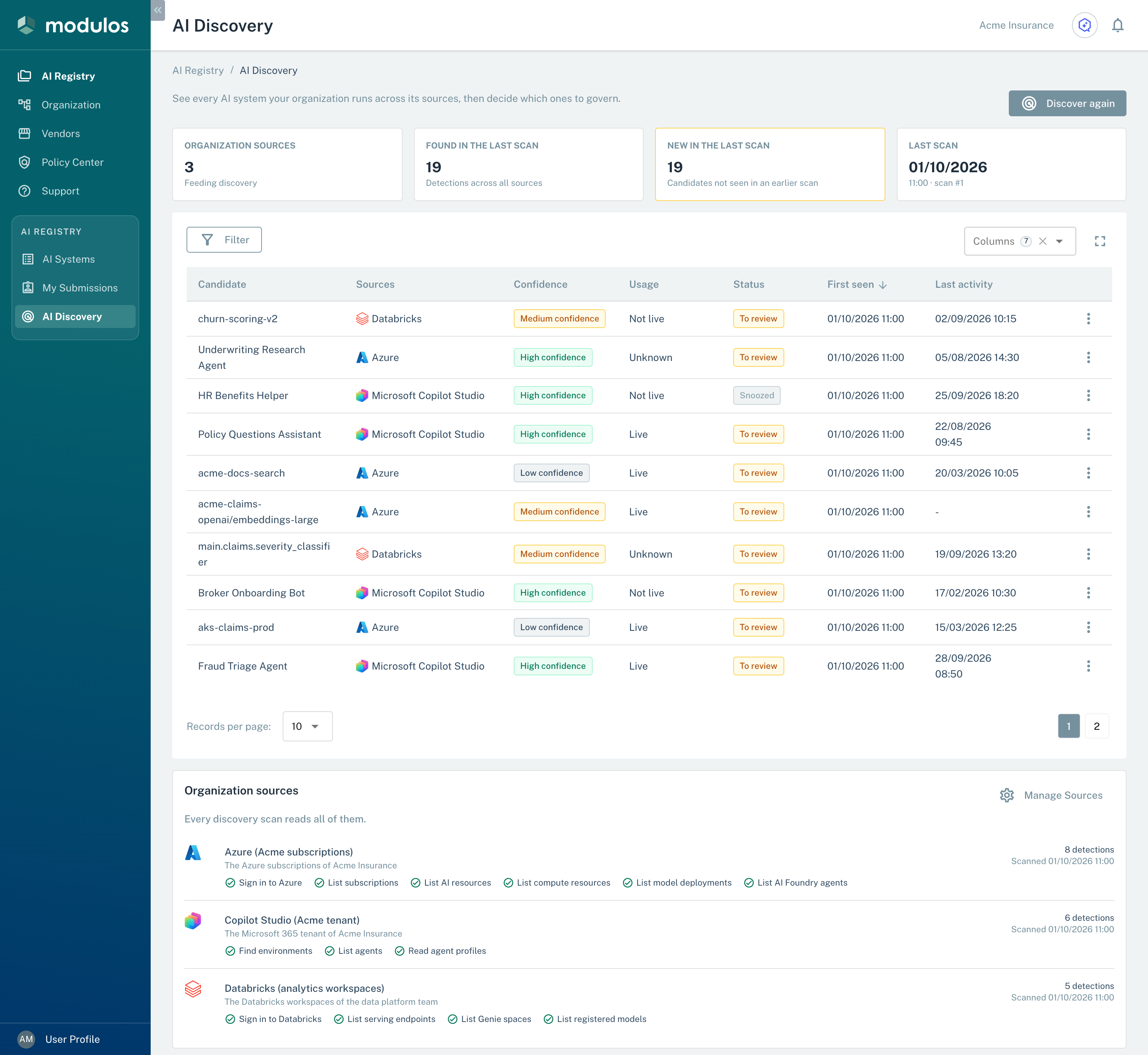
The AI Discovery page after a scan of three organization Sources.
- AI Discovery Opens the page. It is in the AI Registry, below My Submissions.
- Discover again Opens the dialog that starts a new scan of the organization Sources.
- New in the last scan The number of candidates that the last scan added.
- Filter Shows only the candidates with a Status, Confidence, or Usage that you select.
- Status The decision on each candidate: To review, Accepted, Rejected, or Snoozed.
- Actions Accept, snooze, or reject the candidate.
- Organization sources The result of the last scan for each Source, with the steps of the scan.
Sources that a scan reads
A scan reads the organization Sources. An organization Source belongs to the organization, not to an AI System. An Organization Admin adds it in Organization → Source & Connectors → Organization sources. See Organization Sources.
A scan reads each organization Source that is active and has one of these types:
| Source type | What a scan reads |
|---|---|
| Azure | AI resources, model deployments, Azure AI Foundry agents, and compute resources that can have an AI system on them |
| Microsoft Copilot Studio | The agents of each environment of the Source, and the profiles of the agents (see Limits) |
| Databricks | The serving endpoints, registered models, and Genie spaces of each workspace of the Source |
A scan does not read these Sources:
- A disabled organization Source.
- A GitHub organization Source.
- The Sources of an AI System.
If the organization has no Source that a scan can read, the Discover AI Systems button is not available.
Run a scan
- Go to
AI Registry → AI Discovery. - Select Discover AI Systems. After the first scan, the button is Discover again.
- In the Discover AI systems? dialog, examine the list of the Sources.
- Select Start discovery.
The Discovering AI systems card shows the status of each Source: Waiting, Scanning, the number of detections, Incomplete, or Failed. Modulos reads the Sources one after the other. If one Source fails, the scan continues with the next Source.
When the scan is complete, a message gives the number of new candidates. If a scan did not read a Source in full, the message is AI Discovery finished, but not every source could be read. See the organization sources.
These rules apply:
- A scan starts only when you start it. Modulos does not scan on a schedule.
- An organization has one scan at a time.
- Modulos ends a scan that is not complete 30 minutes after its start, and the scan has failed. The end can come up to 15 minutes later. The Sources that were complete keep their results. For the other Sources, the Organization sources panel shows The scan took too long and was stopped. Then you can start a new scan.
What a scan finds
Each item that a scan finds in a Source is a detection. Each new detection becomes one candidate.
A detection has one of these types:
- Copilot Studio agent
- Azure AI Foundry agent, Azure model deployment, Azure AI resource, or Azure compute resource
- Databricks serving endpoint, Databricks registered model, or Databricks Genie space
Modulos gives each candidate these values:
- Confidence: High confidence, Medium confidence, or Low confidence.
- Usage: Live, Not live, Unknown, or Not seen in the latest scan. This value tells you if the system looks active in its Source. It does not measure how many persons use the system.
The candidate page shows the signals behind these values. See The candidate page and the statuses.
AI Discovery does not compare a candidate with the AI Systems that are in the AI Registry. If you registered the system before, reject the candidate with the reason Duplicate.
How to read the page
Numbers at the top
| Card | What it shows |
|---|---|
| Organization sources | The number of organization Sources that a scan reads |
| Found in the last scan | The number of detections of the last scan, in all Sources |
| New in the last scan | The number of candidates that the last scan added |
| Last scan | The date of the last scan, or Never |
Candidates table
After the first scan, the page shows the candidates table. Each row is one candidate:
| Column | What it shows |
|---|---|
| Candidate | The name that the system had in its Source when a scan found it for the first time |
| Sources | The Source type of the detections |
| Confidence | High confidence, Medium confidence, or Low confidence |
| Usage | Live, Not live, Unknown, or Not seen in the latest scan |
| Status | To review, Accepted, Rejected, or Snoozed |
| First seen | The date when a scan found the candidate for the first time |
| Last activity | The newest date that the Source gives for the system, for example the date when an agent was published |
- The newest candidates are first. You can sort by each column but Sources and Status.
- Select Filter to see only the candidates with a Status, a Confidence, or a Usage that you select.
- Select Filter, then Scan, then New in the last scan to see only the candidates that the last scan added.
- Select a row to open the candidate.
Organization sources panel
The Organization sources panel shows each Source that a scan reads. After a scan, each Source shows the number of detections, the date of the scan, and the steps of the scan. For example, the steps of a Microsoft Copilot Studio Source are Find environments, List agents, and Read agent profiles.
If a step did not read all items, the panel shows a box with the name of the step and could not read everything. The box lists what the scan did not read, and the cause. An example is an Azure subscription that the service principal cannot see. Correct the cause in the Source or in the system that it reads, then scan again.
Manage Sources opens the Organization sources tab.
What a new scan changes
A candidate stays the same candidate in each scan. Modulos identifies a detection by its Source type and by the ID that the system has in its Source.
- A new scan updates the detections of a candidate. It does not change the status of the candidate.
- A new scan does not change the name of a candidate. If the system gets a new name in its Source, Findings shows the new name.
- A rejected candidate stays rejected. A scan does not add it again.
- If you disable or remove an organization Source, its candidates stay. Until the next scan, the panel shows the last scan of that Source with No longer scanned: this source was disabled or removed.
The candidate page and the statuses
Select a row of the candidates table to open the candidate. The candidate page has these parts:
- Findings, with the number of detections on the tab: each detection of the candidate, with its type, its location in the Source, and facts from the Source. Examples of a location are an environment, a resource group, and a workspace. The cards at the top of the AI Discovery page and the Organization sources panel call these items detections.
- The panel on the right: Status, Found in, Confidence, Usage, Based on, Last activity, Owner in the source, First seen, and Last seen. Based on lists the signals behind the confidence and the usage, for example Agent is published.
- History: each decision on the candidate, with the user and the time. The newest decision is first.
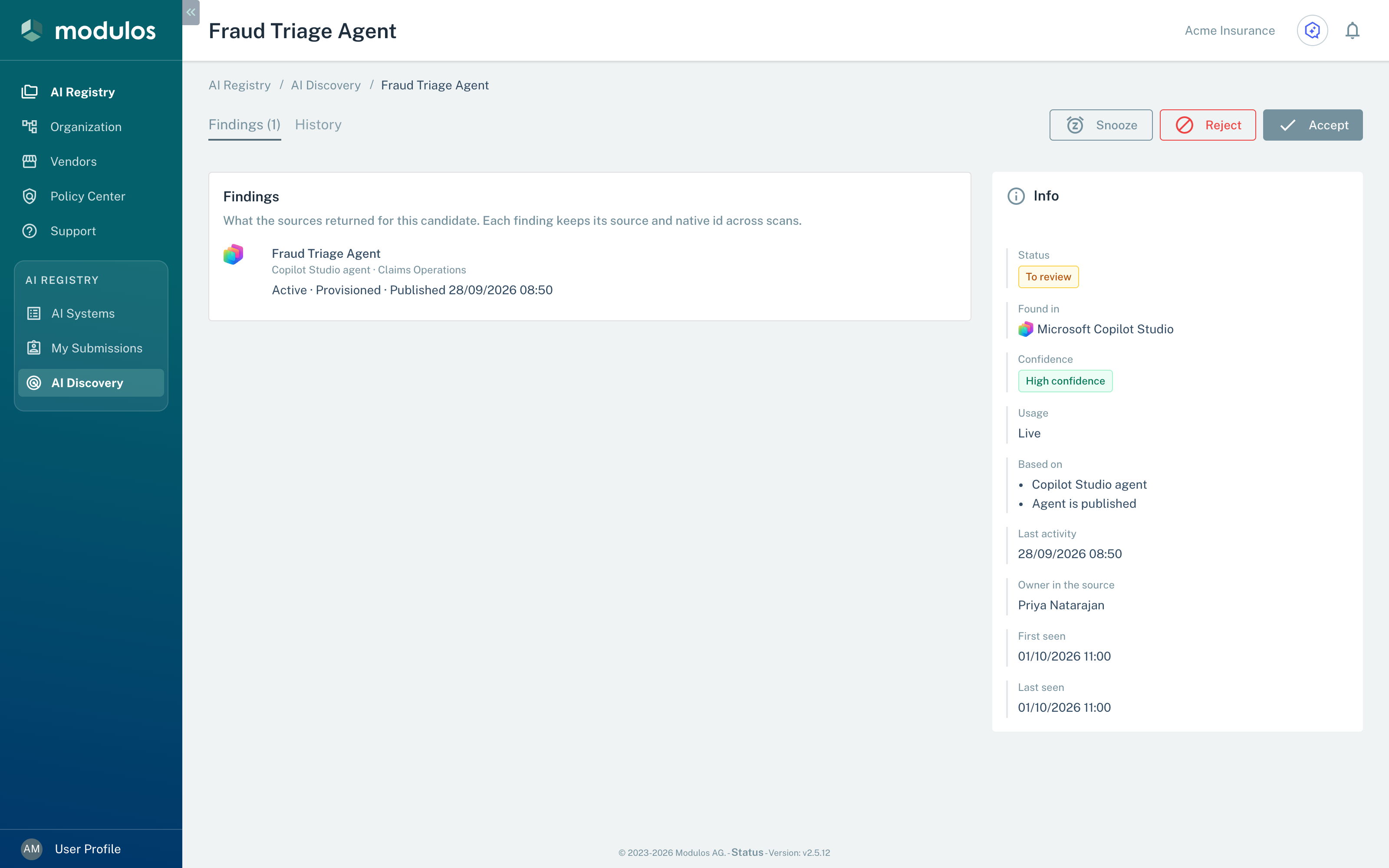
The page of a candidate with the status To review.
- Accept Creates a Draft AI System from the candidate. Snooze and Reject are next to it.
- Findings The detections of the candidate, with their location and facts from the Source.
- History Each decision on the candidate, with the user and the time.
- Based on The signals behind the confidence and the usage.
Each candidate has one of these statuses:
| Status | What it means | What you can do |
|---|---|---|
| To review | No person made a decision. A candidate also gets this status again when a person reopens it, when its snooze ends, and when its AI System is deleted. | Accept, Reject, Snooze |
| Accepted | The candidate is an AI System in the AI Registry. | Open AI System |
| Rejected | The organization does not register this system as an AI System. | Reopen |
| Snoozed | The decision waits until a date. | Accept, Reject, Reopen |
The buttons are at the top of the candidate page and in the menu at the end of each row of the candidates table. A decision sends no notification.
Scout can read the candidates in a Global chat and propose one decision for up to 50 candidates at one time. See Propose decisions on AI Discovery candidates.
Accept a candidate
- On the candidate page or in the menu of its row, select Accept.
- In the dialog, select Create Draft.
Modulos creates a Draft AI System in the AI Registry and connects it to the candidate. The candidate gets the status Accepted. You stay on the AI Discovery page. Select Open AI System to open the Draft in the registration wizard. If Modulos shows Your access to the new Draft could not be refreshed. Reload the page to open it., the Draft exists: reload the page. To complete the registration, see Register an AI System.
The Draft starts with this data:
| Field | Value |
|---|---|
| Name | The name of the candidate. Modulos uses the first 100 characters of a longer name. |
| Description | Sentences that Modulos makes from the data of the detections. Examples are the environment, the owner in the Source, the model, and the description that the system has in its Source. |
| Owner | You |
| Current State | Already in use for some candidates. Empty for the others. |
| Sources | A copy of the organization Source that found the candidate. See below. |
The other fields have no data from the candidate. A Draft does not use the AI Systems quota of the organization. If two candidates have the same name, their Drafts have the same name.
The Sources of the Draft
The Draft gets its own copy of the organization Source that found the candidate. Thus it is not necessary to connect the external system again. You find the copy in the Connect Sources card of the registration wizard.
In some cases Modulos makes no copy and shows no message. Thus examine the Sources of the Draft. For the rules of the copy, see How a Source follows a candidate into an AI System.
If you delete the AI System
If you delete the Draft or the AI System of an accepted candidate, the candidate gets the status To review again. The candidate keeps its history.
Reject, snooze, or reopen a candidate
Reject
- On the candidate page or in the menu of its row, select Reject.
- Select a Reason: Not an AI system, Duplicate, Test or sandbox, Decommissioned, Out of Scope, or Other.
- Optional: write a Comment. With the reason Other, the comment is necessary.
- Select Reject.
A rejected candidate stays rejected in each new scan until a person reopens it. The candidate page shows the reason. The comment shows only in History.
Snooze
Snooze a candidate when you cannot make the decision at this time. You can snooze only a candidate with the status To review.
- On the candidate page or in the menu of its row, select Snooze.
- In Snooze until, select a day after today.
- Select Snooze.
On that day, the candidate gets the status To review again. Modulos uses the day in Coordinated Universal Time (UTC). You can accept, reject, or reopen a snoozed candidate before that day.
Reopen
Reopen a rejected or snoozed candidate to make a new decision.
- On the candidate page or in the menu of its row, select Reopen.
- In the dialog, select Reopen again.
The candidate gets the status To review again.
Data that Modulos stores
A scan stores data about each detection. The candidate page shows a part of it, and the description of a Draft uses a part of it.
| Source type | Data about each detection |
|---|---|
| Microsoft Copilot Studio | The name, the schema name, the dates, the state, the status, the owner, the user who made the last change, and the environment of the agent. From the profile of the agent: its description and its instructions (the first 8,000 characters of each) and its model. Also its knowledge sources with their addresses, its actions with their connections, and the names of its topics, up to 50 of each. |
| Azure | The name, type, kind, location, resource group, subscription, tags, SKU, provisioning state, creation date, and public network access setting of a resource. The model, with its version and format, and the SKU and capacity of a model deployment. The model, the types of its tools, the version, and the instructions of an Azure AI Foundry agent. |
| Databricks | The name, the description, and the workspace of an item. The creator or owner and the dates of a serving endpoint and of a registered model. The ready state of a serving endpoint. |
Modulos also stores the IDs that an item has in its Source, for example the tenant ID and the resource ID.
A scan does not read the credentials of a system, its conversations, or the data that it processes. Modulos stores the text of a description, of instructions, and of tags as the Source gives it. Thus make sure that these fields contain no secret.
If you disable or remove an organization Source, the stored detections stay.
Limits
- A scan reads up to 100,000 agents in one Microsoft Copilot Studio environment.
- For each Microsoft Copilot Studio Source, a scan reads the profiles of up to 500 agents. New agents are first. Then come changed agents and agents with no profile, then agents with a profile that is more than 7 days old. The next scan reads more profiles. The panel does not show that profiles are missing.
- A scan reads up to 5,000 Azure resources in one query.
- A scan reads up to 2,000 Genie spaces in one Databricks workspace and up to 2,000 registered models in one metastore.
- When a list of agents, resources, Genie spaces, or registered models is longer than its limit, the Organization sources panel shows that the scan did not read all items.
- A scan finds only what the credentials of the Source can read. For the permissions, see the page of each Source type.