

Appearance
Snowflake
The Snowflake Source connects an AI System to one Snowflake database with a programmatic access token. Metric Tests read metrics that you write as SQL queries in a catalog table. Scout, Agent Tests, and the Risk Agent read tables and run read-only queries.
| Used by | Metric Tests, Agent Tests, Scout, Risk Agent |
| Mode | Pull |
| Credentials | Account identifier, programmatic access token, warehouse, and database |
| Metric selection | Select a metric of the MODULOS_METRIC_CATALOG table |
Where in Modulos
AI System → Settings → Sources → Add Source → Snowflakeadds the Source.
Before you start
- An Organization Admin makes Snowflake available. See Source & Connectors.
How to prepare Snowflake
- In Snowflake, give a dedicated user a role with the
USAGEandSELECTprivileges only. - Open
Admin → Users & Roles. - Select the user.
- Create a programmatic access token.
- Get the account identifier in the format
ORGNAME-ACCOUNTNAME. - Get the warehouse.
- Get the database.
How to connect Snowflake
- Open
AI System → Settings → Sources. - Select Add Source.
- Select Snowflake.
- Type a Source Name.
- Type the account identifier in Account Identifier.
- Paste the token into Programmatic Access Token.
- Type the warehouse in Warehouse.
- Type the database in Database.
- If necessary, type a schema in Schema (Optional) and a role in Role (Optional).
- Select Save.
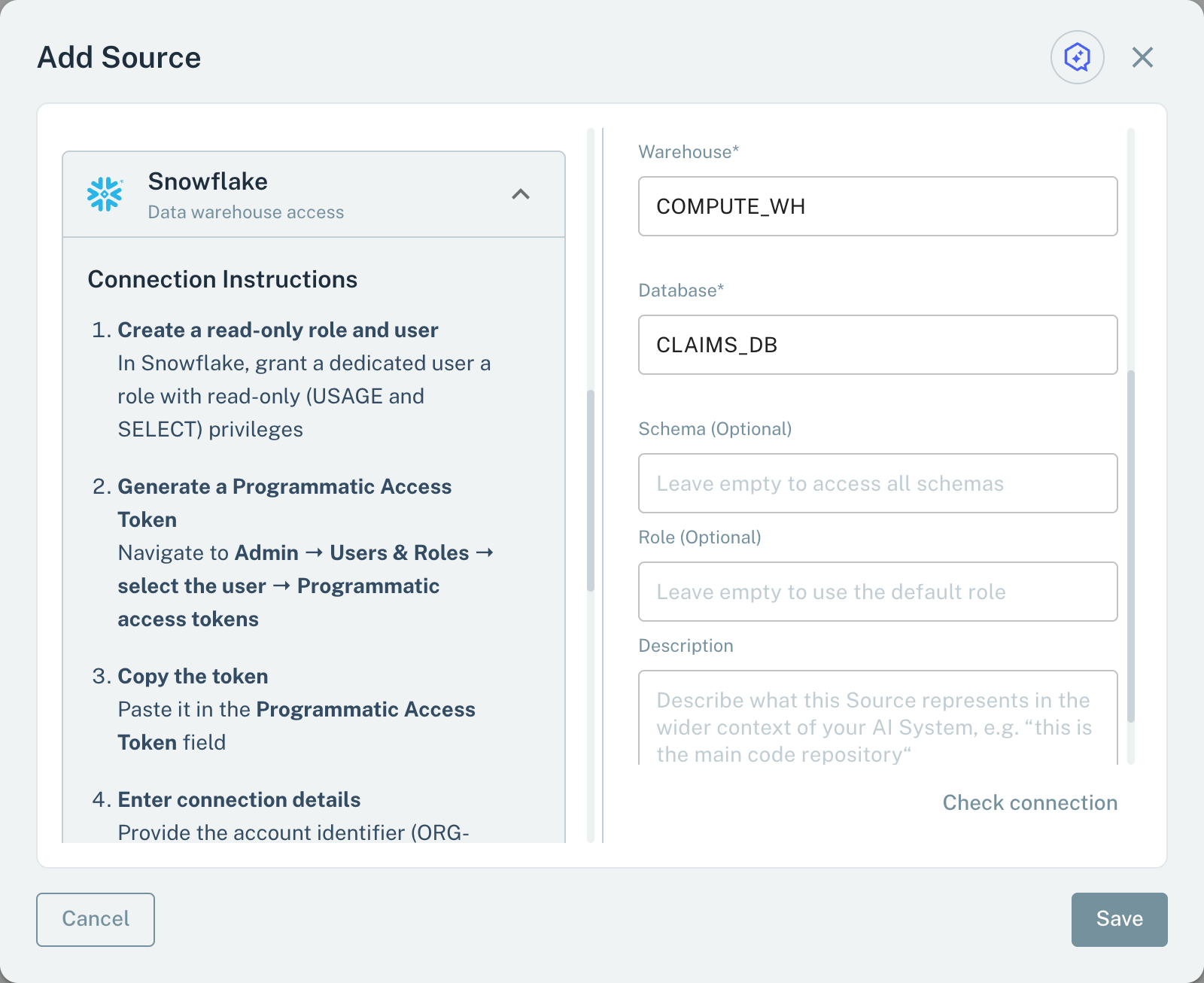
- 1WarehouseThe warehouse that runs the queries of Modulos.
- 2DatabaseThe database that Modulos queries.
- 3RoleEmpty: the default role of the user.
Keep Role (Optional) empty to use the default role. When you save, Modulos runs SELECT 1 in the warehouse and the database. This check does not test the access to your tables.
Metrics for Metric Tests
A Snowflake metric is a SQL query that gives one number. You write the metrics in a table with the name MODULOS_METRIC_CATALOG, in a schema of the database:
| Column | Content |
|---|---|
metric_key | A unique key for the metric, without / |
metric_label | The name that the test dialog shows |
metric_query | The SQL query that gives the value |
For example:
sql
CREATE TABLE MODULOS_METRIC_CATALOG (
  metric_key   VARCHAR,
  metric_label VARCHAR,
  metric_query VARCHAR
);

INSERT INTO MODULOS_METRIC_CATALOG VALUES (
  'rows_scored_24h',
  'Rows scored in the last 24 hours',
  'SELECT COUNT(*) FROM SCORES WHERE scored_at >= DATEADD(hour, -24, CURRENT_TIMESTAMP())'
);
Each metric_query must obey these rules:
- It is one statement that starts with
SELECTorWITH. - It gives one row with one numeric column.
- It sets its own time window. Modulos does not apply the schedule of the test to the query.
- It finishes in less than 30 seconds.
Modulos reads a catalog table in each schema of the database that has one. Modulos runs each query in the schema of its catalog table. Because of this, a table name without a schema works.
To use a metric in a Metric Test:
- In the test dialog, select the Snowflake Source.
- Select the Metric. The menu shows each metric as
<label> · <schema>.
If the database has no catalog table, the menu is empty.
Scout, Agent Tests, and the Risk Agent
Scout, Agent Tests, and the Risk Agent read a Snowflake Source:
- Tables: the tables of the schema, or of the database if Schema (Optional) is empty, and the columns of one table.
- Queries: one read-only statement that starts with
SELECT,WITH,SHOW, orDESCRIBE. A result shows a maximum of 200 rows.
If an AI System has more than one Snowflake Source, the agent names the Source in each request by its account and database (ACCOUNT/DATABASE).
Important considerations
- Give the token a role with
USAGEandSELECTonly. The role sets the limit on what Modulos can do in Snowflake. - If a metric query fails, the test gets no value. Test each query in Snowflake before you add it to the catalog.