

Appearance
Audit Trail
Audit readiness depends on traceability: who did what, when, why, and with which Evidence. In Modulos, traceability is built from two complementary surfaces:
- Notifications help people execute and coordinate work.
- Comments and logs provide the durable audit trail on each object.
What this is
This page explains how to use the audit trail in practice:
- where to find it
- who can see what
- how it supports reviews, approvals, and audits
Where in Modulos
Most audit trail information is viewable by regular members with access to the relevant project. Administration actions are managed by organization and project admins.
Notificationsfor your personal inbox of assignments and workflow eventsProject objects → Comments and Logsfor a durable history on items like Requirements, Controls, Evidence, assets, and risksOrganization → Notifications → Audit Logfor the log of notification-settings changes (narrower than its name suggests; see below)
Who can do what
Permissions
- Organization Members can view notifications and object logs for projects they have access to.
- Viewers use read-only access plus logs to verify traceability.
- Organization Admins and Project Owners manage access so the right people can see the right trail.
How it works
Notifications
Notifications are user-specific. They’re created for events such as:
- review requests and approvals
- assignments and ownership changes
- status changes on key objects
Notifications help you find what needs attention. They are not the audit trail itself.
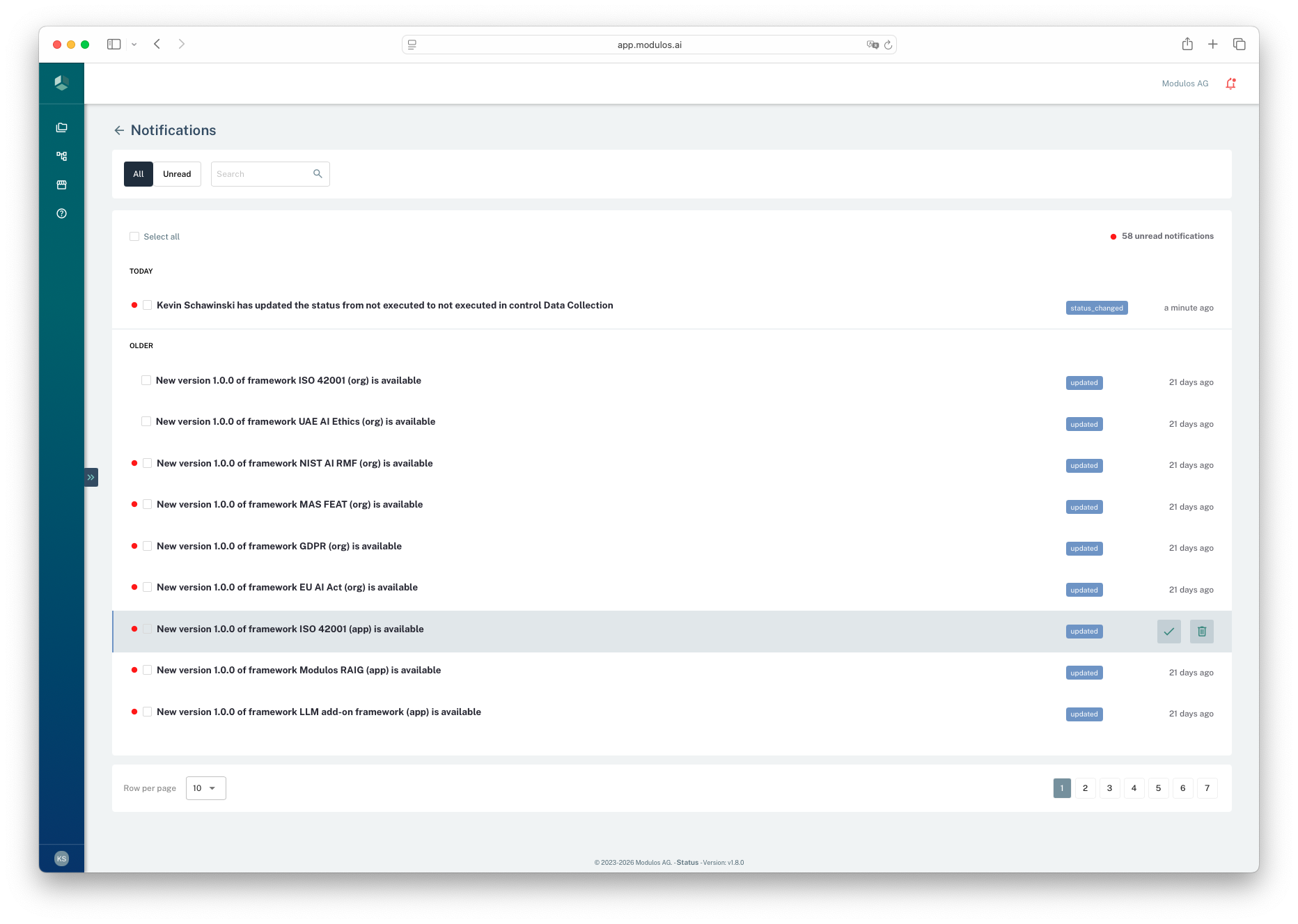
- 1Filter and searchUse All or Unread and search to find what needs attention.
- 2Unread countShows how many notifications still need review.
- 3Notification itemsEach item links back to a specific object or event.
- 4Quick actionsMark as read or clear items after you’ve handled them.
Notification channels
Notifications are delivered on two channels:
- In-App: the platform inbox shown above. Always on.
- Email: switched on or off for the whole organization by an organization admin under
Organization → Notifications → Channel Settings.
Choosing what you receive
Each user tunes their own delivery under User Settings → Notification Preferences: a per-category matrix with In-App and Email toggles. When email delivery is off for the organization, the Email column disappears and a notice explains that email notifications are disabled; ask an organization admin to re-enable them.
The Audit Log tab
Organization → Notifications also includes an Audit Log tab, visible to organization members. Despite the name, it is a settings log rather than the audit trail of your governance work: it records changes to the organization's notification configuration, such as who switched a delivery channel on or off, and when.
For the history that reviews and audits rely on (status changes, ownership, and decisions on requirements, controls, evidence, and risks), use each object's Comments and Logs view described next.
Comments and logs
Most governance and risk objects include a Comments and Logs view that records:
- timestamped events and actions
- the actor who performed them
- comments and context that explain why a change was made
This is the primary audit trail auditors rely on.
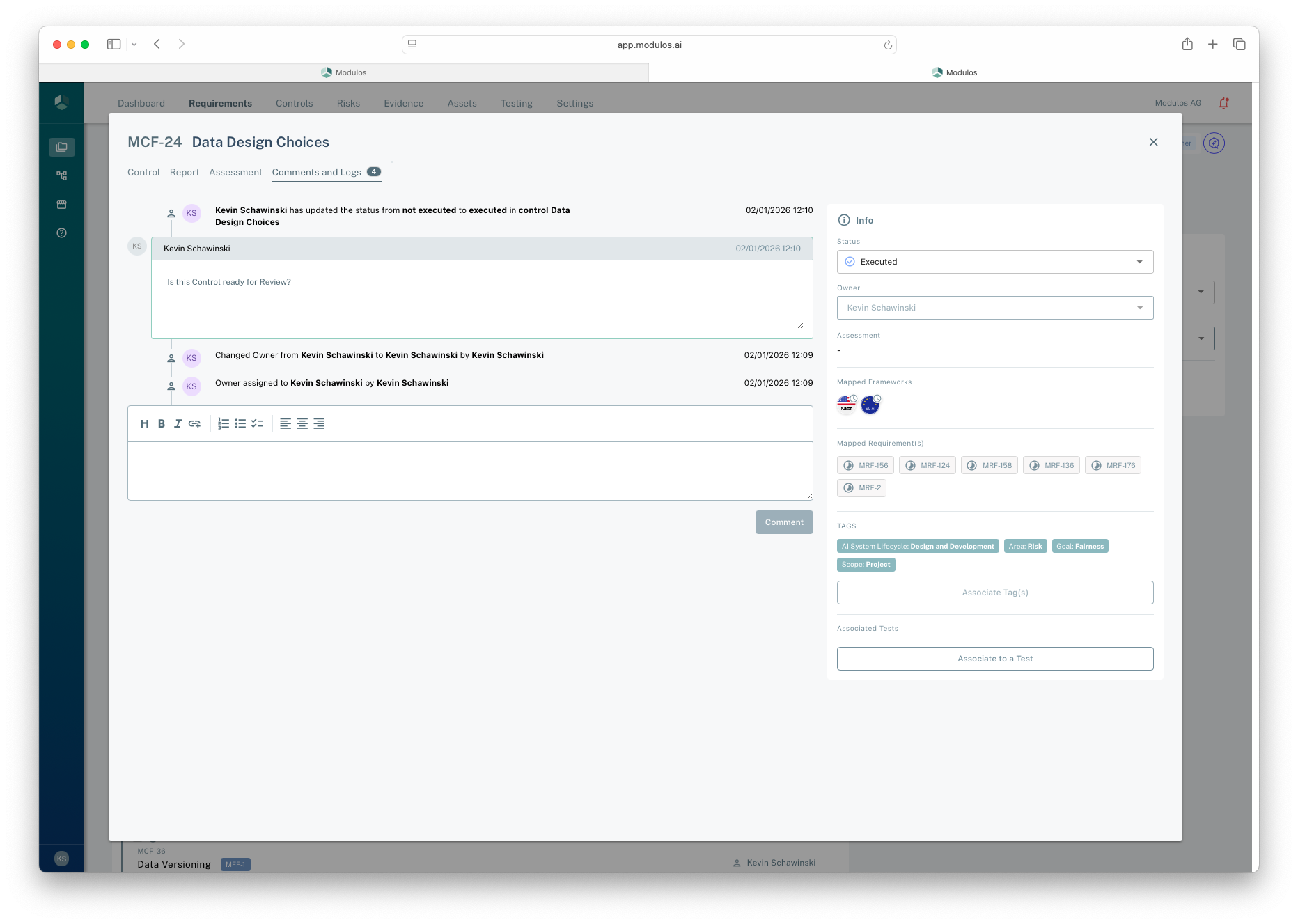
- 1Comments and Logs tabThe durable history view for the object you are reviewing.
- 2Timeline entriesRecords status changes, assignments, and other events with timestamps.
- 3Add contextUse comments to document reasoning and decisions for audit readiness.
- 4Current stateStatus and ownership provide the “as-is” context for the trail.
How they connect
A single event can create both:
- a log entry on the affected object
- a notification for the relevant assignee or reviewer
Notifications can be cleared, but logs remain as the durable record.
Audit trail
A user action becomes a durable audit trail through object logs.
Action
Update control
Attach evidence
Mark requirement fulfilled
Capture
Log entry on objectDurable
Timestamp, actor, before/after — kept on the object. This is the auditor's source of truth.
Notification to assignee
Personal queue, dismissable — moves work along but is not the audit record.
Audit trail
Comments and Logs
whowhatwhenwhyevidence
Status changes, comments, and review decisions land on the same trail. Auditors trace the thread from any object.
Notifications are personal and dismissable; logs are durable and auditable. Encourage teams to capture rationale in comments — that's what closes the loop for an auditor.
How to use it
1
Work from your inbox
Use notifications as your queue for review requests and assignments
2
Open the object
Navigate from the notification to the Control, Requirement, or risk
3
Add context
Use comments to document reasoning and decisions
4
Review and decide
Approve or reject changes when you are the reviewer
5
Trace history
Use logs to validate what changed, who changed it, and when
Important considerations
- Notifications are personal and can be dismissed. Logs are the durable audit trail.
- You only see logs for objects you have access to. If you can’t see a trail, check project access.
- For audit readiness, encourage teams to capture rationale in comments when making significant changes.