

Appearance
Scout
Scout is the chat assistant of Modulos. It answers questions from your Modulos data and, when you select them, from your Sources and Connectors. It can also make diagrams, save an answer as Evidence, propose files as Evidence, propose tests, and propose new AI Systems.
What this is
Scout reads only the data that you can read in Modulos. Each chat has one scope: one AI System, one Draft, or Global (all the AI Systems that you can read). The scope sets which data Scout can read in that chat (What Scout can access). For questions about how to use the platform, Scout also searches the Modulos documentation.
What Scout can help with
- Answer questions about the frameworks, Requirements, Controls, Evidence, risks, Metric Tests, and Agent Tests of an AI System.
- Find what is missing for an audit: Requirements with no progress, Controls that are not executed, and Controls with no Evidence.
- Compare the AI Systems of your organization by registration status, Current State, EU AI Act risk class, Progress, and owners.
- Give totals across your AI Systems, and tell you which work waits for you (Questions across your AI Systems).
- Write text that you can copy into Control reports, policies, and other documents.
- Make diagrams in an answer.
- Save an answer as Evidence of an AI System.
- Propose files from your Connectors and Sources as Evidence, and add them to Evidence Creation when you accept.
- Propose Metric Tests and Agent Tests for an AI System, and create them when you accept.
- Propose new AI Systems, for example the AI systems that it finds in your Sources, and create them as Drafts when you accept.
- Read external data, such as code, tickets, or documents, through the Connectors and Sources that you select.
- Answer questions about the users of an AI System and their roles.
What Scout can access
Each Scout chat has one scope. You select the scope when you start the chat, and the scope of a chat does not change after that. The scope sets what Scout can read:
| Scope | Scout reads | Not available |
|---|---|---|
| An AI System | The frameworks, Requirements, Controls, Evidence, risks, Metric Tests, Agent Tests, and users of the AI System, and the Connectors and Sources that you select | The totals across AI Systems and your stuck Drafts (Questions across your AI Systems) |
| A Draft | The registration data of the Draft, its Evidence and users, and the Connectors and Sources that you select | Mentions, diagrams, answers saved as Evidence, and test proposals |
| Global | All the AI Systems that you can read, with their registration status, Current State, EU AI Act risk class, Progress, and owners. Also the totals, the open work, and the items that wait for you (Questions across your AI Systems) | Connectors and Sources, the content of the Controls and other items in one AI System, answers saved as Evidence, and proposals for Evidence, tests, and AI Systems |
In each scope, Scout can also read the risk taxonomy and the policies of your organization. It can also read the names, descriptions, and intended purposes of the other AI Systems that you can read.
In a chat about a Draft, Scout helps you with the registration. Register an AI System tells what Scout does there.
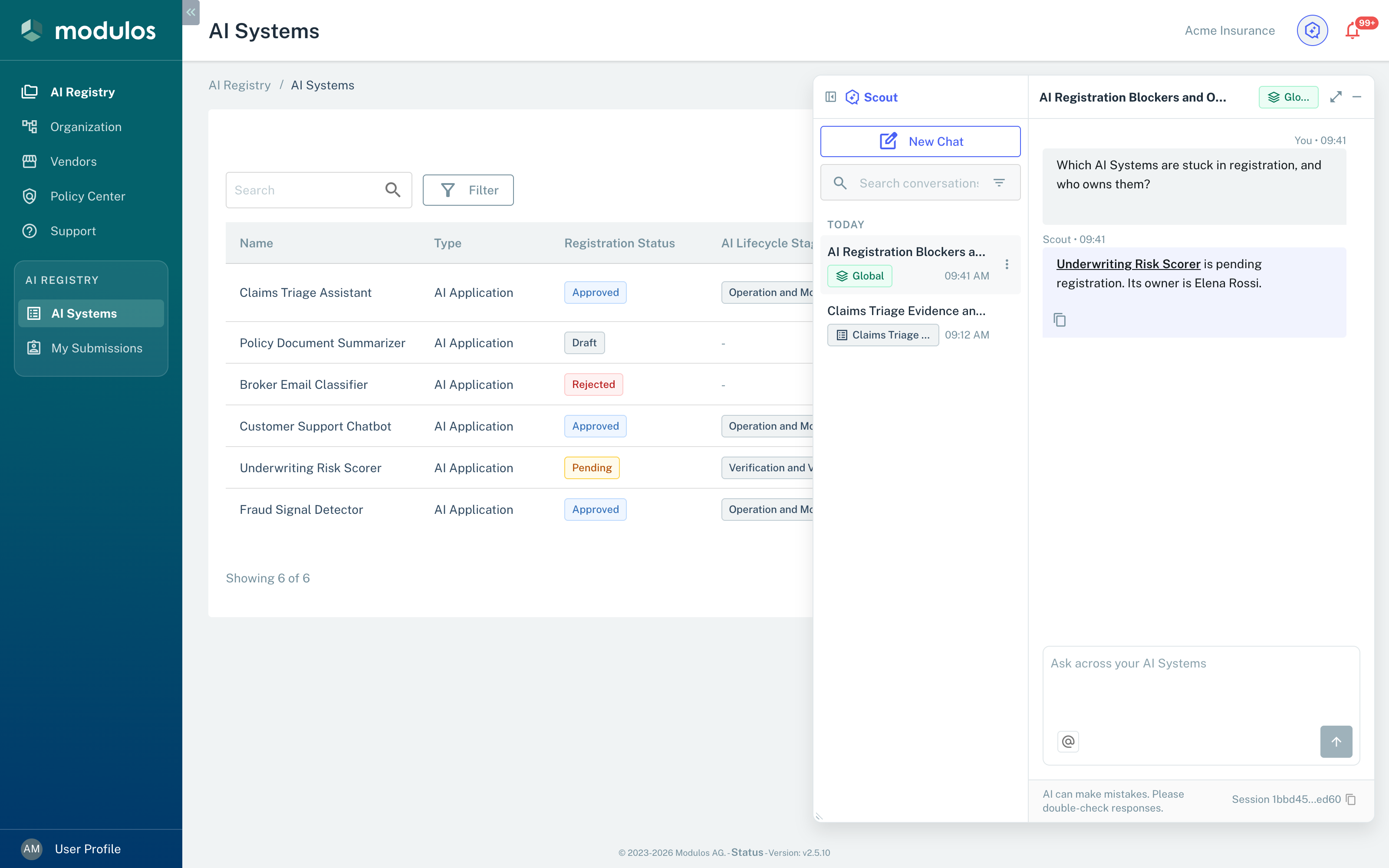
A Global chat reads all the AI Systems that you can read.
- Global The chat reads all the AI Systems that you can read.
- AI System Scout names the AI Systems that answer the question.
- Ask across your AI Systems A Global chat has no Connectors or Sources.
Questions across your AI Systems
In a Global chat, Scout answers questions about all the AI Systems that you can read. It does not count or name an AI System that you cannot read. Scout gives these answers:
| Question | What Scout gives | Chat scope |
|---|---|---|
| Where do we stand? | The number of AI Systems, in total and for each registration status, Current State, EU AI Act risk class, and framework. Also the number of AI Systems with Systemic Risk and the average Progress | Global |
| What still needs work? | The Requirements with no progress, the Controls that are not executed, and the Controls with no Evidence | Global, or an AI System |
| What waits for me? | The Requirements that have you as Requirement Owner and are ready for review | Global, or an AI System |
| Which of my registrations are stuck? | The Drafts that you created and that have no change for more than 14 days | Global |
A chat about a Draft does not give these answers.
Totals. The totals include Drafts. An AI System with more than one risk class or framework counts one time for each, so the numbers can add up to more than the total. You can make the question narrower, for example to one framework, to one owner, or to the AI Systems with no change for a number of days.
Open work. Scout uses these rules:
- A Requirement has no progress when it is Not Fulfilled and none of its Controls is Executed.
- A Control is not executed when its status is Not Executed.
- A Control has no Evidence when it is Executed or Not Executed and no Evidence is attached to it.
- Scout does not count items that are out of scope or archived.
Scout gives the number of items of each type, and it names the items with no change for the longest time. In a Global chat, it lists up to 25 AI Systems, those with the most open work first, and it names up to 10 items of each type. In a chat about an AI System, it names up to 5 items of each type. Scout tells you how many items it did not name. In a Global chat, Scout gives the numbers for a Draft but does not name its items.
Work that waits for you. A Requirement waits for you when you are its Requirement Owner, it is ready for review, and it is Not Fulfilled (Reviews & Statuses). Scout names up to 50 Requirements and up to 50 Drafts. It does not include the Requirements of Drafts. Scout cannot tell you which AI Systems wait for your registration decision. To see the AI Systems that are in review, ask Scout in a Global chat for the AI Systems with the registration status Pending.
Code and document investigation
When a question needs source material from external systems, Scout gives it to a read-only research agent. The agent works with the Connectors and Sources that you selected for the question (Scout Connectors, Sources).
Scout selects the depth of the investigation from the question:
- For a narrow question, the agent does a short check: it lists repositories, finds if a file exists, or reads one file.
- For a larger question, the agent does a deep analysis: architectural reviews, behavior across many files, and one report with all the findings.
The agent reads only what your Connectors and Sources can read. It cannot write to or change anything in the connected systems. Its findings come back into the chat as a report. You can send more questions about the report, or save it as Evidence.
Where in Modulos
Scout opens from the Open Scout button in the page header, next to the notification bell. The button shows on all pages when Scout is available for your organization. On screens 600 px wide or wider, many dialogs also have this button, and Scout then opens next to the dialog.
Scout is a floating panel. You can move the panel by its header, and you can resize it from its left edge, its bottom edge, or its bottom-left corner. After you move or resize the panel, Reset layout puts it back. Expand makes the panel wider, and Collapse makes it narrow again. On screens narrower than 600 px, Scout opens as a full-screen sheet.
Minimize (your chat stays) closes the panel and keeps the chat. While the panel is closed, a dot on the Scout button shows that Scout is answering or that a new answer is available.
Each browser tab keeps its own panel layout, and it keeps Scout open or closed independently of other tabs. Scout opens by itself on your first visit. A new tab opens or closes Scout as you used it last, and it uses the default layout.
The bottom of the panel shows the session ID of the chat. Select it to copy the full ID, and give it to Support when you report a problem.
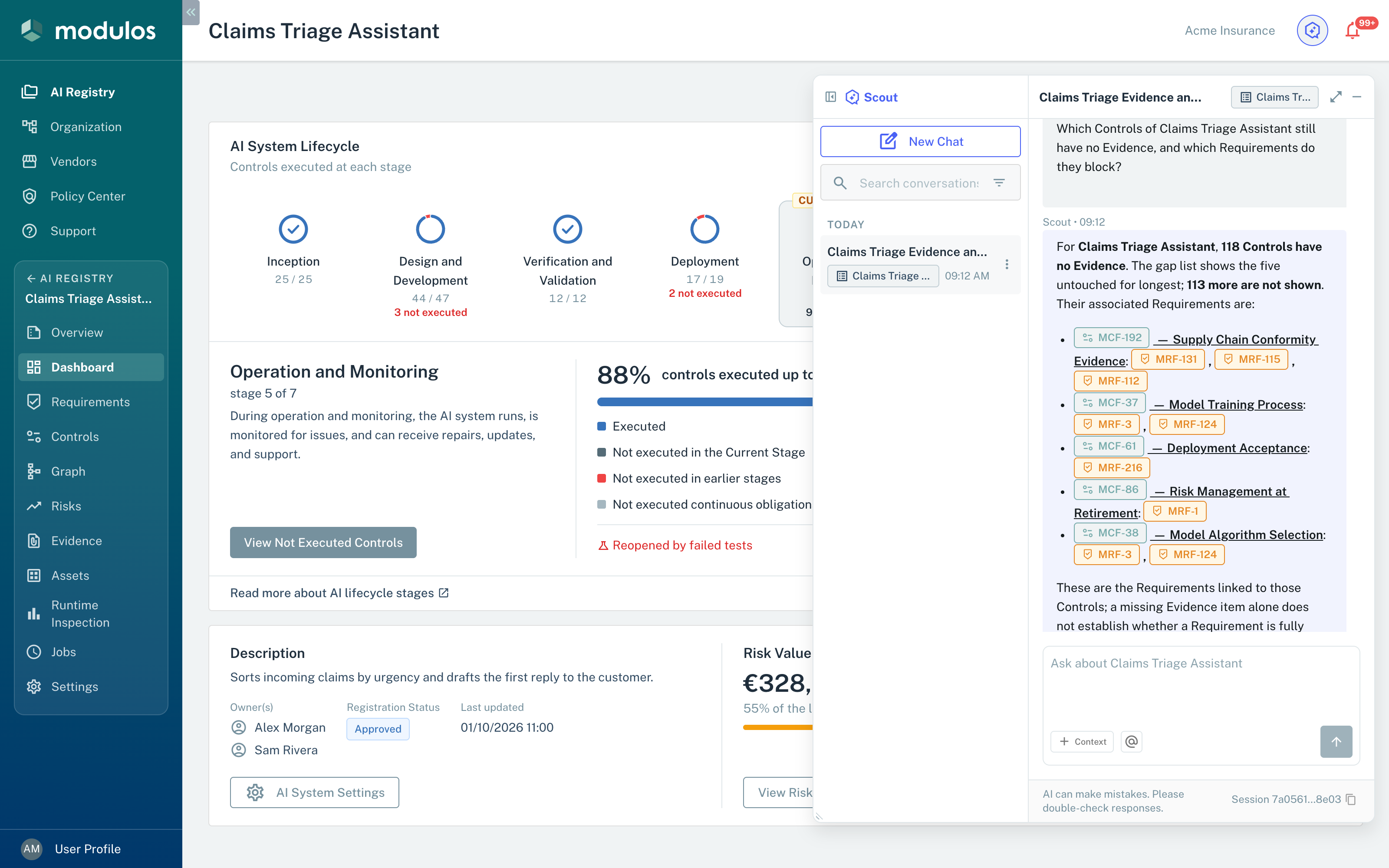
Scout in a chat about one AI System. The answer uses item links for the Controls and Requirements that it names.
- Scope badge The scope of the chat: here, one AI System.
- Item links Select an item link to open the item.
- Session Select it to copy the session ID for Support.
Conversations
Scout saves each chat as a conversation. Only you can see your conversations. Scout gives each conversation a title. To change the title, select it in the chat header and type a new title.
To start a chat:
- In the Scout header, select New Chat.
- Select the scope: This page, Global, an AI System, or a Draft.
- Select Start chat.
The menu shows only the AI Systems that you can read. The AI Systems with your most recent chats come first. To find an AI System, type its name in Search scope. On a page that is not about an AI System, This page is Global.
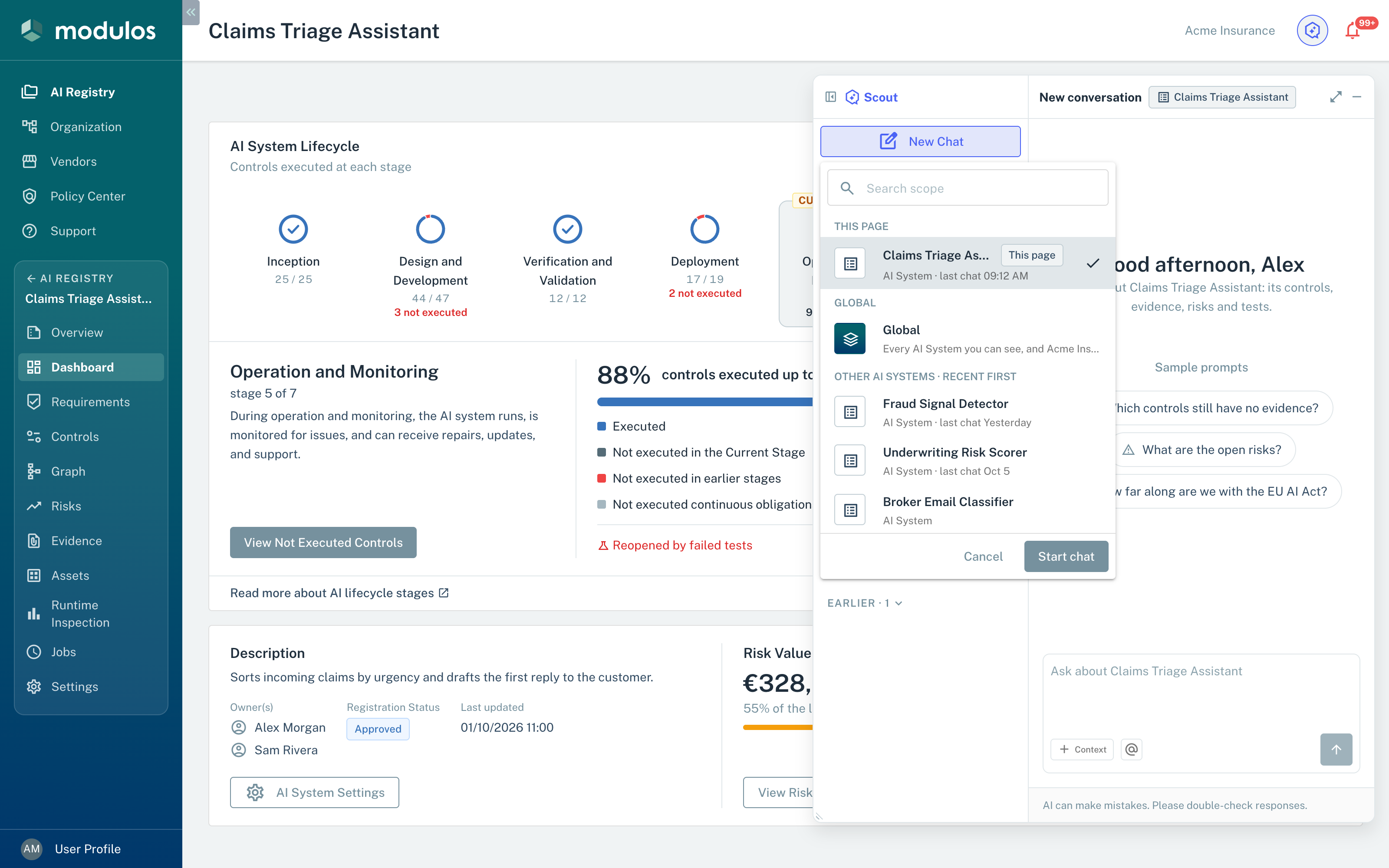
Select the scope of a new chat in the New Chat menu.
- This page A chat about the AI System of the open page.
- Global A chat about all the AI Systems that you can read.
- Start chat Starts the chat with the selected scope.
To open the conversation history, select Show conversations. The history shows your conversations, newest first, each with its scope. In the history, you can do these tasks:
- Find conversations by title with Search conversations.
- Show the conversations of one scope with Filter by scope.
- Rename or delete a conversation from its menu.
When you open a page about a different AI System, the open chat keeps its scope. Scout then shows a notice with New chat about it, which starts a chat about the AI System of that page.
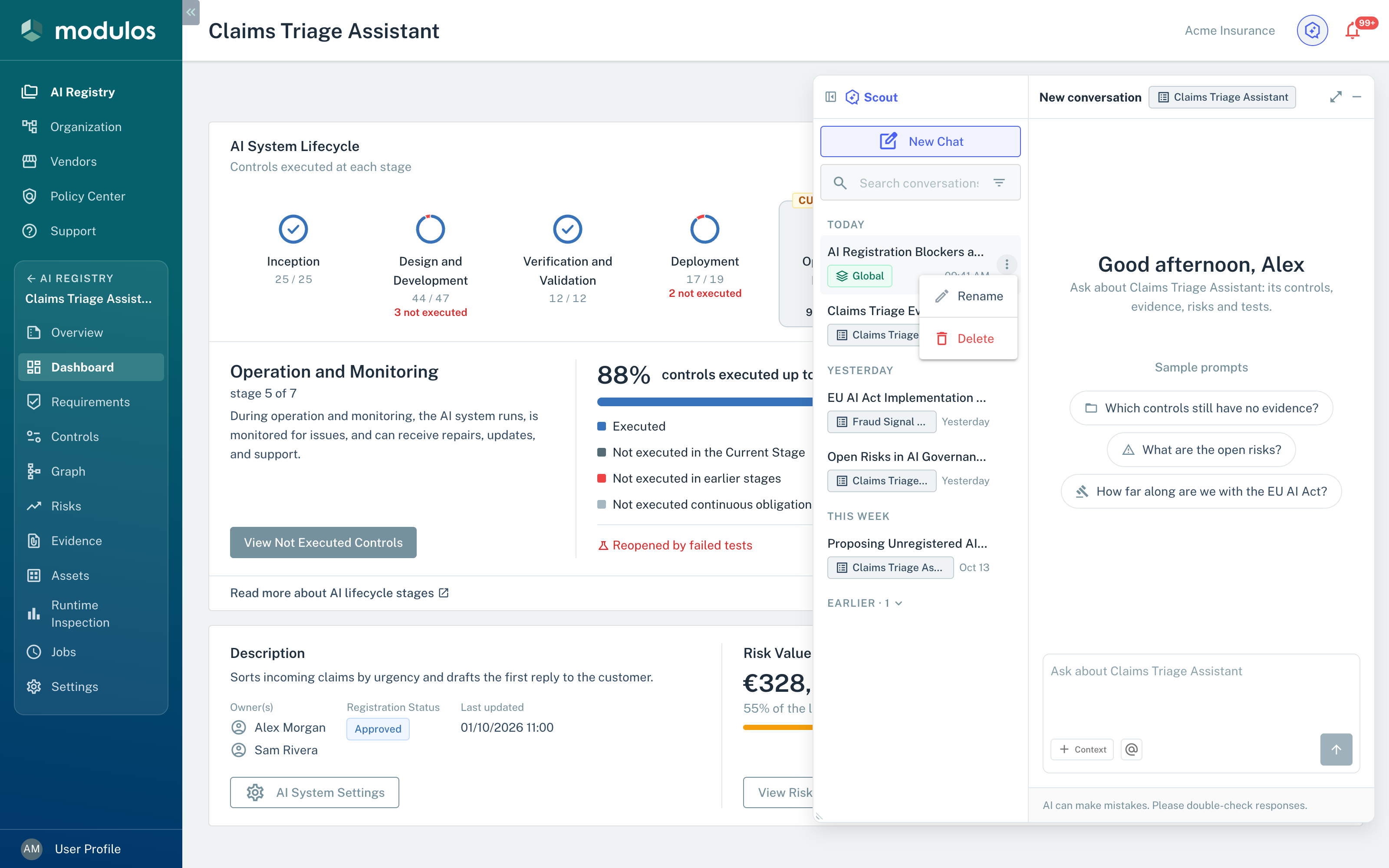
The conversation history shows all your Scout conversations with their scopes.
- Search and filter Finds conversations by title. The filter button shows the conversations of one scope.
- Rename, Delete Changes the title of a conversation or deletes it.
Who can do what
Permissions
Scout answers in the limits of your Modulos permissions and of the Connectors and Sources that you select.
- AI System Owners and Editors typically use Scout to find gaps, write documentation, and prepare Requirement reviews.
- Viewers, for example invited external auditors, typically use Scout to see how Evidence supports a Control. Scout does not read the comments and logs of items.
- To accept an Evidence proposal, you must have the right to upload Evidence in the AI System, for example as an AI System Owner or Editor.
- To accept a test proposal, you must have the right to create tests in the AI System, for example as an AI System Owner or Editor.
- Each member of the organization can accept an AI System proposal from Scout and create the proposed AI Systems as Drafts.
Hint
If you do not see Scout, external integrations, or mentions, speak to your organization admin.
How it works
Scout does these steps:
- It uses the scope of the chat. For an AI System, this is its frameworks, Requirements, Controls, Evidence, risks, and tests. Scout reads the content of an Evidence item only after Modulos has processed its file. For an item that is not processed, Scout tells you so.
- It uses the items that you mention with
@. Your reviewers can then see which items the answer is about. - It reads external data through the Connectors and Sources that you select, if you select them.
- It shows its THINKING steps while it works, and then it gives an answer that you can examine and use.
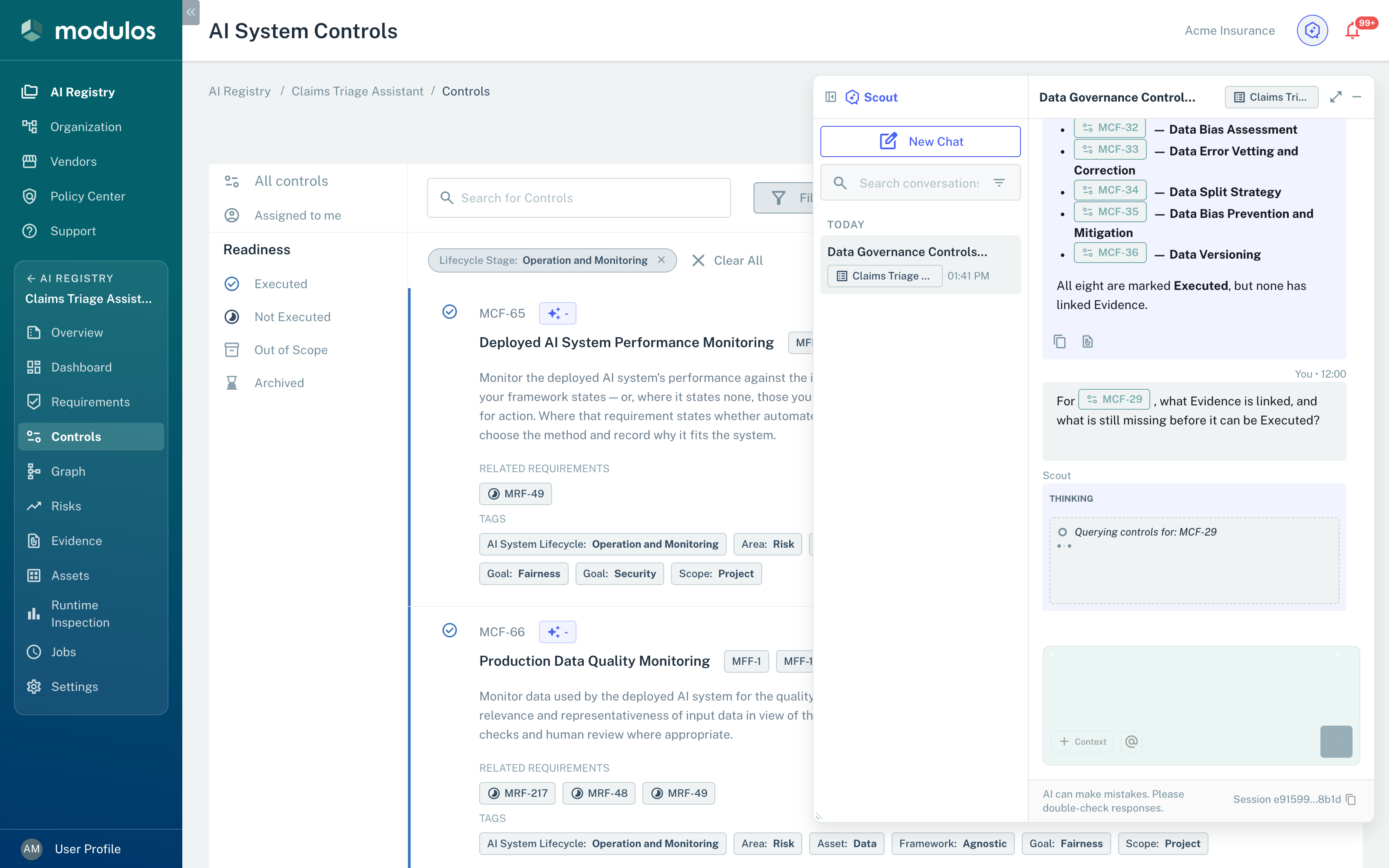
Scout shows what it looks up while it works, and it names items as item links.
- Thinking steps What Scout looks up while it works.
- Mention The Control that the question is about.
Creating Evidence from Scout answers
In a chat about an AI System that is not a Draft, you can save an answer as Evidence of that AI System. Chats about a Draft and Global chats do not have this function. To create the Evidence, you must have the right to upload Evidence in that AI System, for example as an AI System Owner or Editor. Viewers cannot complete these steps.
- Below the answer, select Save answer as Temporary Evidence.
- On the Evidence Creation tab that opens, select the Controls for the new item.
- Create the Evidence as you do for an upload. See Evidence Agent.
The Evidence is a PDF file with the conversation title, your question, the answer with its diagrams, and the session ID. Scout names the Evidence with the title of the conversation (or "Scout Answer" if the conversation has no title).
Mentions keep answers grounded
When you type @ or select the @ button, Scout shows the types of items that you can mention. Select a type, and then select the item. A mention connects the question to one item. Scout then answers about that item, and your reviewers can check the result.
You can mention these types:
- In a chat about an AI System: Controls, Evidence, frameworks, Requirements, risks, risk threats, risk categories, Metric Tests, users, and policies. Agent Tests show when your organization uses them and you can read them.
- In a Global chat: risks, risk threats, risk categories, users, and policies.
- Chats about a Draft have no mentions.
To get information about a team member, mention the user. Scout then answers about the role and responsibilities of that user in the AI System.
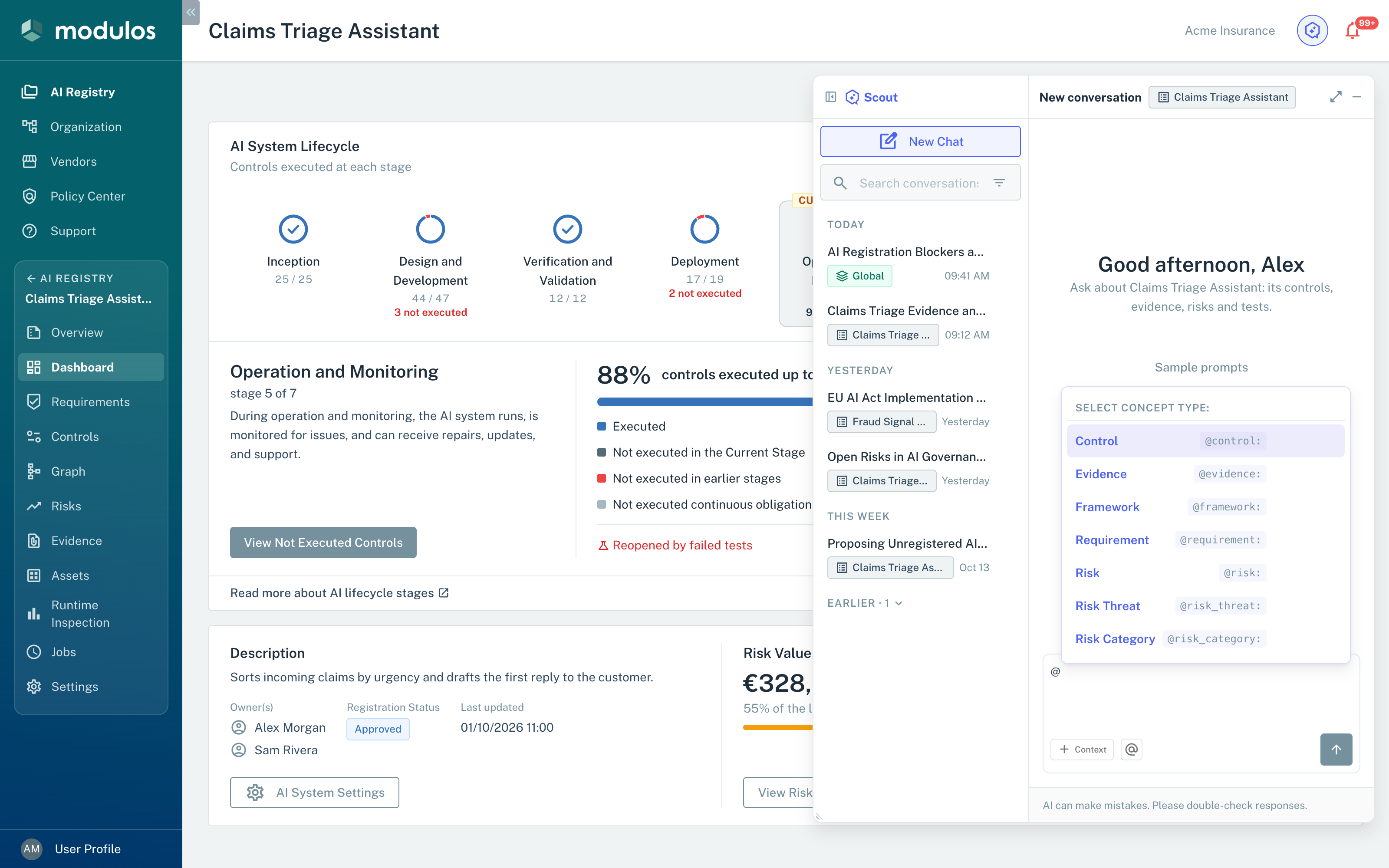
Mention an item to connect the question to it. You can also mention users.
- Mention Type @, select a type, and then select the item.
Item links
Scout and the other parts of Modulos show references to items as item links:
- Navigation: select an item link to open the item (Control, Requirement, Evidence, or risk).
- Preview: hover an item link to see the name and other details of the item.
- Identifiers: an item link shows the code of the item. Each reader then knows which item the text is about.
Scout shows item links when it names items in an answer, and when you mention items or type their codes (for example MCF-24, MRF-232, E-261).
Diagrams
In a chat about an AI System and in a Global chat, Scout can make a diagram in its answer. Each diagram has these functions:
- Show source shows the code of the diagram, and Copy source copies it.
- Expand opens the diagram in a dialog. In the dialog, Download PNG saves the diagram as an image.
When you save the answer as Evidence, the PDF file contains the diagram.
An answer can contain a table from a tool, for example all the agents in a Source. The answer then shows Download the full list (n), which saves all n rows as a CSV file.
Sources vs Connectors
- Sources are service accounts attached to an AI System. All users of that AI System share them, for stable access.
- Connectors are accounts of one user. They are personal and have the permissions of the connected account.
Scout can use the shared view of a Source and the personal access of a Connector in the same chat.
In a chat about an AI System or a Draft, select Context below the input to select Connectors and Sources. The selection shows as badges in the input box, above the text, and Scout uses it for each question that you send. Each sent question shows the icons of the Sources, repositories, files, and Connectors that you sent with it. Details opens a list with the name and the kind of each: Source, Repository, File, or Connector.
A badge in a warning color shows a Connector or Source that Scout does not use. Hover the badge to see the cause, for example Connector expired or Disabled in your organization. A Source that can read messages and files shows Reads messages and files (Claude Enterprise).
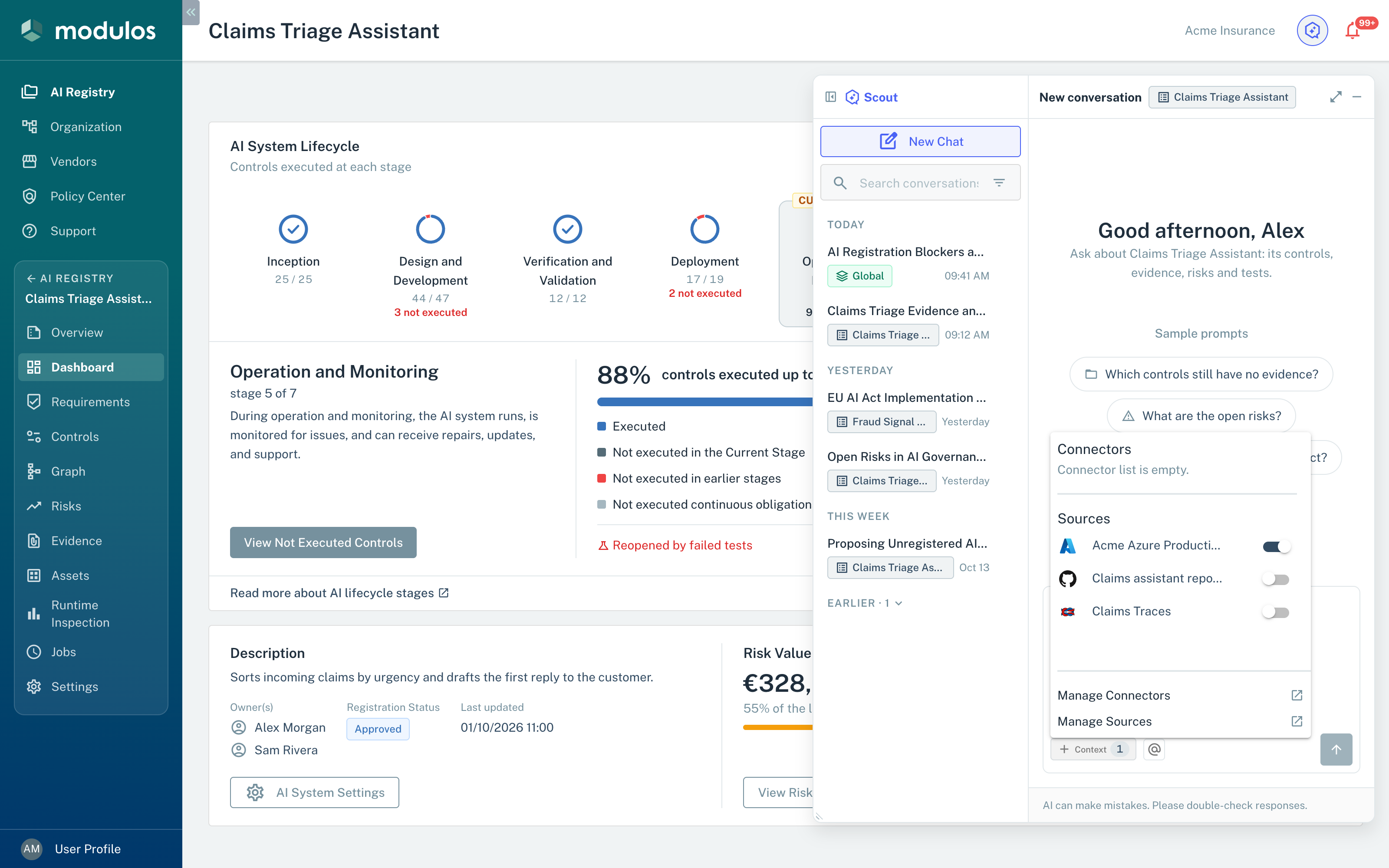
Select one or more Connectors and Sources when your question needs external data such as code, documents, or tickets.
- Context Select the Connectors and Sources for your questions.
- Connectors Your personal accounts, with your permissions.
- Sources The service accounts of the AI System, shared by its users.
Propose Evidence
In a chat about an AI System, Scout can propose files from your Connectors and Sources as Evidence of that AI System. For example, tell Scout to find the files in a repository that show how the AI System does a Control. Scout can also propose a file that it used for an answer. Scout finds the files through the Connectors and Sources that you select with Context. It proposes files from Google Drive, GitHub, and Bitbucket. Scout adds nothing until you answer.
Scout makes Evidence proposals only for users who have the right to upload Evidence in the AI System, for example AI System Owners and Editors. Global chats do not have Evidence proposals.
The proposal card shows each file with its name and its location. Show details shows the description that Scout wrote and the Controls that Scout suggests for the file. You can rename a file before you answer.
To answer an Evidence proposal, do one of these steps:
- To add the files, select Yes, add. On a card with more than one file, first clear the files that you do not want. The button then shows the number of files to add, for example Yes, add 2.
- To add nothing, select No.
- To get a different set of files, type your change in Tell Scout what to change… and send it.
When you accept, Modulos gets each file through your Connector. For a file in GitHub, Modulos first uses a GitHub Source of the AI System that has the repository. If GitHub refuses the access of that Source, Modulos uses your GitHub Connector. The files then wait on the Evidence Creation tab of the AI System, with the description from the card. The tab shows only the suggested Controls that are Not Executed. The card links to the tab with View in Evidence Creation.
Scout does not create the Evidence. On the Evidence Creation tab, examine the suggested Controls, and then create the Evidence as you do for an upload (Evidence). The Evidence Agent does not start automatically for a file that has suggested Controls from Scout (Evidence Agent).
The card tells you about each file that Modulos did not add:
- not found: you have no active Connector or Source that can get the file, or the file is not at its location. For example, Modulos shows your Connector as Expired.
- access to its connector or source expired: the external system refused the access of your Connector or of the Source.
- file type not supported or file too large: the formats and the size limit of an upload apply (Upload files).
- could not be fetched: the Connector or the Source had an error. Try again later.
If Modulos adds no file because the external system refused the access, it shows this message: "The files could not be fetched: access to their connector or source has expired or was revoked. Reconnect it, then try again." The card stays open. Connect the Connector or the Source again, and then select Yes, add again.
The card also tells you when a file is a duplicate of Evidence of the AI System, or of a file that is on the Evidence Creation tab. Modulos adds a duplicate to the tab.
One proposal holds up to 50 files.
Propose tests
In a chat about an AI System, Scout can propose Metric Tests and Agent Tests for that AI System. For example, tell Scout to propose a test for a Control. Scout creates nothing until you answer. Chats about a Draft and Global chats do not have test proposals. For what each type of test does, see Tests & Schedules and Agent Tests.
Scout makes test proposals only for users who have the right to create tests in the AI System, for example AI System Owners and Editors. Scout proposes Agent Tests only when Modulos activated Agent Tests for your organization (Agent Tests).
Scout fills in these fields:
- Metric Test: a name, a description if necessary, one Source, one metric of that Source, and a condition (an operator and a threshold). Before Scout shows the card, it makes sure that the Source and the metric are in the AI System.
- Agent Test: a name, a Test Objective, Pass Criteria, and up to 10 Sources.
For each test, Scout can also suggest the Controls that the test verifies.
The proposal card shows the question "Create this Metric Test?" or "Create this Agent Test?". For more than one test, the question gives the number of selected tests. Each row shows the name of a test and the names of its Sources. Show details shows the condition and the description of a Metric Test. For an Agent Test, it shows the Test Objective and the Pass Criteria. It also shows the suggested Controls.
Before you answer, you can rename a test. To change a different field, tell Scout what to change.
To answer a test proposal, do one of these steps:
- To create the tests, select Yes, create. On a card with more than one test, first clear the tests that you do not want. The button then shows the number of tests to create, for example Yes, create 2.
- To create nothing, select No.
- To get different tests, type your change in Tell Scout what to change… and send it.
When you accept, Modulos creates all the selected tests, or none of them. You are the assignee of each new Metric Test and the Owner of each new Agent Test. For an Agent Test, you must be a member of the AI System. The tests are enabled and have no schedule. They do not run until a user runs them or gives them a schedule (Jobs).
Modulos links each test to the suggested Controls that are Not Executed. It does not link a suggested Control with a different status, and the card does not tell you about it.
After Yes, the card tells you which tests Modulos created, for example "Created 2 Metric Tests." It links to each new test and to View in Runtime Inspection. After No, the card tells you that you did not create the tests.
If Modulos cannot create the tests, it shows the cause, and the card stays open. For example:
- A Source or a metric of the tests is no longer in the AI System. Tell Scout to propose the tests again.
- Modulos could not get the metric from a Source at that time. Try again.
- You do not have the rights that the proposal needs. For example, you are not a member of the AI System, and the proposal has an Agent Test.
One proposal holds up to 50 tests. Scout suggests up to 10 Controls for each test.
Propose AI Systems
In a chat about an AI System or a Draft, Scout can propose new AI Systems for your AI Registry. For example, tell Scout to find the AI systems in your Sources that are not registered. Before it proposes an AI System, Scout compares it with the AI Systems that you can read. Scout creates nothing until you answer.
The proposal card shows each proposed AI System with its name. Show details shows the description and the intended purpose that Scout wrote. Modulos copies them into the registration. You can rename a proposed AI System before you answer.
To answer a proposal, do one of these steps:
- To create the AI Systems, select Yes, create. On a card with more than one AI System, first clear the ones that you do not want. The button then shows the number of AI Systems to create, for example Yes, create 2.
- To create nothing, select No.
- To get a different proposal, type your change in Tell Scout what to change… and send it.
Scout creates each accepted AI System as a Draft in My Submissions, with you as Owner. The card then links to each Draft and to View in My Submissions. Finish each registration from its Draft (Register an AI System).
One proposal holds up to 50 AI Systems. For more, Scout asks you to make the request narrower. Global chats do not have AI System proposals.
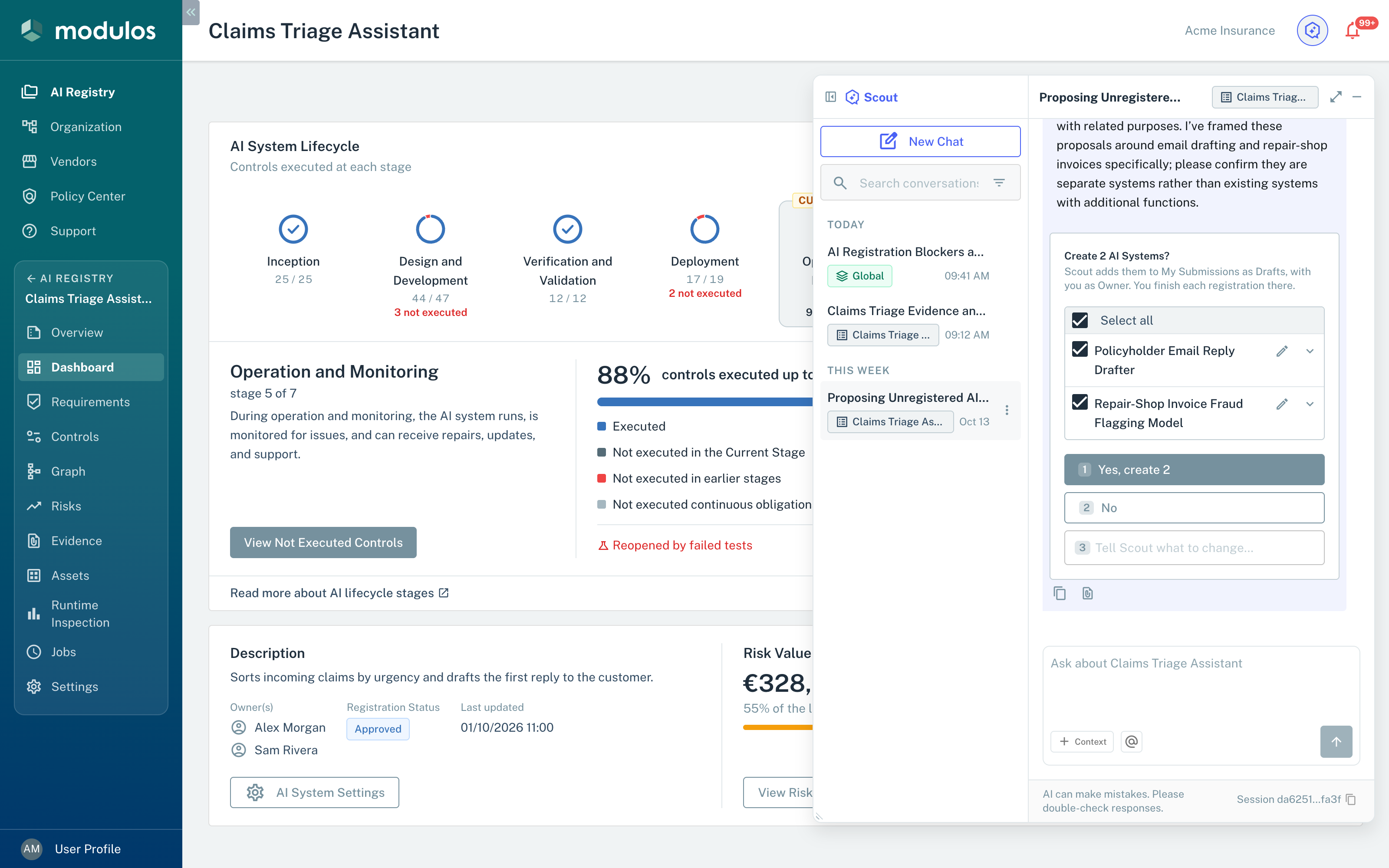
Scout proposes AI Systems and creates them as Drafts only when you accept.
- Create 2 AI Systems? Scout proposes AI Systems as Drafts. Uncheck the ones that you do not want.
- Yes, create 2 Creates the checked AI Systems as Drafts in My Submissions.
- Tell Scout what to change… Asks Scout for a different proposal.
Scout depends on your descriptions
Scout uses your organization description in each chat, and the AI System description in each chat about that AI System. If these descriptions are empty or general, Scout gives more general answers.
Before you rely on Scout, make sure that these items are correct:
- Your organization description tells what your business does, where you operate, and the important facts (Organization Settings).
- Your AI System description tells the purpose, technology, users, and deployment context of the system (First Steps).
- The AI System has a Geographic Scope if the jurisdictions of the system are important for your questions. Scout gets it as AI System context (Register an AI System).
How to use Scout effectively
- Start the chat with the correct scope. Use an AI System for its Controls and Evidence, and Global for questions across AI Systems.
- Mention the item that you want to know about, for example a Control or a Requirement.
- Tell Scout what you want: gaps, the quality of the Evidence, or a draft text.
- If the answer needs external data, select a Connector or Source with Context.
- Use the answer as a draft. Compare the claims with the Evidence and the linked items.
Hints for better answers
- Use
@mentions when you want to know about one item (Control, Requirement, Evidence, or risk). - Tell Scout the output format that you want, for example “5 bullets”, “a table”, or “a short draft for a Control report”.
- For audit work, tell Scout to give the identifiers of the items (MRF, MCF, or E codes) in the answer.
- A new chat shows sample prompts for its scope. Select one to put it in the input.
Example prompts
- “For
@control MCF-24, what Evidence is linked, and what’s still missing before we should mark it executed?” - “For
@requirement MRF-232, which mapped Controls are still not executed?” - “Summarize the strongest Evidence for
@control MCF-25in 5 bullets suitable for a Control report.” - “We selected the GitHub Connector. Where in the repo do we document data retention, and what would count as Evidence for it?”
- “Find the files in our GitHub repository that can be Evidence for
@control MCF-24, and propose them.” - In a Global chat: “Which AI Systems are stuck in registration?”
- In a Global chat: “How many of our AI Systems are high-risk, and what is their average progress?”
- In a Global chat: “Which Requirements wait for my review?”
Important considerations
- Scout is advisory and does not give approvals or change statuses. Scout creates AI Systems and tests, and adds files to Evidence Creation, only when you accept a proposal.
- Access boundaries apply: Scout can use only what you can read in Modulos, and what the selected Connectors and Sources can read.
- Scout can use more than one Source and Connector at the same time to use data from different systems in one chat.
- For Google Drive, Scout can read only the files that you select in the Google Drive picker.
- When your organization reaches its AI usage limit for the month, Scout shows Your organization has used up its AI quota.
- Scout can make mistakes. Use it to work faster, and then compare its answers with the Evidence and the audit trail.
Validate before you act
Use Scout to write drafts and to work faster, but use the audit trail for decisions:
- Compare the important claims with the linked Evidence and the linked items.
- Missing Evidence is work to do. It is not an approval.
- If Scout is not sure, tell Scout to give the information that can change the answer.
Do not paste secrets
Do not paste credentials, tokens, or sensitive personal data into the chat. Attach the documents as Evidence, or use Connectors and Sources. Then the access stays auditable.