

Appearance
Evidence
Evidence is the proof layer of Modulos. It can be a policy, screenshot, export, log sample, contract, or test output that supports a Control claim.
What this is
Evidence turns “we did it” into “we can prove it”.
In Modulos, Evidence is designed for two things:
- precision: Evidence should support a specific claim, not a vague Control as a whole
- reuse: one Evidence item can support multiple Controls without losing context
For the full flow, see Governance Operating Model.
Where in Modulos
Project → Evidenceto manage the Evidence library, upload files, and find what is missingControl detail → componentsto attach Evidence directly to the claim it supports
Who can do what
Permissions
- Most project members can view Evidence linked to Controls they can access.
- Editors typically upload Evidence and attach it to Control components.
- Project Owners can manage Evidence at the project level and resolve permission blockers.
- Evidence is treated as an audit artifact and becomes locked once it supports executed Controls.
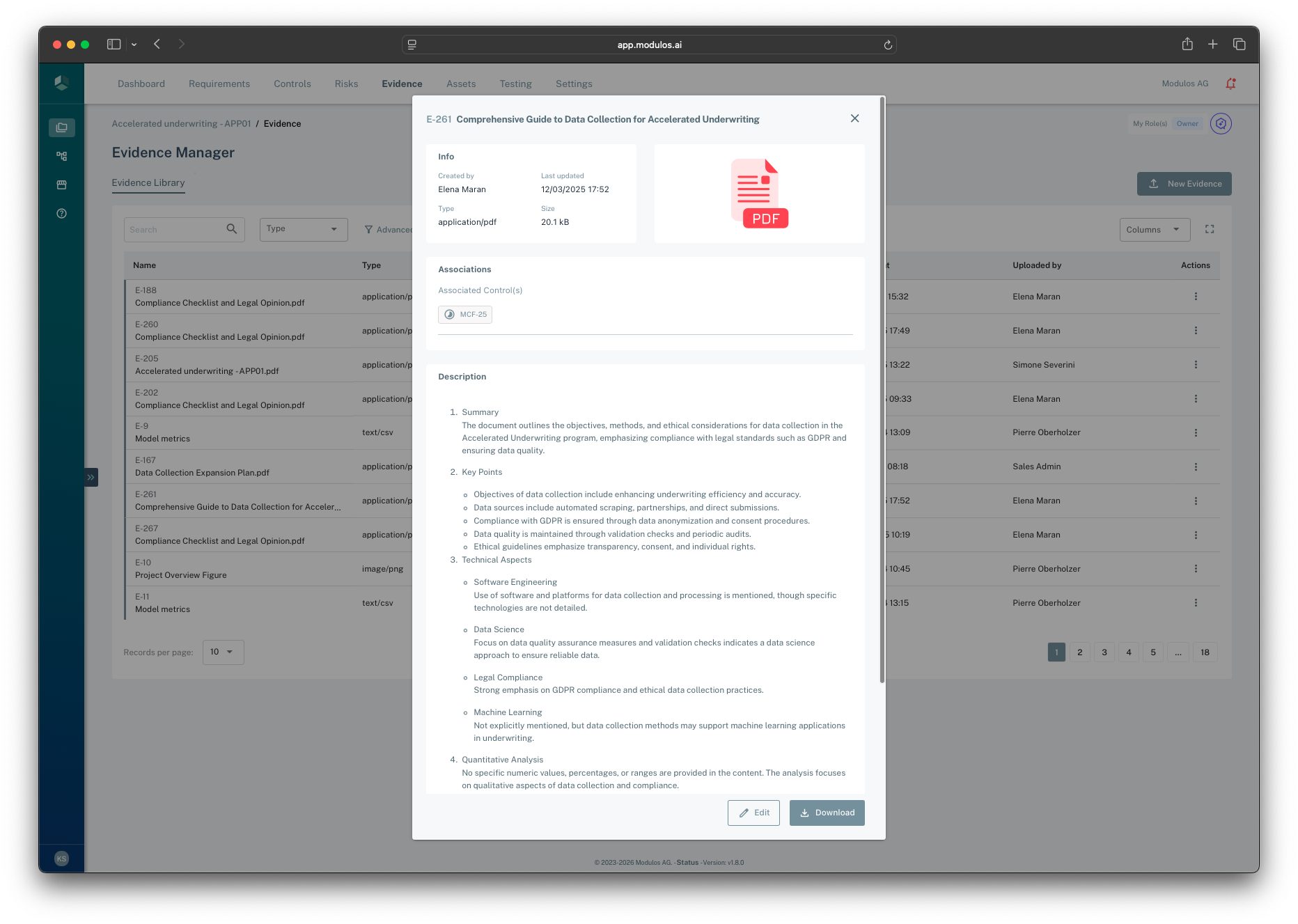
- 1Filters and searchFind Evidence by name and type to reuse artifacts intentionally.
- 2New EvidenceUpload a new Evidence item into the project library.
- 3Evidence detailOpen an item to review metadata, associations, and the description.
- 4AssociationsSee which Controls (and claims) this artifact supports.
- 5DownloadExports typically bundle key Controls plus their referenced Evidence files.
How it works
Evidence is a file-like object with metadata
Evidence is stored as a file-like object with metadata (name, description, URI, file type, size, and optional checksums). Evidence items live in a project-level library so they can be reused across Controls.
Evidence attaches to components, not Controls
Evidence links to Control components (sub-claims), not directly to a Control. This makes audits easier:
- reviewers can see which Evidence supports which claim
- Evidence reuse stays meaningful because the context is explicit
The diagram below shows Evidence linking to components (claims), including reuse across multiple Controls.
Evidence linking
One evidence file, attached to component-level claims, reused across two controls.
model_validation.pdf
CTRL-001 group
Component A
Component B
Component C
CTRL-002 group
Component D
Component E
CTRL-001Model validation
CTRL-002Data quality
1 evidence · 3 linked components · 2 controlsAttach evidence to the smallest meaningful claim — the same file then satisfies parts of every control whose components it covers.
Locking preserves audit integrity
Evidence is editable while it supports work that is still in progress. Once Evidence supports executed Controls, it becomes locked.
This prevents silent “after-the-fact” changes to audit artifacts.
The diagram below shows how Evidence typically transitions from editable to locked when it supports executed Controls.
Evidence locking
Evidence editability tracks the control's review state.
Step 1
Not executed
EditableEvidence can be added and modified.
Step 2
Executed
LockedReview approved, evidence is immutable.
Step 3
Reopened
EditableChanges tracked for traceability.
Locking is about audit integrity, not policing — the dashed arc shows that reopening is allowed and recorded, not blocked.
How to use it
1
Start from a Control claim
Identify the component (claim) that needs proof
2
Upload Evidence
Add the file to the project Evidence library with a clear name and description
3
Attach to the component
Link the Evidence to the specific component it supports
4
Reuse deliberately
Reuse Evidence across Controls only when the claim is truly the same
5
Preserve integrity
Expect Evidence to lock once it supports executed Controls
Important considerations
- Evidence should be specific. “Policy.pdf” is not helpful; “Access control policy v3.2 (approved 2026-01-15)” is.
- Prefer primary artifacts (logs, configs, contracts, test outputs) over screenshots of primary artifacts.
- If you rely on screenshots, annotate them and keep them tied to a specific claim and date.