

Appearance
AI System Risks
An AI System risk is a risk from the organization taxonomy that applies to one AI System. The risks of an AI System and their threats show the risk exposure of that AI System.
Where in Modulos
AI System risks are on the page AI System → Risks. On this page, teams:
- add risks from the organization taxonomy to the AI System
- select the threat vectors that apply in this deployment context
- quantify the risk threats and compare their values with the limits
For the roles, the totals, and the risk limits, see Risk Operating Model.
Permissions
- AI System Owners add and delete risks, quantify threats, and create Jobs that quantify risks.
- AI System Editors add and change risks, and add or remove their threat vectors.
- AI System Viewers see the risks and their results.
The Risks page has three cards and two tabs:
- AI System Risk Value: the total value of the risks against the limit of the AI System, as money and as a percentage. A Rejected AI System shows No risk limit and the cause.
- Risk Status: the number of risks in each status: Quantified, In Progress, and Unquantified.
- Top 3 Highest Risks: the three risks with the highest value. Select a risk to open it.
- The Risks tab: the table of risks, with the columns Specific Risk, Risk Limit, Current Risk, Limit Utilization, Status, and Threat Vectors. Use the Status and Category filters to show fewer risks.
- The Risk Value Over Time tab: the total value of the risks across time, and a line for the limit of the AI System. The Stacked and Breakdown views show each risk.
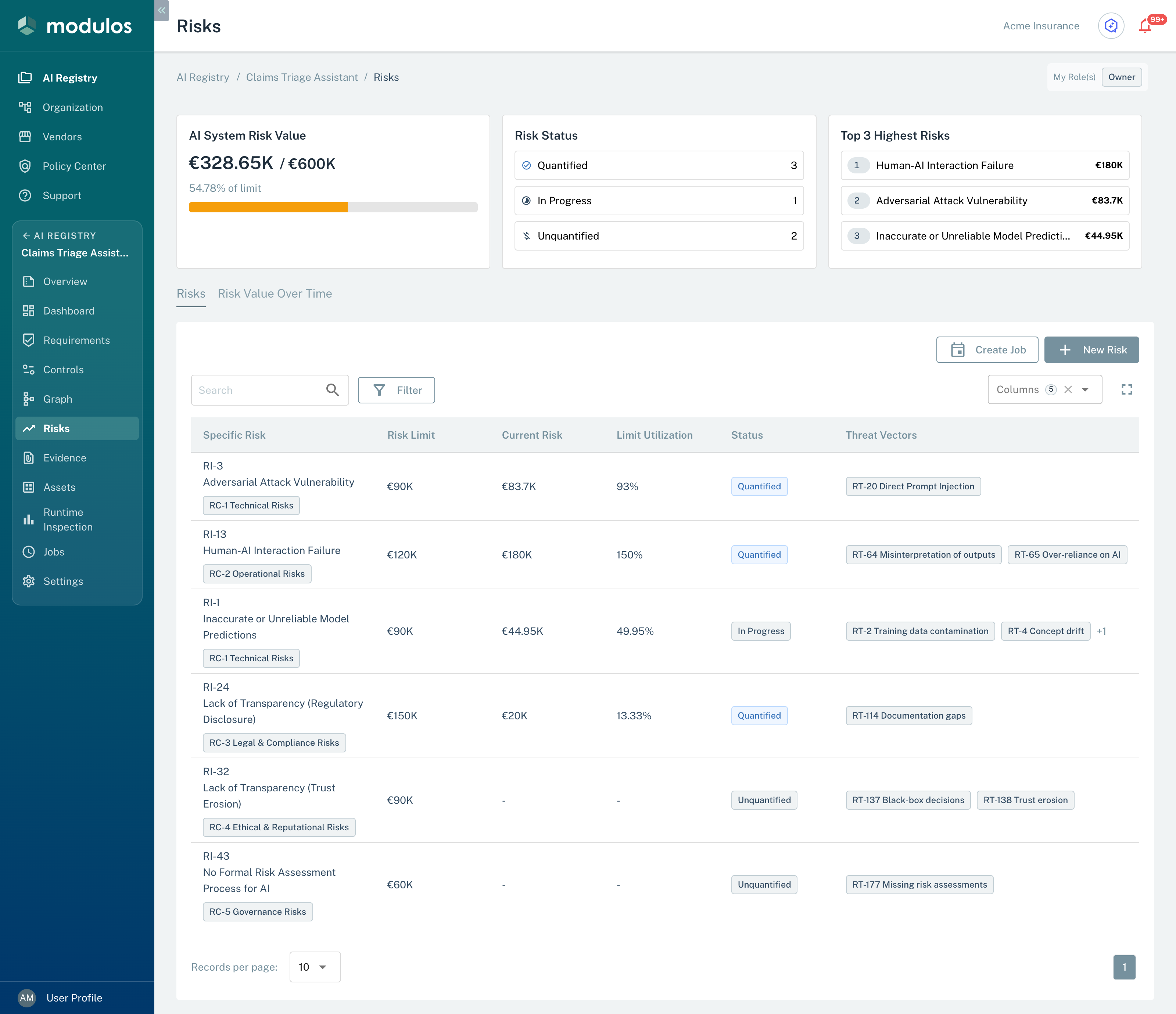
The Risks page of an AI System shows the total value against the limit, the status of each risk, and the table of risks.
- AI System Risk Value The total value of the risks against the limit of the AI System.
- Risk Status The number of risks in each status.
- Risks The table of risks with their limit, value, status, and threat vectors.
How it works
The risks of an AI System come from the taxonomy:
- You add an organization risk to the AI System.
- You select the threat vectors that apply in this deployment context.
- Modulos makes one risk threat in the AI System for each selected threat vector.
- You quantify each risk threat to get a monetary value.
The value of an AI System risk is the sum of the values of its quantified risk threats. Its status comes from the status of its risk threats.
Risk threats
A risk threat is one taxonomy threat vector in one AI System:
- It copies the name and the description of the threat vector into the AI System.
- You quantify it independently of the other risk threats.
- Its value goes into the value of its risk.
Consistency
An AI System has each taxonomy risk only one time. This keeps the reports correct and prevents double counts. When you add a risk that the AI System has, Modulos adds only the threat vectors that are missing.
Selecting threat vectors
A risk needs one or more threat vectors. The Add Risks dialog shows each taxonomy risk with its threat vectors.
If a necessary threat vector is not there, add it to the taxonomy risk first. See Organization Taxonomy.
How to use it
- Add risks to the AI System Select the taxonomy risks that apply to the system.
- Select threat vectors Select the paths that can cause a loss in this deployment context.
- Quantify the most important threats Get a monetary value for each threat.
- Decrease the risk and quantify again Do mitigations, then quantify again when the system changes.
Add a risk
You can add one risk or many risks at one time.
- Open
AI System → Risks. - Select New Risk. The Add Risks dialog shows the risk taxonomy as a tree of categories, risks, and threat vectors.
- Open a category, then open a risk. To find an item, type its name or code in Search.
- Select the threat vectors that apply. To select all threat vectors of a risk or of a category, select the risk or the category.
- Select Add Risks.
Modulos adds the selected risks and threat vectors in one step, and a message shows how many it added. If you add one risk, the page of that risk opens.
Above the tree, the dialog shows the number of selected risks and threat vectors. Select all selects each threat vector that the AI System does not have.
The tree shows a mark on some items:
- Already added: the AI System has the risk with all its threat vectors. A category has this mark when all its risks have it.
- Partly added: the AI System has the risk. The tree shows only the threat vectors that are missing.
- No threat vectors: the taxonomy risk has no threat vector. You cannot add this risk.
- Nothing to add: each risk of the category has the mark Already added or No threat vectors.
Modulos calculates the limit of each new risk. To set a different limit for one risk, use Edit Risk on the risk page.
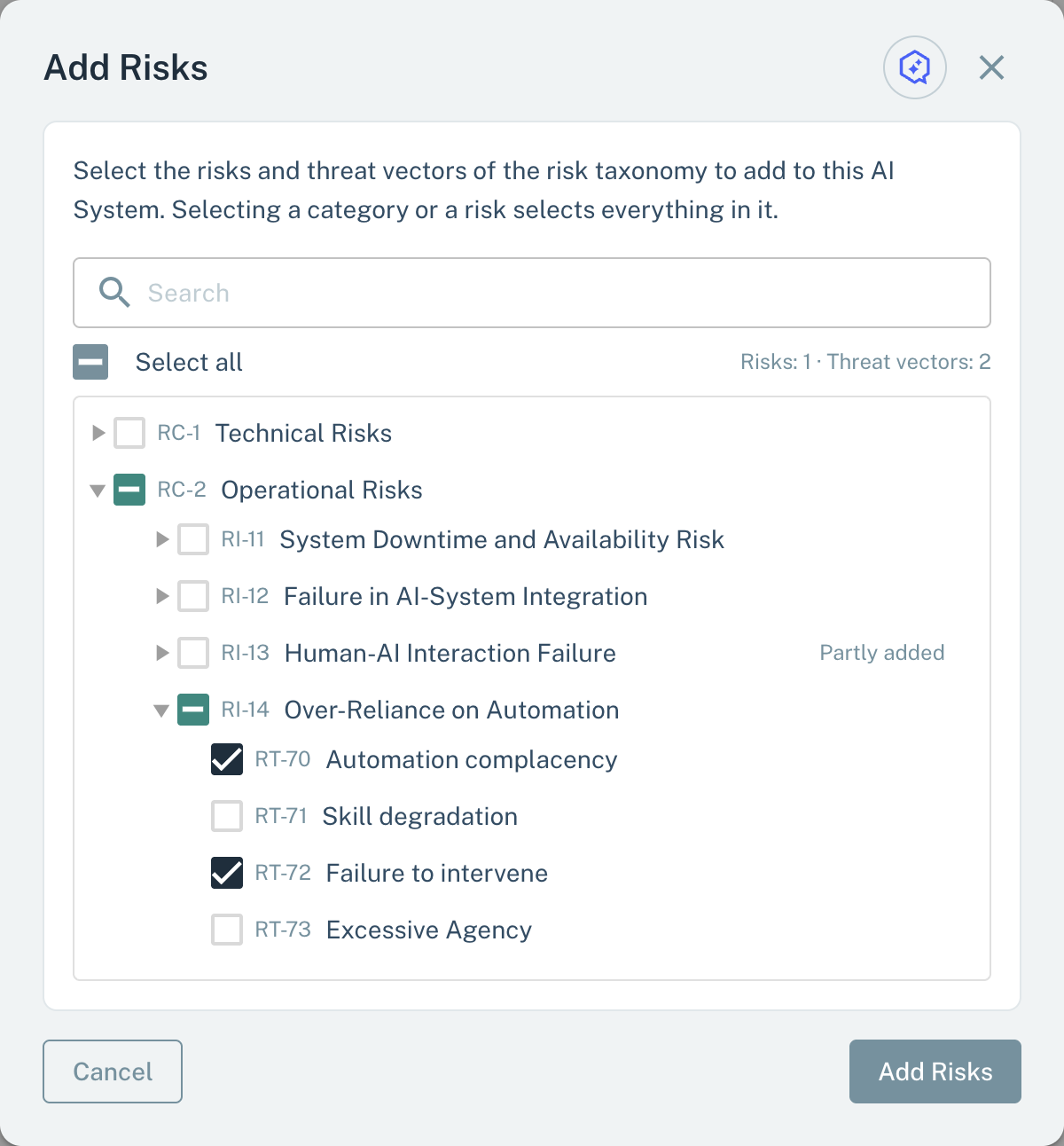
Select the threat vectors of one or more taxonomy risks, then add them to the AI System in one step.
- Search Finds a category, a risk, or a threat vector by its name or code.
- Risks and threat vectors The number of selected risks and threat vectors.
- Threat vectors Select the threat vectors that apply. A risk or a category selects all its threat vectors.
- Partly added The AI System has this risk. The tree shows only the threat vectors that are missing.
- Add Risks Adds the selected risks and threat vectors in one step.
The risk page
Select a risk on the Risks tab to open its page. The page has three cards and two tabs:
- Total Risk Value: the sum of the quantified risk threats, and the risk limit with the percentage that the risk uses.
- Limit Utilization: the percentage of the risk limit that the risk uses.
- Risk Limit: the limit of the risk, or No risk limit.
- The Threat Vectors tab: the Associated Threats table with Threat Name, Quantified Value, Method Used, Status, and Contribution. Contribution is the value of the risk threat as a percentage of the risk limit.
- The Risk Value Over Time tab: the total value of the risk threats across time, and a line for the risk limit. The Stacked and Breakdown views show each risk threat.
On each row of the Associated Threats table, Quantify starts the quantification wizard, and See details opens the Threat Quantification Detail page. While a risk threat is In Progress, its Quantify button is not available. See How to run quantification.
To change the risk, select Edit Risk. In this dialog, you can set or remove the manual override of the risk limit. An Owner can also delete the risk in this dialog. To add or remove risk threats, use Add Threat and Edit Threats above the table. Add Threat opens the Add Threats dialog, where you can select more than one threat vector at one time.
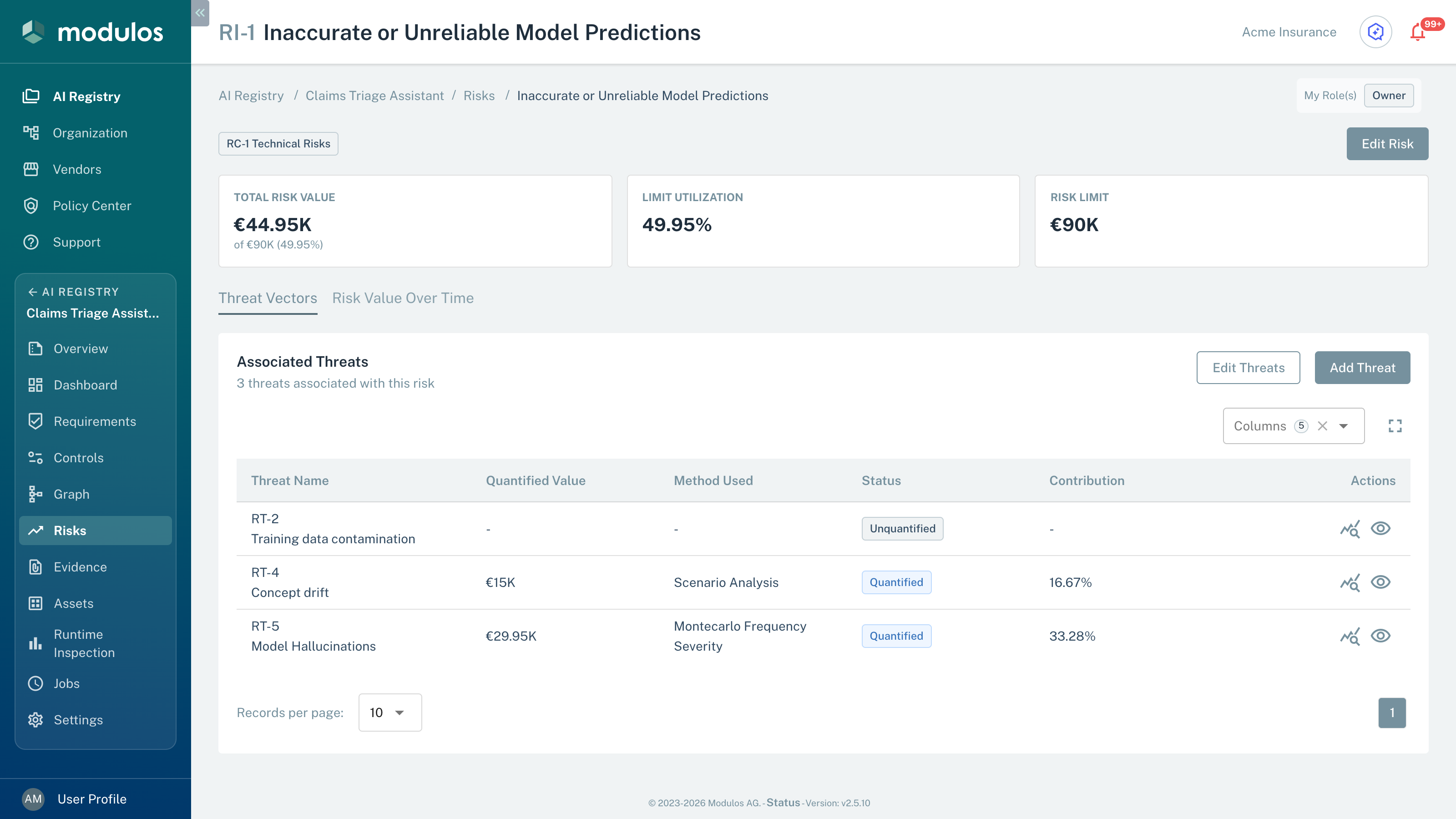
The page of a risk shows the value of each risk threat and starts its quantification.
- Total Risk Value The sum of the quantified risk threats against the risk limit.
- Quantify Starts the quantification wizard for this risk threat.
- Contribution The value of the risk threat as a percentage of the risk limit.
Quantify risks on a schedule
The Create Job button on the Risks tab makes a Job that quantifies the selected risk threats with the Risk Agent. The Job runs on a schedule or by hand. Only users that can quantify threats see the button.
- On the Risks tab, select Create Job.
- Select the risks or the risk threats, and then select Next.
- Type a Job name, or keep the name that Modulos suggests.
- Set the schedule, or clear Run on a schedule to run the Job only by hand.
- Select Create Job, or select Create and Run.
If you select all risk threats of a risk, the Job keeps the risk. Each run then quantifies the risk threats that the risk has at that time. If you select only some risk threats of a risk, the Job keeps only those risk threats.
For the schedules and the Job pages, see Jobs.
Status and rollups
In the platform model:
- Each risk threat gets its status from its newest quantification run: Unquantified, In Progress, Quantified, or Failed.
- An AI System risk has the status Unquantified when all its risk threats have the status Unquantified. It has the status Quantified when all its risk threats have the status Quantified. In all other conditions, it has the status In Progress.
A risk includes the value of each quantified risk threat, also when other risk threats of the risk have no value. For the full rules, see How risk becomes a portfolio signal.
Quantification is asynchronous. After you start a run, the status of the risk threat is In Progress. It changes to Quantified or Failed when the run is complete.
Important considerations
Each risk has a limit. Modulos calculates it from the limit of the AI System and the category limit. To set a different limit, select Edit Risk on the page of the risk, and then select Override with manual value. For the rules, see Risk Operating Model.
A Draft or Rejected AI System has no risk limit. The risks of a Rejected AI System show No risk limit.
Systems that you make and systems that you buy
The quality of a quantification is a result of what you can see and control.
- If you make the system, you have access to the model and to the deployment. Your quantification can be accurate at the model level and at the deployment level.
- If you buy the system, you usually have no access to the training data, the model internals, or the evaluation artifacts. Your best data for quantification is usually in the deployment context: integration, usage patterns, monitoring, and incident response.
For a system from a vendor, get sufficient documentation to defend your quantification. This documentation includes the known problems of the system, the evaluation artifacts, and the limits of operation.