

Appearance
Lifecycle & Approvals
Each Policy in Modulos has versions. Each version goes from Draft to Published, with an approval step between them. After publication, all users of the organization acknowledge the version.
What this is
Policy Center keeps two statuses:
- Policy status: the status of the Policy itself. It is Unpublished, Published, or Archived.
- Version status: the status of one version. It is Draft, Need Approval, Approved, or Published.
A Policy becomes Published when the owner publishes its first version.
Policy status
| Status | Meaning |
|---|---|
| Unpublished | The Policy has no published version, or the owner unarchived it and did not publish it again. |
| Published | A version is published. All users see the Policy in My Tasks. |
| Archived | The Policy is not in the active Policies. The Archived status filter of Policy Management shows it. The owner can unarchive it. |
Only the owner of a Policy can archive or unarchive it. See Archive and unarchive.
Version status
| Status | Meaning |
|---|---|
| Draft | The owner writes the content. Only Policy Managers can open a draft. |
| Need Approval | The owner selected Ask for Approval. The other Policy Managers received a notification. |
| Approved | A Policy Manager approved the version. The owner can publish it. |
| Published | The owner published the version. Nobody can edit it. |
One version in progress at a time
A Policy has a maximum of one version that is not published. While the Policy has that version, the Policy page shows the banner "A draft version exists for this policy." with a View Draft link, and Open Draft does not show.
Approval workflow
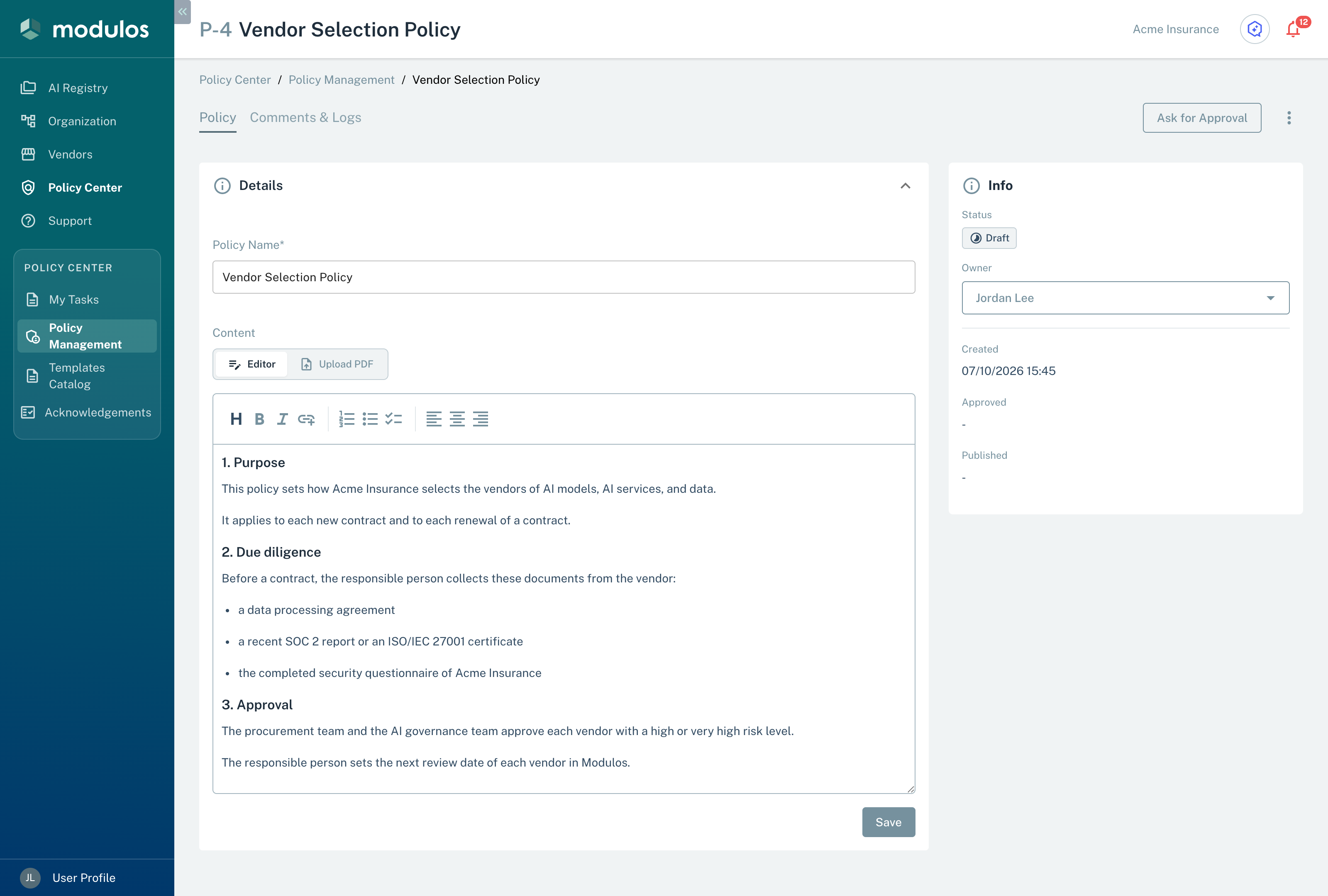
- 1Ask for ApprovalSend the draft to the Policy Managers for approval.
- 2Editor, Upload PDFWrite the content in the editor, or upload one PDF file.
- 3StatusThe status of this version.
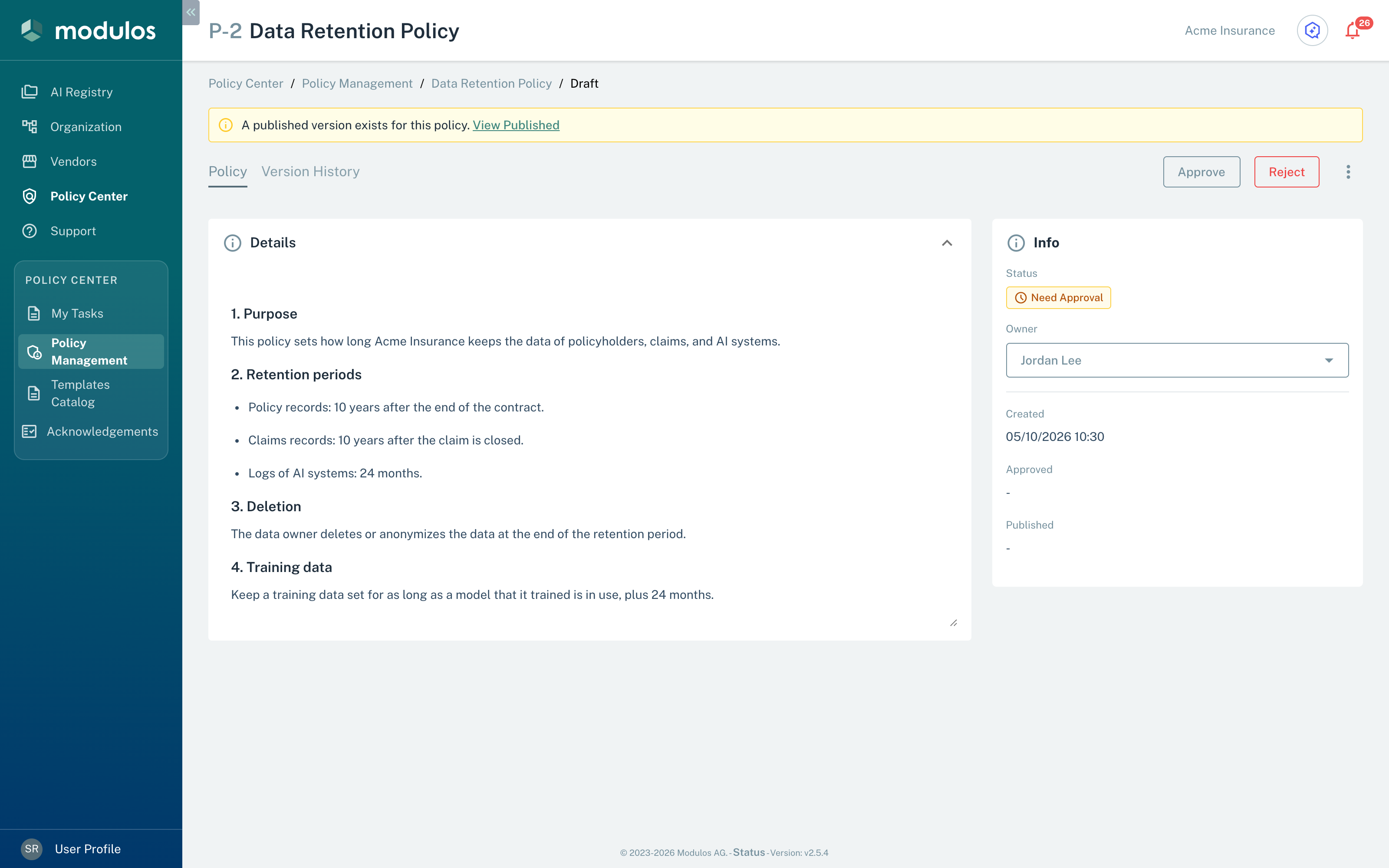
- 1ApproveSet the version to Approved. The owner can then publish it.
- 2RejectWrite a reason. The version goes back to Draft.
- 3StatusThe version waits for approval.
Step-by-step
1
Edit and save the draft
The owner edits the Policy Name and the content, then selects Save. Only the owner can edit a draft.
2
Ask for approval
The owner selects Ask for Approval. The version goes to Need Approval, and the other Policy Managers receive a notification.
3
Approve or reject
A Policy Manager opens the version and selects Approve or Reject. Each Policy Manager can do this, the owner included.
4
After Reject
Reject opens a dialog. The Policy Manager writes why and selects Confirm. The text becomes a comment on the version, and the version goes back to Draft.
5
After Approve
The version is Approved. The owner can publish it, or select Move to Draft to change it again.
6
Publish
The owner selects Publish, selects a Renewal Period, and selects Publish again. The version becomes Published.
While the content has placeholders, Ask for Approval stays disabled (see Placeholders). Move to Draft asks for confirmation and removes the approval. The version then must get a new approval before the owner can publish it. Modulos does not send a notification to the owner when a Policy Manager approves or rejects a version.
Publishing and version numbers
Publish opens the Publish Policy dialog. The dialog asks for the Renewal Period: 3 Months, 6 Months, or 12 Months. It shows the current renewal period of the Policy first. A new Policy has 12 months.
When the owner selects Publish in the dialog:
- the version gets the next version number (v1, v2, v3)
- nobody can edit the version after this
- the Policy status becomes Published
- Renewal At becomes the publication date plus the renewal period
- Modulos sends a notification to all users of the organization to acknowledge the version (see Acknowledgments)
The Policy page shows the current published version. The Version History tab of the Policy page shows all published versions.
Acknowledgments
All users of the organization acknowledge each published version of a Policy. An acknowledgment applies to one version only. When the owner publishes a new version, each user acknowledges the new version.
Acknowledge a Policy
All users acknowledge Policies in My Tasks:
- In the sidebar, select Policy Center. My Tasks opens on the Policies tab.
- Select a Policy that has no acknowledgment date. The Pending filter shows only these Policies.
- Read the Policy.
- Select I have read and understood this policy.
- Select Acknowledge Policy.
The page then shows Policy acknowledged. The Policies tab shows the current version of each published Policy, with the date of your acknowledgment. The count of pending acknowledgments on this tab includes only the Policies that the tab loaded with the current search and filter. The History tab shows each version that you acknowledged, with the Acknowledged On date.
If you do not acknowledge a version, Modulos sends you a reminder 7 days and 30 days after its publication, and then each Monday.
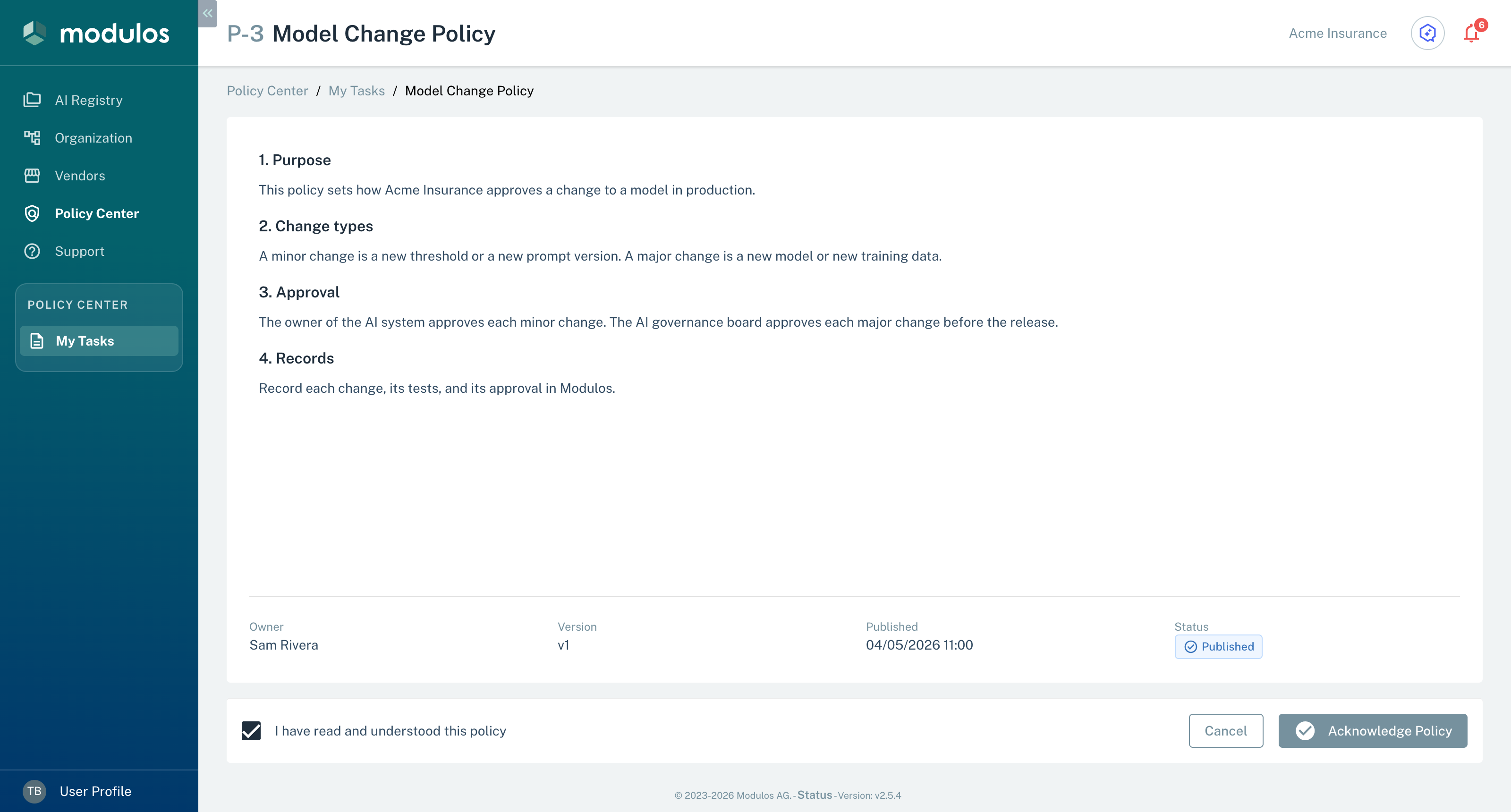
- 1I have read and understood this policySelect it after you read the Policy.
- 2Acknowledge PolicyRecord your acknowledgment of this version.
Monitor acknowledgments
Policy Managers monitor acknowledgments in Policy Center → Acknowledgements. The page counts the current version of each published Policy and the active users of the organization:
- Overall Compliance: the percentage of published Policies that all active users acknowledged.
- Pending Policies: the number of published Policies that one or more active users did not acknowledge.
- Total Users: the number of active users.
- Acknowledgements: the number of published Policies that all active users acknowledged, of all published Policies.
The Per Policy tab shows each Policy with its version, the percentage, and the number of users who acknowledged it. A Policy is Acknowledged when all active users acknowledged it, and else Pending. The Per User tab shows each active user as Completed or Partial, with the number of Policies that the user acknowledged. Select a user to see the status of each Policy for that user. The dialog shows a maximum of 100 Policies.
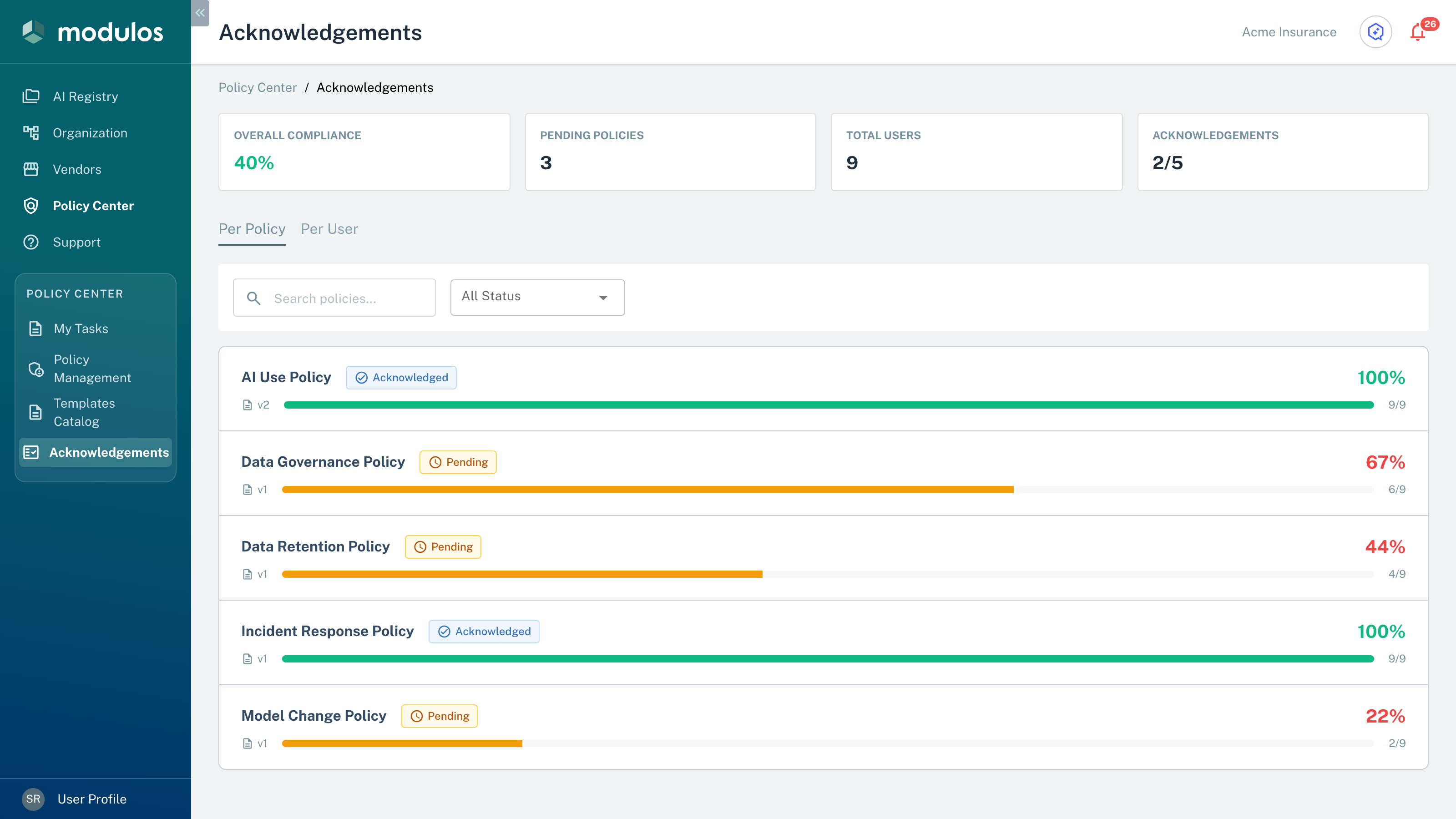
- 1Overall Compliance, Pending Policies, Total Users, AcknowledgementsThe totals for the current versions of all published Policies.
- 2Per Policy, Per UserShow the progress by Policy or by user.
- 3PendingOne or more active users did not acknowledge this version.
Archive and unarchive
Only the owner can archive a Policy. On the Policy page or the draft page, the owner opens the ⋮ menu and selects Archive Policy. The confirmation dialog tells you that all drafts and published versions become archived. If Controls link to the Policy, the dialog shows them for each AI System.
When the owner selects Archive in the dialog:
- each linked Control in Executed changes to Not Executed, and its log records the archive
- after this change, Modulos removes the Policy from each linked Control that is Not Executed
- the Policy is no longer on the Policies tab of My Tasks and on Acknowledgements
When the archive changes a Control to Not Executed, its mapped Requirements are no longer ready for review. Each mapped Requirement that is Fulfilled goes back to Not Fulfilled. The Control Owner receives a notification. See Reviews & Statuses.
An archived Policy:
- is not in the Policy Management table when no status filter is set (the Archived status filter shows it)
- keeps its versions, comments, and log
- keeps the acknowledgments of its versions on the History tab of My Tasks
- does not let users edit its draft or change the status of its versions
To unarchive, the owner selects Unarchive Policy on the Policy page or the draft page. The Policy status becomes Unpublished. If the Policy has a published version and no draft, Modulos makes a draft and opens it. The draft gets the name and the editor text of the last published version. If that version had a PDF file, the owner uploads the PDF file again in the draft. To publish the Policy again, the owner sends this draft through approval.
Renewal
Each Policy has a renewal period of 3, 6, or 12 months. A new Policy has 12 months. The owner selects the period in the Publish Policy dialog. Each publication sets Renewal At to the publication date plus the period. The Info panel of the Policy page shows Renewal At and Renewal Period.
Near the Renewal At date, Modulos sends renewal notifications to the owner, to the Policy Managers, and to the Organization Admins. From 7 days after the Renewal At date, the Policy Managers receive a notification each Monday. The next published version sets a new Renewal At date.
Audit trail
The Comments & Logs tab of a Policy shows the comments and the log of the Policy and of all its versions. The log records these events, each with the user and the time:
- the creation of the Policy
- each change of owner
- each status change of the Policy and of its versions
- each publication of a version
When a Policy Manager rejects a version, Modulos records the text from the dialog as a comment on the version. Nobody can edit or delete a comment or a log entry. A new comment sends a notification to the owner and to the Policy Managers, but not to the author of the comment. Each user that the comment mentions receives one Mentioned notification. See Mentions in comments.
Policy Managers see Comments & Logs on the Policy page. On the draft page, the tab shows only while the Policy is Unpublished.