

Appearance
Jobs
A Job runs one or more items on a schedule or by hand. This page covers Jobs for tests. The Jobs page of an AI System shows all Jobs of that AI System and the runs of each Job.
What this is
A Job has:
- Steps: the items that the Job runs. A Job for tests holds Metric Tests and Agent Tests.
- An optional schedule. A Job without a schedule runs only by hand.
- A history of runs.
The Steps are the tests that you select when you create the Job. A test that you add to the AI System after that does not become a Step.
A Metric Test with a schedule also runs as a Job. Modulos makes this Job for you and names it for the test. See Tests & Schedules.
Where in Modulos
AI System → Jobsshows the Jobs and opens one Job.AI System → Runtime Inspection → Create Jobmakes a Job for tests.
The Jobs page has no create button.
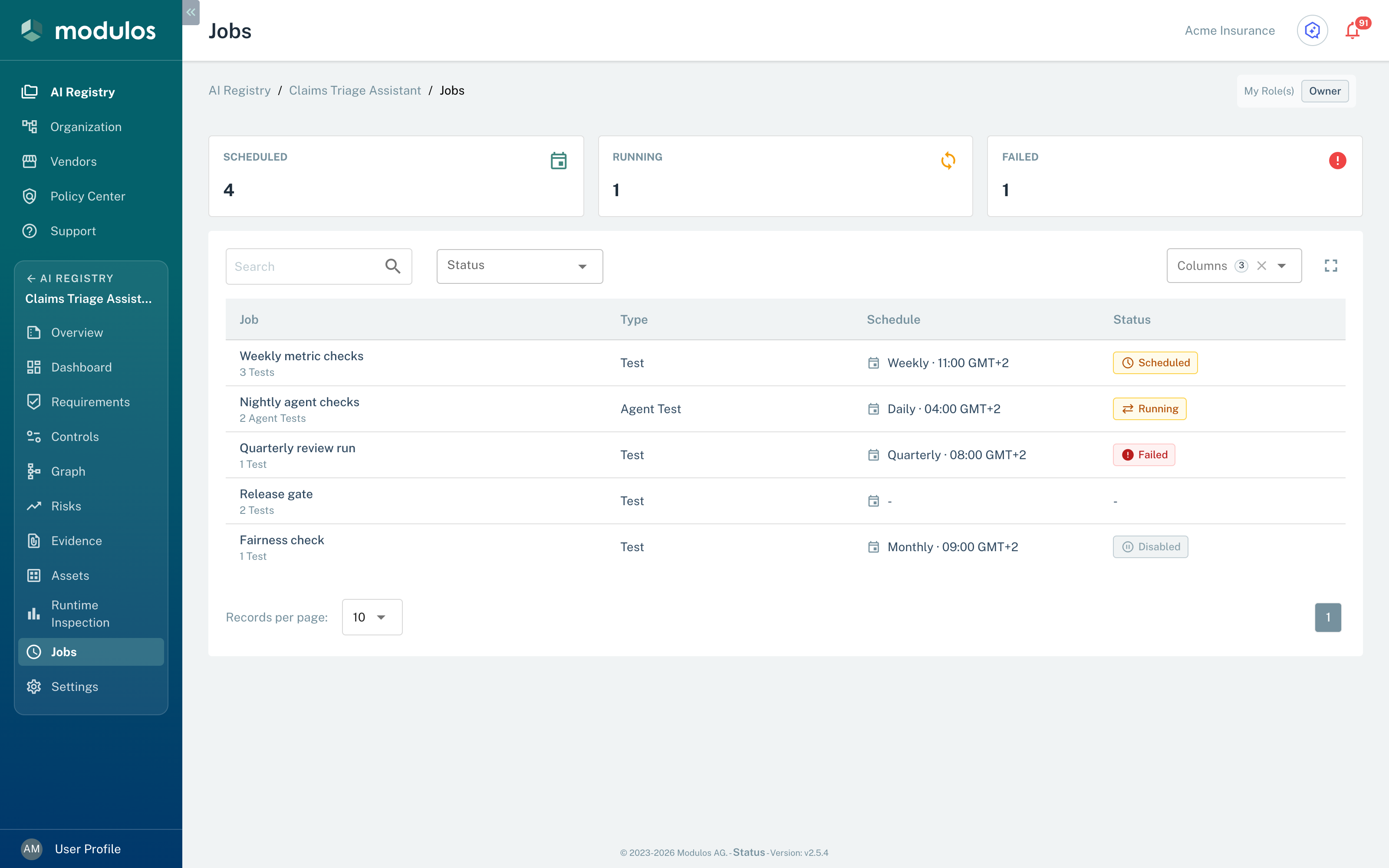
- 1Scheduled, Running, FailedThe number of Scheduled, Running, and Failed Jobs.
- 2StatusShows only the Jobs with one status.
- 3JobSelect a row to open the Job.
Who can do what
Permissions
- Owners and Editors can create, edit, run, and stop Jobs for tests. They can also turn a Job on or off.
- Viewers can open the Jobs page and read Jobs and runs.
Create a Job for tests
- Open
AI System → Runtime Inspection. - Select Create Job. The button is not active when the AI System has no tests.
- Select the tests. To select all tests, use the checkbox in the header of the table.
- Select Next.
- Type a Job name.
- To run the Job on a schedule, keep Run on a schedule selected. Set Starts, Time, and Repeats.
- To run the Job only by hand, clear Run on a schedule.
- Select Create Job, or select Create and Run to create the Job and start a run.
After Create and Run, Modulos opens the Job. After Create Job, Modulos opens the Jobs page.
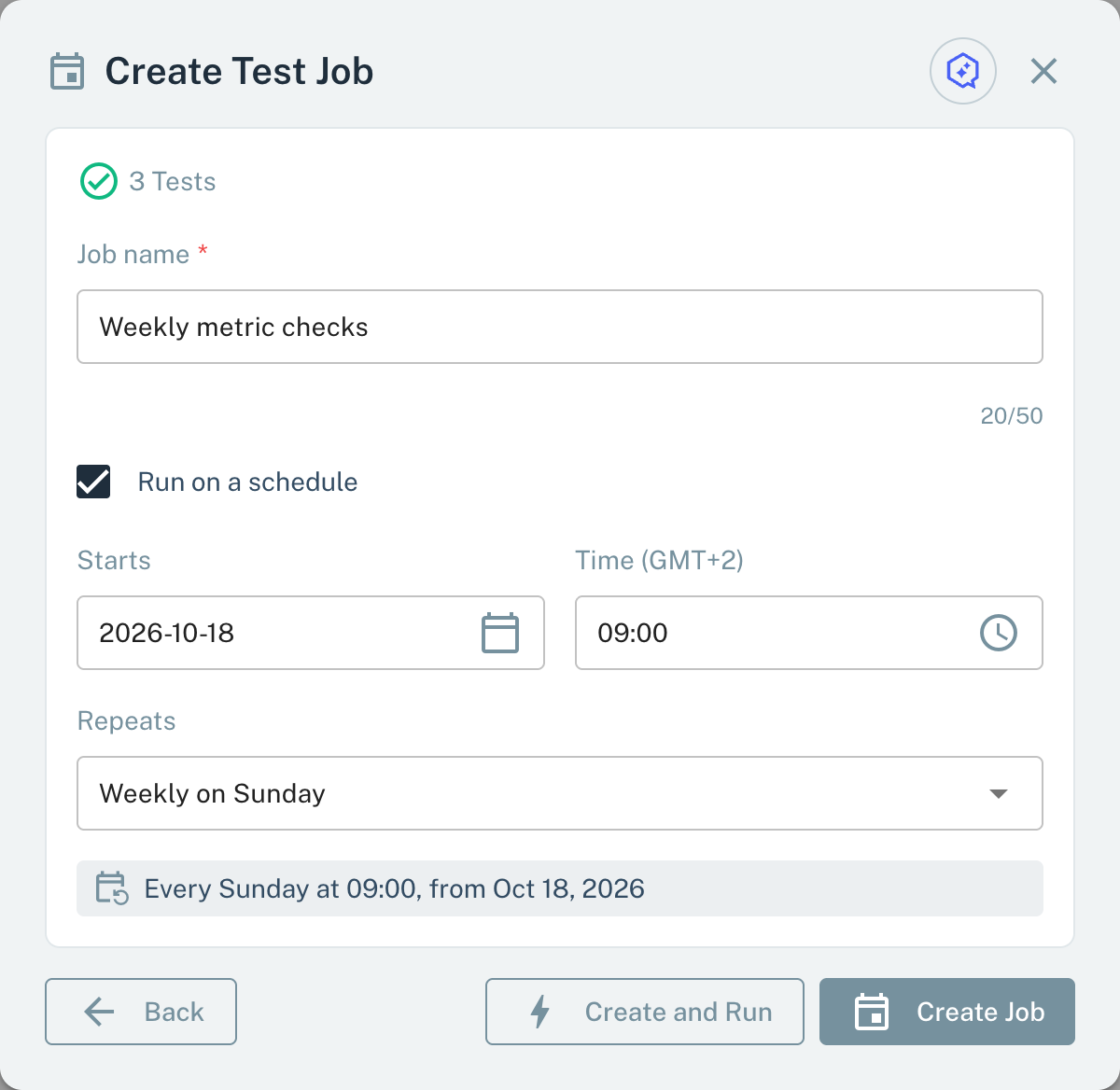
- 1Job nameThe name that the Jobs page shows for the Job.
- 2Run on a scheduleClear it to run the Job only by hand.
- 3Create and RunCreates the Job and starts a run.
Schedules
Repeats has five values. Modulos shows Time in your local time zone.
| Value | When the Job runs |
|---|---|
| Daily | Each day at Time. |
| Weekly on a weekday | Each Sunday at Time. |
| Monthly on the ordinal weekday | On the first day of each month at Time. |
| Quarterly | On the first day of January, April, July, and October at Time. |
| One-time | One time, on the date in Starts at Time. |
The labels Weekly on and Monthly on the show a weekday and an ordinal that Modulos takes from Starts. These labels do not change the run day. A weekly Job always runs on Sunday, and a monthly Job always runs on the first day of the month.
Only a One-time Job uses the date in Starts as its run date. For the other values, the Job can also run before the date in Starts.
Modulos counts these days in UTC. If your time zone is not UTC, the local day of a run can be a different day.
Read the Jobs page
The three cards at the top show the number of Jobs that are Scheduled, Running, and Failed. Scheduled counts the Jobs that are enabled and have a schedule.
The table has the columns Job, Type, Schedule, and Status. The Status filter shows one status: Scheduled, Running, Succeeded, Failed, Cancelled, or Skipped. A Job that you turned off shows Disabled. A Job that has no schedule and no run shows -.
Select a row to open the Job.
Read a Job
A Job has two tabs.
- Overview shows the Steps of the Job and the Last Run. The Last Run section gives the status, the number of runs, the time of the last run, and an Execution Log that you can copy.
- Runs lists the runs. Select a run to open Run Details. The details show each step with its own result and a View test link.
The panel on the right shows the Status, the Enabled switch, the Type, the Schedule, the Next run, the Scope, and the user who created the Job.
Modulos skips a step when its test is disabled. A disabled test does not run in a Job.
Run, stop, edit, and disable a Job
Use the buttons at the top right of the Job.
- Run Now starts a run. The button is not active for a disabled Job. If the Job ran before, Modulos asks you to make sure. The results of the new run become the latest results of the tests.
- Stop shows while a run is active. It cancels the active run and drops the queued runs. A Job with a schedule other than One-time stays scheduled and keeps its next run. A One-time Job that you stop during its scheduled run does not run again. Stop does not stop a test that runs at that time, for example an Agent Test run. That test continues to its end, and its result can change the linked Controls.
- Edit changes the name and the schedule of the Job.
- The Enabled switch turns the Job on or off. A disabled Job does not run on a schedule, and Run Now does not start it.
If the Job is the Job of a scheduled Metric Test, a disabled Job removes the schedule of the test. When you turn the Job on again, the test gets the schedule of the Job.
Important considerations
- Select the tests that must run together. Use one Job for each schedule.
- Use Create and Run to check a new Job immediately.
- Each run of an Agent Test in a Job uses the AI usage quota of the organization. See AI usage.