

Appearance
Configuration check
After a Source of an AI System connects, Modulos checks its configuration. A check signs in with the credentials of the Source. For most Source types, it then makes sure that the credentials have the access that Modulos uses.
Modulos shows this check only for the Sources of an AI System. The table of the organization Sources has no Configuration check column.
The result of a check
The Configuration check column of AI System → Settings → Sources shows the result of the last check of each Source:
| Value | What it means |
|---|---|
| Passed | Each check passed or does not apply to the Source. |
| Warning | An optional check does not have its access, the Source has more access than necessary, or Modulos could not complete a check. |
| Failed | The sign-in failed. Or a required check does not have its access, or the function that it needs is not active in the external system. |
| Checking | A check runs at this time. |
| Couldn't check | The check did not run because of a problem in Modulos, not in the Source. Run the check again. |
| Never checked | Modulos has no check result for the Source at this time. |
| Disabled | The Source is disabled. Modulos does not check a disabled Source. |
By default, the table is sorted by this column. The Sources with no result are first, for example Modulos Client. Then come the Sources with the result Failed, Warning, and Passed. Put the pointer on Failed or Warning to see the number of failures and warnings. The row of Modulos Client shows "-", because Modulos does not connect to an external system for it.
Read a check
- Go to
AI System → Settings → Sources. - Select the Source.
- Select the Configuration check tab.
The dialog of a saved Source has the tabs Details and Configuration check. The result and the date of the check show at the top of the dialog.
The tab shows the problems first. Each problem has these parts:
- The name of the check. For a Source with many workspaces or environments, the name includes the workspace or the environment. For an AWS Source, the name can include the region.
- The status of the check: Missing permission, Not enabled, More access than needed, Sign-in failed, Unreachable, Throttled, or Not checked.
- Required check or Optional check.
- What does not work. For most problems, the tab also shows what to do and the link Open the setup guide to the page of the Source type.
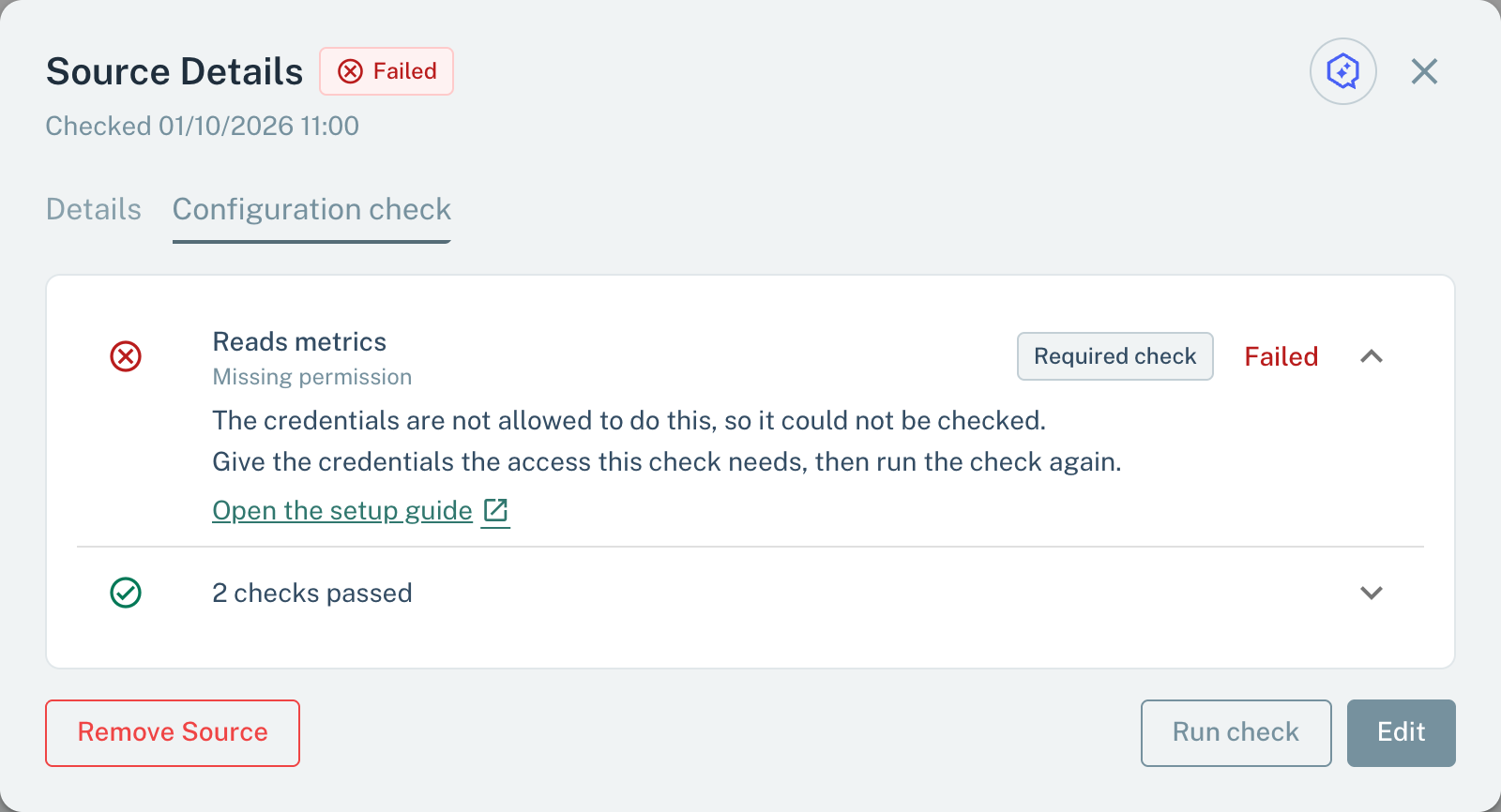
The Configuration check tab of a Source with one failed check.
- Configuration check The tab with the result of the last check.
- Missing permission The status of the check. Below it: what does not work, and what to do.
- Open the setup guide Opens the docs page of the Source type.
- Run check Starts a new check.
Below the problems, the tab shows the number of checks that passed. Select this line to see them. When the sign-in fails, Modulos does not run the other checks, and the tab shows only the sign-in problem. For a Databricks Source, this rule applies to each workspace.
For a disabled Source, the tab shows This source is disabled, so it is not checked. If the Source has a result from the time before, the tab shows this result below the message.
Run check starts a new check. The check can continue for about one minute. You cannot run a check for a disabled Source. To change the Source, select Edit.
When Modulos checks
Modulos checks a Source at these times:
- after you add the Source or change it
- when you select Run check
- about one time each day, while the Source is active
Modulos does not start a check when you open the page or the dialog. They show the result of the last check.
The result is information only. A Failed or Warning result does not disable the Source, does not stop a test, and does not send a notification.
Checks for each Source type
Each Source type in the Add Source dialog has the check "Signs in". These types have more checks:
| Source type | Required checks | Optional checks |
|---|---|---|
| AWS | Signs in, Searches resources, Reads CloudWatch metrics | Searches every region |
| Azure | Signs in, Sees your subscriptions, Queries Resource Graph | Lists Foundry accounts, Reads Foundry agents, No more access than needed on the subscriptions |
| Claude Console | Signs in, Reads Claude Code usage | Reads API token usage, Reads rate limits |
| Databricks | For each workspace: Signs in, Lists serving endpoints | For each workspace: Lists Genie spaces, Lists registered models |
| GitHub | Signs in, Reads the repository | Searches code |
| Langfuse | Signs in, Reads traces, Reads metrics | None |
| Microsoft Copilot Studio | Signs in, Finds environments (full tenant). For each environment: Application user found, Reads agents | For each environment: Read-only role |
| OpenAI Platform | Signs in, Reads usage, Reads costs | Reads the audit log, Finds the organization |
For Claude Enterprise, Datadog, Prometheus, Snowflake, and Vijil, the sign-in is the only check.