

Appearance
Compliance Graph
The Graph of an AI System shows its frameworks, Requirements, Controls, and tests on one map. It shows how these items connect. Use it to see the structure, to find gaps, and to see the coverage of each framework.
What this is
The Graph shows the governance items of an AI System as small marks in columns:
- Requirements, in one group for each framework
- Controls, in groups that the selected view sets
- Tests: the Metric Tests and Agent Tests of the AI System, with their latest verdict
- Threat Vectors, when you turn on that layer
Thin lines connect each Requirement to its Controls and each Control to its tests. Each group shows its name and its status, for example "3 of 8 fulfilled" or "5 of 12 executed". A Control that is in more than one framework or group goes into the Shared group.
Where in Modulos
AI System → Graph
The Graph item shows in the sidebar when governance is on for your organization.
Who can do what
Permissions
- All members of the AI System can see the Graph.
- The Tests layer shows to users who can read the tests of the AI System. The Threat Vectors layer and the Risk flow view show to users who can read risks, when risk management is on for your organization.
- You cannot change items on the Graph. To change an item, open it from the Inspector.
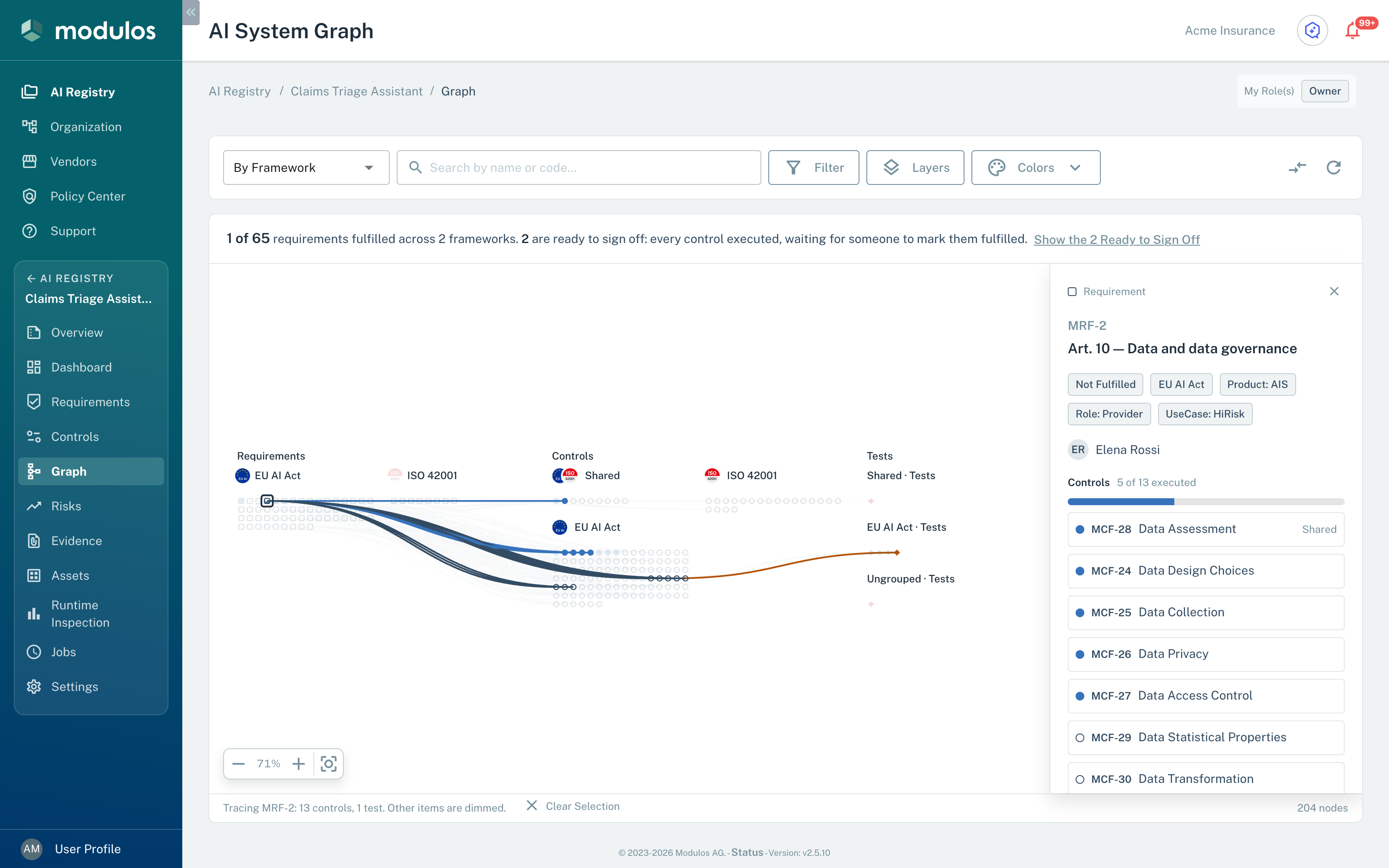
The Graph in the By Framework view. A click on a Requirement shows its Controls and tests and opens the Inspector.
- View By Framework, By Lifecycle Stage, By Tag, or Risk flow.
- Selected item A click on an item shows the items that connect to it and dims the other items.
- Inspector The status, Owner, frameworks, and linked items of the selected item, with a button that opens it.
How it works
Views
The View select in the toolbar sets how the Controls and tests go into groups:
| View | Groups of Controls and tests |
|---|---|
| By Framework | One group for each framework |
| By Lifecycle Stage | One group for each AI lifecycle stage |
| By Tag | One group for each tag |
| Risk flow | A different map: see Risk flow |
In the By Framework, By Lifecycle Stage, and By Tag views, the Requirements stay in one group for each framework. An item without a group goes into Ungrouped.
Layers
The Layers menu sets which items the map shows:
- Requirements, Controls, and Tests are on by default.
- Threat Vectors is off by default. It shows only when no Frameworks, Lifecycle, Tags, or Owner filter is set.
- Include out of scope and Include archived add the Out of scope and Archived items. They are off by default.
Filters
The filter bar has these filters: Frameworks, Owner, Lifecycle, Tags, Req. Status, and Control Status. You can use more than one filter at the same time. Risk flow has no filters. Each filter that you set shows as a badge below the toolbar.
A Lifecycle or Tags filter keeps the items with that lifecycle stage or tag, and the Requirements or Controls that connect directly to them. An Owner filter keeps the items of that Owner and the items that connect to them.
Colors and the legend
The Colors menu sets the colors of the marks: Status or Type. With Status, the fill of a mark shows its status:
- A solid fill: Executed Controls and Fulfilled Requirements.
- An empty mark with a color line: Not executed Controls and Not fulfilled Requirements.
- A dashed line: Archived and Out of scope items.
- A fill in the lower part of the mark: a Requirement with some Executed Controls. The height of the fill shows the part of its Controls that is Executed.
- A frame: a Requirement with all its Controls Executed that is not Fulfilled.
Tests show the color of their latest verdict. The legend at the bottom of the map shows the marks that are on the map, and the number of items.
Select an item
Click an item to select it. The map shows the chain of items that connect to it, and dims the other items. The footer shows a summary, for example "Tracing MRF-12: 4 controls, 2 tests. Other items are dimmed." Clear Selection ends the selection.
The Inspector panel at the right shows the selected item:
- its code, name, status, Owner, frameworks, and tags
- for a Requirement: its Controls, with the number of Executed Controls, and its tests
- for a Control: the Requirements that map it (Mapped by) and its tests
- for a test: its latest verdict and run, and the Controls that it covers (Covers controls)
A button at the bottom of the Inspector opens the item in a new browser tab, for example Open Requirement or Open Control. Make changes on that page.
Move the map with the pointer, the mouse wheel, or the arrow keys. To zoom, hold Ctrl or Cmd and turn the mouse wheel, or use the zoom buttons at the bottom left. Fit view shows the full map. Refresh in the toolbar loads the data again.
Search
The search field finds items by code or name. Type a minimum of two characters.
The Search results panel shows the results in groups: Requirements, Controls, Tests, and Threat Vectors. The map shows a line around each result. The Enter key opens the first result. You can also click a result in the panel.
Requirements to sign off
A line above the map shows how many Requirements are Fulfilled. An example is "12 of 40 requirements fulfilled across 2 frameworks." When all Controls of a Requirement are Executed and the Requirement is not Fulfilled, the Graph marks it "Ready to sign off". The line above the map then shows the number of these Requirements and a button, for example Show the 3 Ready to Sign Off. The button shows these Requirements on the map. If the layers or filters hide some of them, Modulos asks if it can turn on the Requirements layer and clear your filters. Show Everything shows all items again.
See Requirements for how a Requirement Owner selects Mark as Fulfilled.
Compare frameworks
Compare frameworks in the toolbar opens a dialog that compares the Controls of two frameworks. The button is available when the AI System has two or more frameworks. Select the two frameworks.
The dialog shows the number of Controls of each framework and the number of shared Controls. It also shows each shared Control. The dialog does not use the filters of the Graph. Click a shared Control to select it on the map.
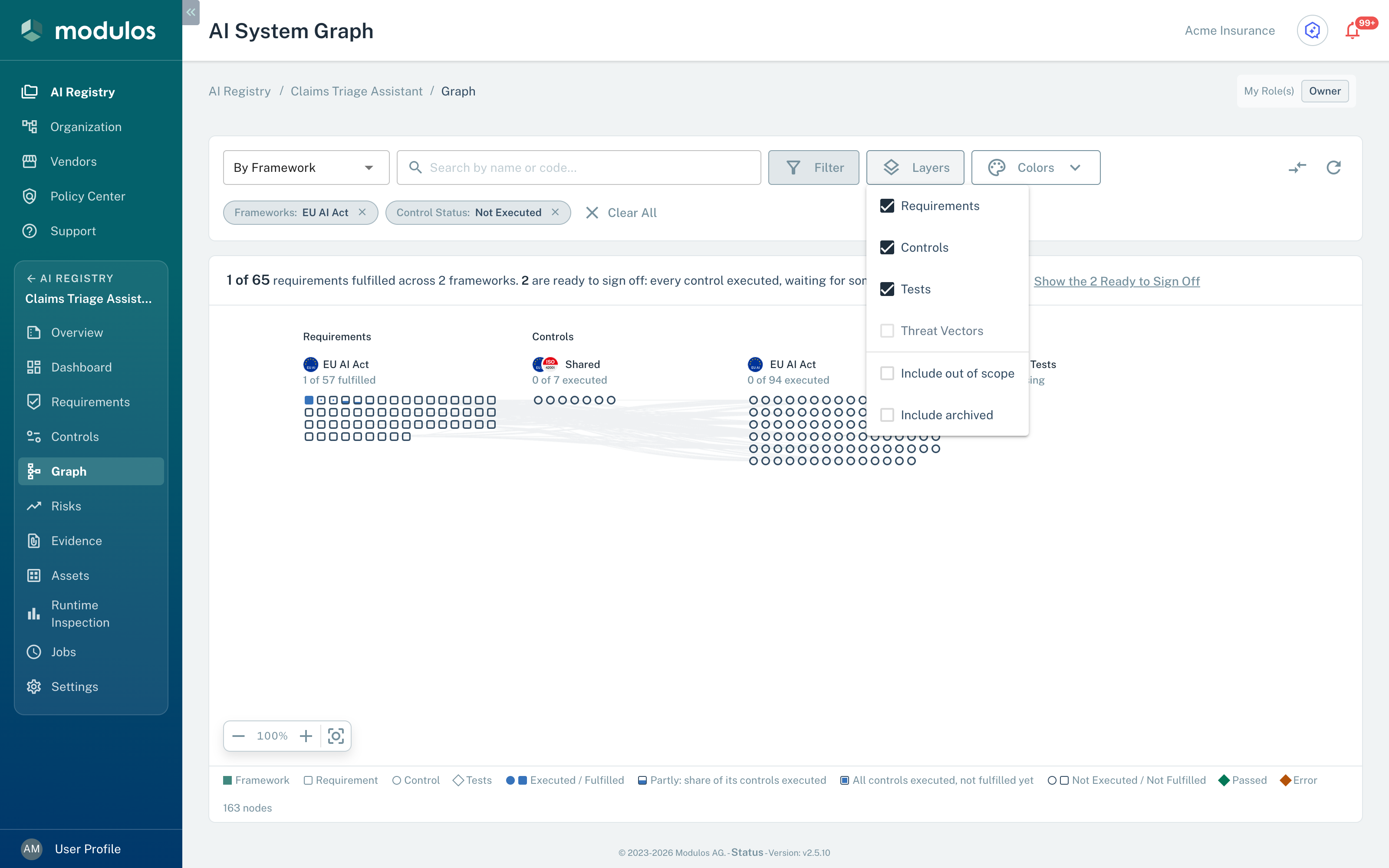
The Layers menu and the filters set which items the Graph shows.
- Layers Turns Requirements, Controls, Tests, and Threat Vectors on or off, and adds Out of scope and Archived items.
- Frameworks, Control Status The filters that you set. You can use more than one filter at the same time.
- Colors Colors the marks by Status or by Type.
Risk flow
Risk flow is a different map. It shows how the quantified threats of the AI System add up to the risks, the risk categories, and the AI System. A line above the map gives the total risk value of the AI System and how many threats have a value.
The width of each band shows the known value. The legend shows the status marks. A threat is "Fully quantified", "Pending", "Failed", or "Not assessed". A risk, a risk category, or the AI System shows "Partly quantified: fill = share of threats" when only some of its threats have a value. A clock marks values older than 90 days.
In Risk flow, the search finds threats, risks, and categories. Filters, layers, colors, and Compare frameworks are not available. See Risk Quantification.
When the map does not show
- "No frameworks attached yet": the AI System has no framework. Add one from the Dashboard.
- "Nothing matches these filters": remove a filter or turn a layer on again.
- "This graph is too large to show at once": Modulos shows no part of the map. Turn off the Tests or Threat Vectors layer, then select Retry.
- "You don't have access to this graph": tell an Organization Admin that you must have access to the Requirements and Controls of the AI System.
How to use it
- Select a view By Framework for the coverage of each regulation, By Lifecycle Stage for the work in each stage, By Tag for your own groups.
- Filter to the work Use the filters and layers to show only the items that you must examine.
- Find the gaps Look for Requirements with a small fill and for groups with many Not executed Controls.
- Open the item Select an item and open it from the Inspector to make the change.
Important considerations
- The Graph is for orientation. You make all changes on the pages of the items.
- The fill of a Requirement mark and the Inspector count all in-scope Controls of the Requirement. Filters and layers do not change this count.
- Modulos does not keep the view, the layers, or the filters when you go away from the Graph. They go back to their default values.