

Appearance
Control Assessment Agent
The Control Assessment Agent produces a structured readiness assessment for a Control, grounded in the Control definition, the Evidence linked to it, and the published policies linked to it. It helps teams run consistent readiness conversations without turning every review into a blank page.
What this is
When you run the agent, it generates:
- a readiness score from 0 to 100
- a short summary of what the current Evidence does and does not support
- gaps with analysis and references
- recommendations with references
- the list of References it used: the Evidence items and policies it read
Running the agent stores the assessment in one step: the result you see is already the assessment of record, replacing the previous one. Humans remain accountable for how the assessment is used: validate it against the Evidence, and re-run after you fix what it found. The agent never changes a Control's status.
Where in Modulos
You run the Control Assessment Agent from the Control detail view, or across whole frameworks as a Job. The dashboard and the Controls list show where assessments stand.
AI System → Controls → select a Control → Assessment → AI Agentto run the agent; the assessment is stored when the run completesAI System → Controls → Create Jobto assess the Controls under selected frameworks that are still Not executed, on a schedule or on demandAI System → Dashboardfor the AI Assessment Progress cards: coverage and average readiness, each linking into the Controls listAI System → Controlsfilter bar: the AI Assessment filter shows Assessed or Not assessed Controls
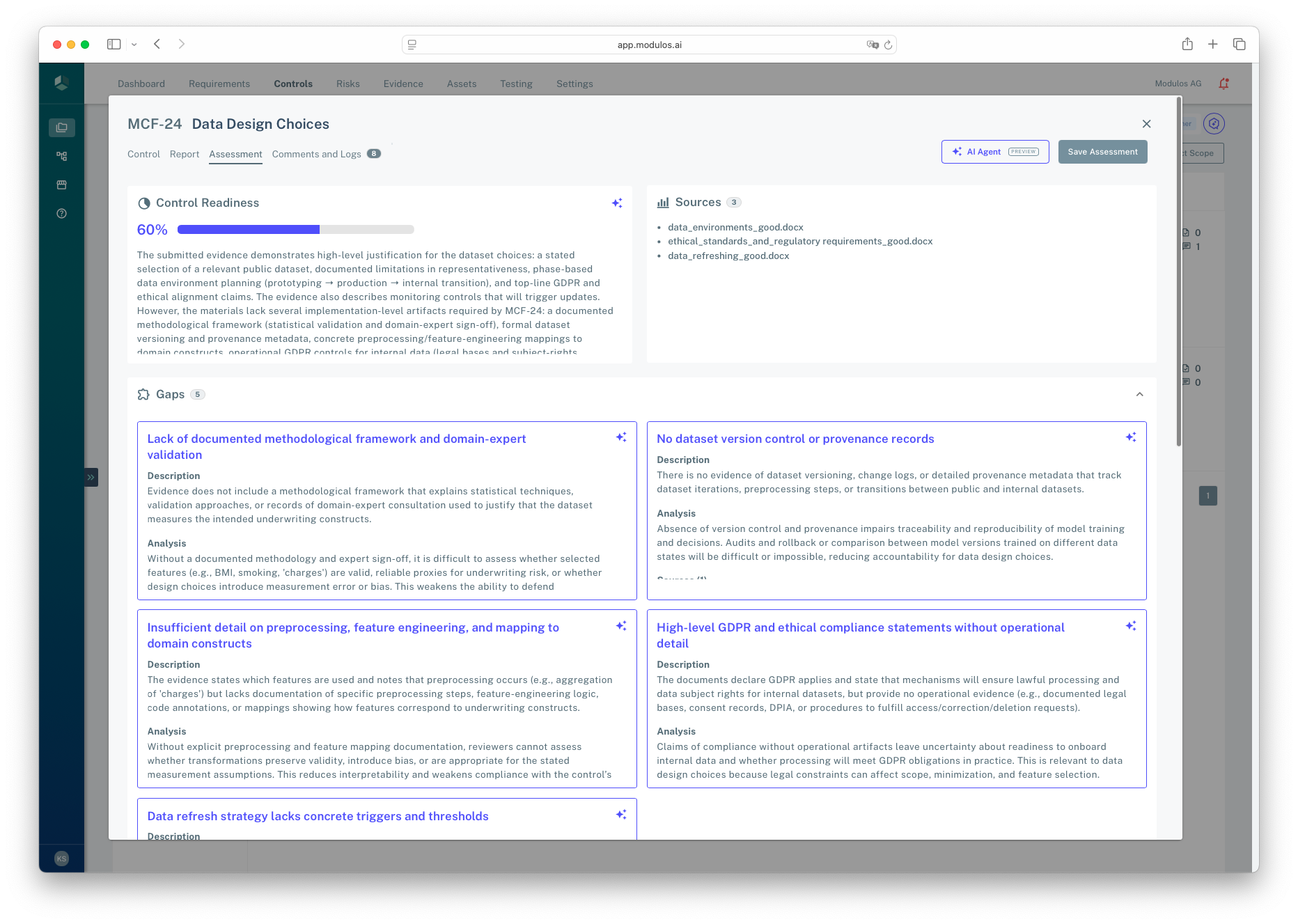
- 1AI AgentRun the agent; the resulting assessment is stored and replaces the previous one.
- 2Readiness score and summaryA structured snapshot of how well the Control is supported by current Evidence.
- 3ReferencesThe Evidence items and policies the agent read; labeled Sources in this capture.
- 4GapsWhere Evidence is missing, insufficient, or misaligned, with references back to the items read.
Who can do what
Permissions
You need AI System permission to run the agent; running it stores the assessment.
- AI System Owners and Editors typically run the agent and act on its findings.
- Viewers typically read stored assessments and follow references back to artifacts.
If you don’t see the AI Agent button or the Assessment tab, ask your AI System Owner or organization admin.
How it works
When you run the agent, Modulos:
- takes the Control’s question, description, and guidance
- collects every Evidence item linked to the Control and every published policy linked to it under Associated Policies
- reads all of that material into the assessment
- generates a structured assessment in the AI System language
References in gaps and recommendations are chips that link to the Evidence item, with a hover preview; a deleted or inaccessible item shows as a chip without a link. Policies appear in the References with a "(policy)" suffix and are not linked yet.
Processing gate
Uploaded Evidence and policy files are indexed before the agent can read them. A manual run while any linked Evidence or policy is still being processed is refused with a message naming how many items are pending; wait for processing to finish and run again. Assessment Jobs wait for processing to finish before running their steps.
Framework-wide assessment Jobs
AI System → Controls → Create Job lets you select frameworks. The job expands each framework into one assessment step per Control that is still Not executed; Executed, Out of scope, and Archived Controls are left alone. The selection is fixed when the job is created or edited, so Controls added later do not join it. Each run replaces the stored assessments. The job's Overview lists the Controls under each framework with their code and current readiness, both linking to the Control's Assessment tab, and the Run Details show the readiness per step. See Jobs for scheduling.
Tracking coverage
The AI System dashboard shows two AI Assessment Progress cards when the agent is enabled for your organization: AI Assessment Coverage (Controls with a stored assessment out of all assessable Controls) and AI Readiness (the average score across assessed Controls). Only the latest assessment per Control counts. Each card links into the Controls list with the matching filter: Controls not yet assessed, or assessed Controls sorted lowest score first. See AI System Dashboard.
How to use it
- Attach the most relevant Evidence to the Control, and link the policies that govern it.
- Open the Control’s Assessment tab and select AI Agent. The assessment is stored when the run completes. If the run is refused because Evidence or policies are still being processed, wait a moment and run again.
- Read the summary, then review gaps and recommendations against the referenced Evidence.
- Update Evidence and Control report content as needed, then re-run the agent. Each run replaces the stored assessment.
To assess at scale, use AI System → Controls → Create Job and select frameworks. To find what is left, use the AI Assessment filter on the Controls list or the dashboard cards.
Important considerations
- The readiness score is not a certification. Use it to focus review effort, not as an approval decision by itself.
- If Evidence is missing, the agent will correctly report gaps. Treat this as a checklist to collect the right artifacts.
- Run assessments early and re-run when Evidence changes. Controls become harder to change once executed.
- AI can make mistakes. Validate claims and references against the underlying Evidence.