

Appearance
Vendor Documents
Vendor documents are the files that you keep for a Vendor, for example contracts, reports, and questionnaires.
What this is
Vendor documents keep the files of a third party with its Vendor record. Then you can find them quickly for an audit. Examples are:
- a DPA and a subprocessor addendum
- a SOC 2 report or ISO certificates
- a cybersecurity questionnaire and its answers
- model cards or technical documentation of the Vendor
Vendor documents are files only. They are not Evidence of an AI System.
Where in Modulos
Vendors → select a Vendor → Documentsshows the documents of the Vendor. Upload, download, and delete them there.
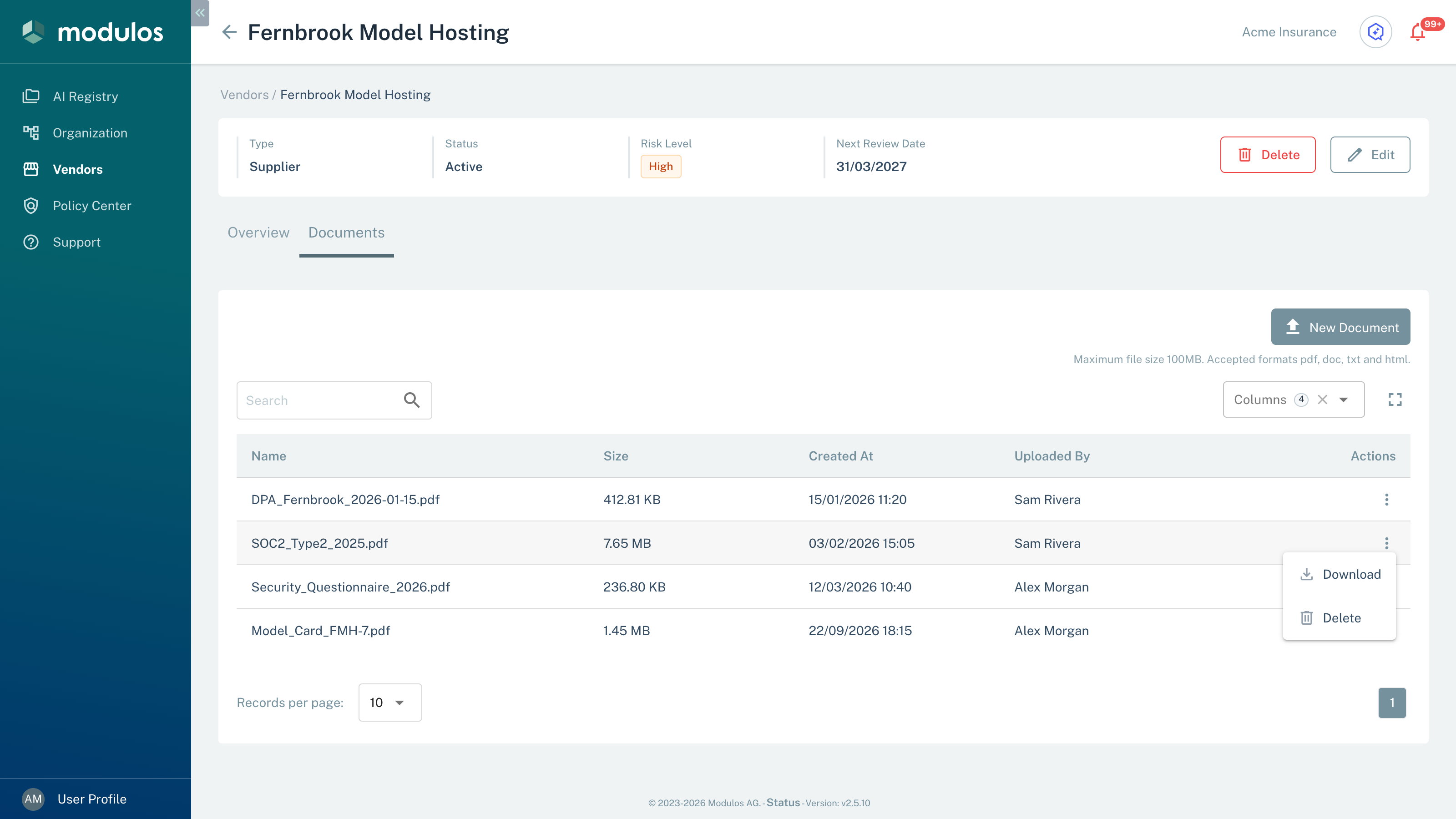
The Documents tab of a Vendor. Upload, find, download, and delete its files.
- New Document Upload one file: PDF, DOC, TXT, or HTML, up to 100 MB.
- Search Find documents by name.
- Download, Delete Download the file, or delete it.
Who can do what
Permissions
Each user of the organization can upload, download, and delete Vendor documents. See Vendor Overview.
How it works
- New Document uploads one file to the Vendor. The table shows the file name as the Name of the document.
- Modulos accepts PDF, Word (.doc), plain text (.txt), and HTML files of up to 100 MB. Modulos does not accept .docx files: save a Word file as PDF before you upload it.
- The table has the columns Name, Size, Created At, Uploaded By, and Actions. The Search field finds documents by name.
- In the Actions menu of a row, Download downloads the file. Delete asks for confirmation, and then Modulos deletes the file permanently.
How to use it
- Open a Vendor and select the Documents tab.
- Select New Document and select the file.
- When you receive a new report or contract, upload it and update the Review Date of the Vendor.
- To use a Vendor document as Evidence, download it. Then add it as Evidence in the AI System.
Important considerations
- Do not upload passwords, API keys, or other secrets.
- Before you upload a file, give it a name with its type and date. For example, use
SOC2_Type2_2025.pdforDPA_2026-01-01.pdf. - If a file has a different format, save it as a PDF file before you upload it. If a file is larger than 100 MB, make it smaller before you upload it.