

Appearance
Usage
Organization → Usage shows how much of the plan of the organization is in use: the AI Systems and the seats. All users of the organization can open this page, whatever their role.
What this is
The plan of an organization can set a limit for two items:
- AI Systems: the number of AI Systems that are not Drafts
- Seats: the number of users who can be active, plus the pending invitations
When a limit is reached, Modulos blocks the next submission of an AI System or the next invitation. This page shows each limit, how much of it is in use, and how to get a higher limit.
Where in Modulos
Organization → Usage, the sidebar item between Notifications and Settings- When the limit of AI Systems blocks a registration, the registration wizard shows View Usage. This button opens this page.
Who can do what
Permissions
- All users of the organization can see this page.
- The Manage Users button shows only for users who can open User Management.
- Users of the organization cannot change a limit. To change a limit, contact Modulos Sales.
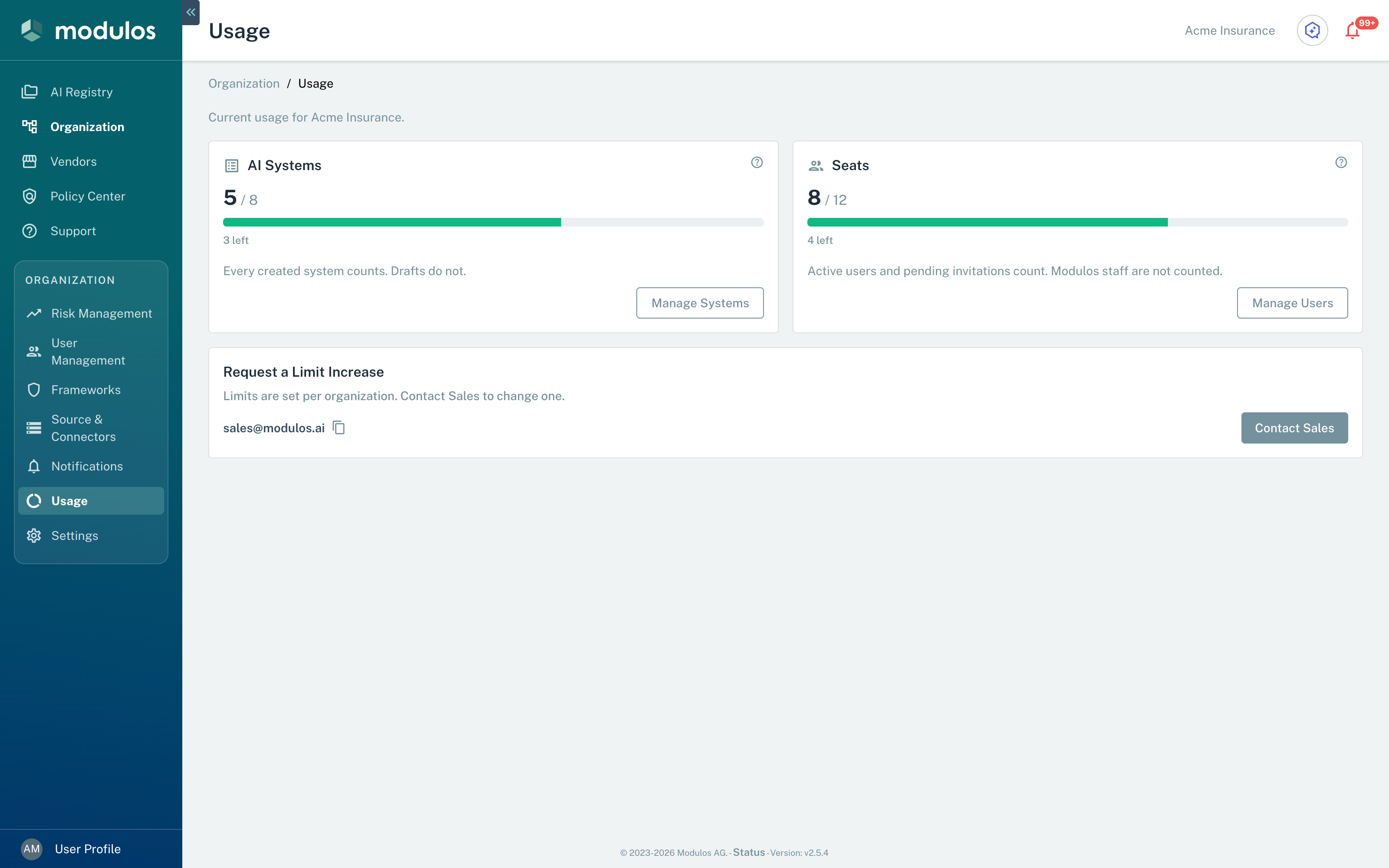
- 1AI SystemsCounts each AI System that is not a Draft.
- 2SeatsCounts the active users and the pending invitations.
- 3Contact SalesOpens an e-mail to Modulos Sales with the current usage.
How it works
AI Systems
The AI Systems card shows how many AI Systems the organization has and the limit of the plan. Each AI System that is not a Draft counts: Pending, Approved, and Rejected AI Systems count. Drafts do not count. Manage Systems opens the AI Systems page.
You can always create a Draft. When the limit is reached, you cannot send a Draft for registration. The registration wizard then shows View Usage.
Seats
The Seats card shows how many seats the organization uses and the limit of the plan. Each active user and each pending invitation uses one seat. A pending invitation uses its seat until the person accepts it or it expires. Modulos staff do not use a seat. Manage Users opens User Management.
When all seats are in use, Modulos does not send a new invitation, and it does not activate a deactivated user again. To make a seat free, an Organization Admin can cancel a pending invitation or deactivate a user.
Limits and banners
Each card shows the used value, the limit, a bar, and the remaining quantity: "{count} left", "Limit reached", or "{count} over the limit". When the plan sets no limit, the card shows "No limit".
For each limit that is reached, a red banner shows at the top of the page:
- "All {limit} of your seats are in use. Inviting another person is blocked until the limit is raised, or an existing one is removed."
- "You have used all {limit} of your AI Systems. Registering another one is blocked until the limit is raised, or an existing one is removed."
Request a higher limit
When the plan sets a limit, the card Request a Limit Increase shows the e-mail address of Modulos Sales. Contact Sales opens an e-mail to Modulos Sales with the name of the organization and its current usage. Add the number of AI Systems or seats that are necessary, then send the e-mail.