

Appearance
AI System Settings
AI System settings control how an AI System is configured over time: scope metadata, EU AI Act scoping, user access, frameworks and versions, and the Sources attached to it.
What this is
AI System settings are where you:
- keep the scope statement up to date
- assign AI System roles and preserve separation of duties
- control how frameworks are applied and updated over time
- configure Sources that power testing and provide context for Scout
Where in Modulos
AI System → Settings
In the current UI, settings are organized into tabs:
- General Settings: Basic Information (name, intended purpose, description), AI System Details (current state, go-live date, lifecycle stage, language, where the system runs, geographic scope), and Risk Management (economic value and risk limit) when risk management is enabled
- EU AI Act: scoping and classification for AI Systems when the EU AI Act framework is applied
- User Access: assign AI System roles to users
- Frameworks: the Add Framework button, plus version inspection, updates, and freezing
- Sources: configure the Sources attached to the AI System, used by testing and Scout grounding
- Danger Zone: destructive operations like deleting an AI System
Who can do what
Permissions
- AI System Owners manage AI System settings and user access.
- Editors and Viewers can typically view AI System settings but cannot change them.
- Organization Admins typically have full administrative access across AI Systems and can intervene when needed.
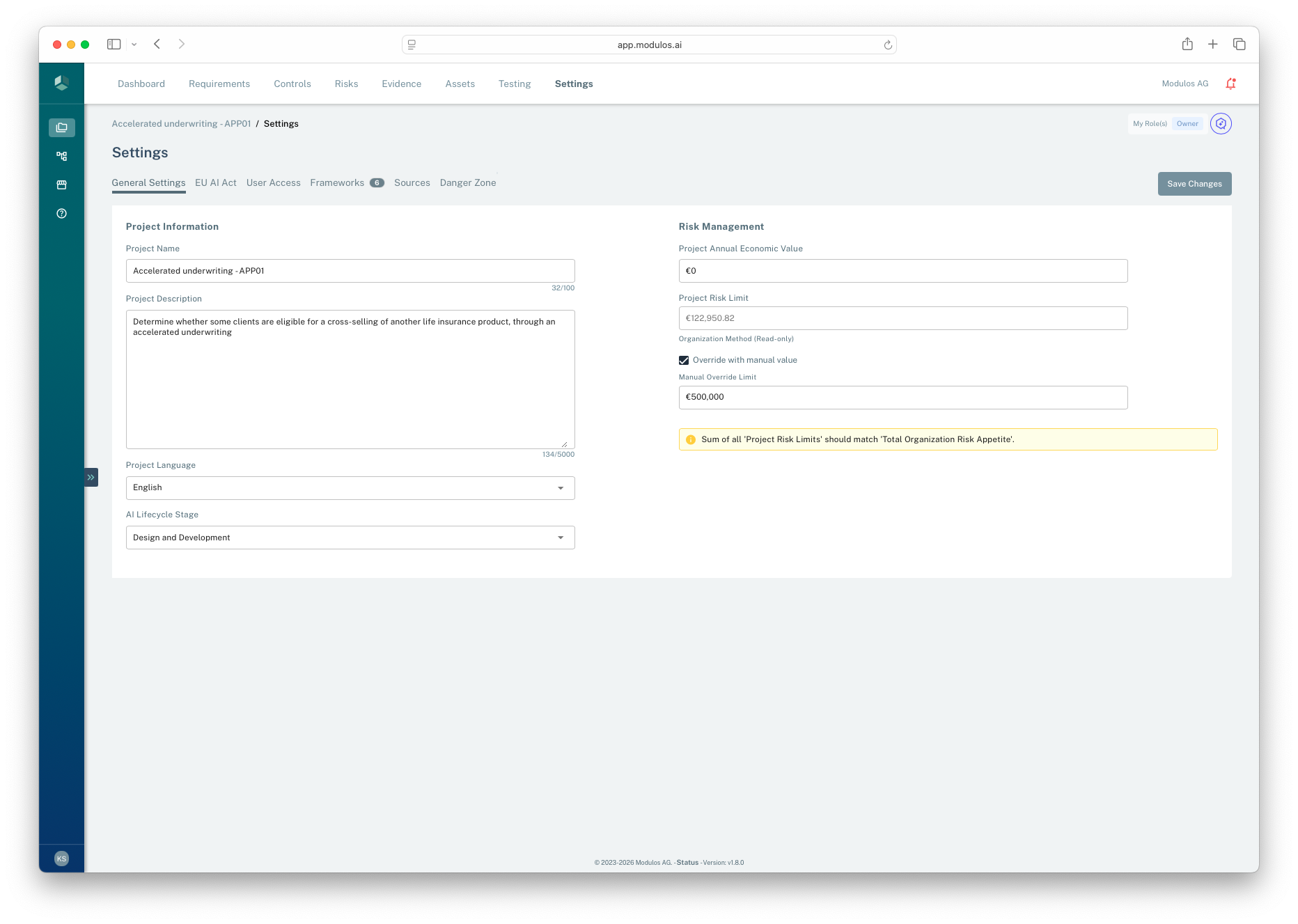
- 1Settings tabsNavigate between general settings, access, frameworks, Sources, and more.
- 2Scope statementKeep the AI System description current and audit-ready.
- 3Lifecycle stageFor AI Systems, this supports segmentation and reporting.
- 4Risk limitsAI System risk limits support monetary risk governance and delegation.
- 5Guardrail warningsWarnings appear when organizational budgets and AI System risk limits are inconsistent.
How it works
General Settings
General settings define the stable AI System metadata:
- Name and description: the description should function as your scope statement
- AI System language: default UI language for the AI System
- AI lifecycle stage: available for AI Systems as a reporting and segmentation aid
If your organization uses risk quantification, general settings also include:
- Annual economic value: a scale indicator used in risk governance discussions and prioritization
- AI System risk limit: derived from organization risk budgets and used for utilization comparisons
- Manual override: owners can override an AI System risk limit when governance requires it
EU AI Act
EU AI Act settings are shown for AI Systems when the EU AI Act framework is applied. This is where you record the classification that scopes the AI System: which Requirements and Controls apply, and how auditors interpret them.
There are two ways to set the scope:
- EU AI Act Questionnaire — a guided flow available from
AI System → Requirements(or via the EU AI Act Questionnaire button on this tab). It walks through a series of questions and derives the classification for you. Best the first time you scope an AI System, or when the team needs the legal framing spelled out. - Manual scoping — set every classification field directly on this tab. Best when the classification is already known, when you need to adjust a single dimension without re-running the questionnaire, or when scoping an AI System that does not start from a guided flow.
Both paths write to the same AI System configuration and use the same descoping algorithm, so an AI System scoped via the questionnaire can be refined manually afterwards, and vice versa.
How the questionnaire runs
- Start: launch it from the EU AI Act Questionnaire button on this tab (or from an EU AI Act Requirement's header). Progress is saved as you go; close the dialog and resume later.
- Questions: answer the guided questions about the system, your role, and its use.
- Result: a scoping Summary lists the Requirements and Controls your answers put out of scope.
Clicking Confirm Scoping applies the result: the listed Requirements and Controls move out of scope, and the Summary of Scoping is attached as Evidence to the MCF-150 scoping control, so the descoping decision is itself auditable. The questionnaire can be re-taken any number of times; confirming again updates the scope.
Classification fields
The manual settings tab captures eight classification inputs, in assessment order: Product Category and Role first (both required), then Prohibited AI Practices (Article 5) and Use Case, then the remaining fields.
| Field | What it records |
|---|---|
| Product Category (required) | The product in scope, for example an AI system or a GPAI model |
| Role (required) | Your legal role in the value chain (provider, deployer, importer, distributor, authorized representative) |
| Prohibited AI Practices (Article 5) | The Article 5 finding, with the single choice Prohibited AI System; a stop condition, asked before the risk tier |
| Use Case | The deployment-context tier that scopes the active Requirements: High Risk, Annex III - Not High-Risk (an Annex III use case assessed as not high-risk under Article 6(3)), or Transparency |
| Organization Establishment | Where the providing or deploying entity is established for Article 2 territorial-scope purposes |
| Model Property | Properties of the model that influence obligations (for example GPAI with or without systemic risk) |
| AI System Requirements | Conditions on the AI System that turn additional obligations on or off (Integration Support, Modification Support) |
| Model Supply Terms | Supply-chain terms that affect where provider duties sit |
Preview and apply
Manual changes go through a two-step preview/apply flow:
- Edit the classification fields and click Preview Changes.
- A Preview Scope Changes dialog summarizes exactly which Requirements and Controls will move in or out of scope (for example "30 Requirement(s) and 48 Control(s) will change scope"), grouped into "Requirements moving IN scope", "Requirements moving OUT of scope", "Controls moving IN scope", and "Controls moving OUT of scope". Each item is shown by ID; hovering an ID reveals the Requirement or Control title.
- Click Apply to commit the change, or Cancel to keep the previous scope.
This preview exists so the impact of a classification change is visible before you accept it — important when you are mid-program and don't want to silently descope work that already has Evidence attached.
Document your reasoning
The AI System Classification Control (MCF-150) is the canonical place to record why you chose a given classification (the Settings tab labels this "Explain and document your reasoning for your chosen EU AI Act Risk Classification in this control"). Manual scoping changes can also be exported as an Evidence PDF for the audit file.
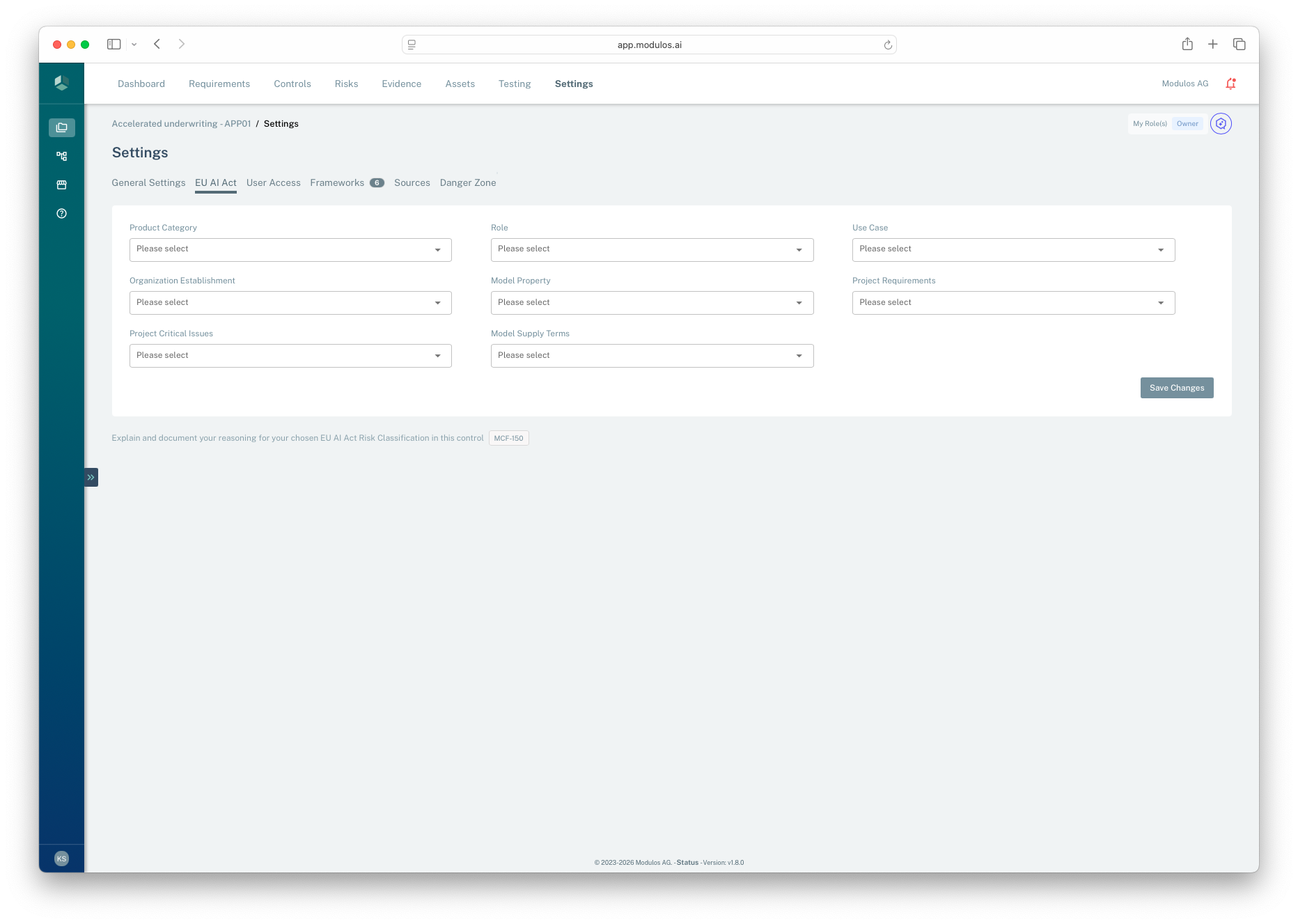
- 1EU AI Act tabAppears for AI Systems when the EU AI Act framework is applied.
- 2Classification fieldsEight inputs that drive Requirement and Control scope.
- 3Preview ChangesOpens a preview of every Requirement and Control moving in or out of scope before you apply.
User Access
User access is where AI System Owners assign AI System roles. The AI System roles are:
- Owner: configure the AI System, assign and remove AI System roles, and manage all settings
- Editor: implement Controls and attach Evidence
- Viewer: read-only assurance access
A user can hold more than one role on the same AI System.
Multiple Owners
An AI System can have more than one Owner at the same time and must have at least one: the platform refuses to remove the last Owner ("You cannot remove the only owner of the AI System."). Existing Owners, Organization Admins, and Super Admins can add or remove the Owner role.
Co-ownership is recommended when an AI System needs continuous coverage (vacation, role transitions), when accountability spans more than one team (e.g. Product + Compliance), or to separate the implementing Owner from the Owner who reviews Requirements.
The AI Registry list shows every Owner per AI System. Users who are deactivated at the organization level still appear in the Owners list with a deactivated-user indicator so the audit trail stays intact; their role assignment no longer grants access, so add a replacement Owner before deactivation lands. Adding members or assigning the Owner role is limited to activated users.
Frameworks and versioning
Frameworks define an AI System’s compliance scope, and they are versioned. Each AI System is pinned to specific framework versions so you can keep audits stable while still adopting updates when you choose.
In AI System → Settings → Frameworks you can:
- add frameworks with Add Framework (disabled while any framework is outdated or while a refresh or freeze is running; update outdated frameworks first)
- inspect the current version and the latest available version
- open the change log for a framework version to understand what changed
- update frameworks to the latest version when you are ready
- freeze framework updates when nearing audit readiness to preserve stability
When you update frameworks, Modulos may introduce new Requirements and Controls, or adjust mappings. Existing Evidence and status history remain, but new or changed items may need implementation and review.
Best practice:
- update frameworks early in a program when change is expected
- freeze updates when you need the scope to stop shifting for audit completion
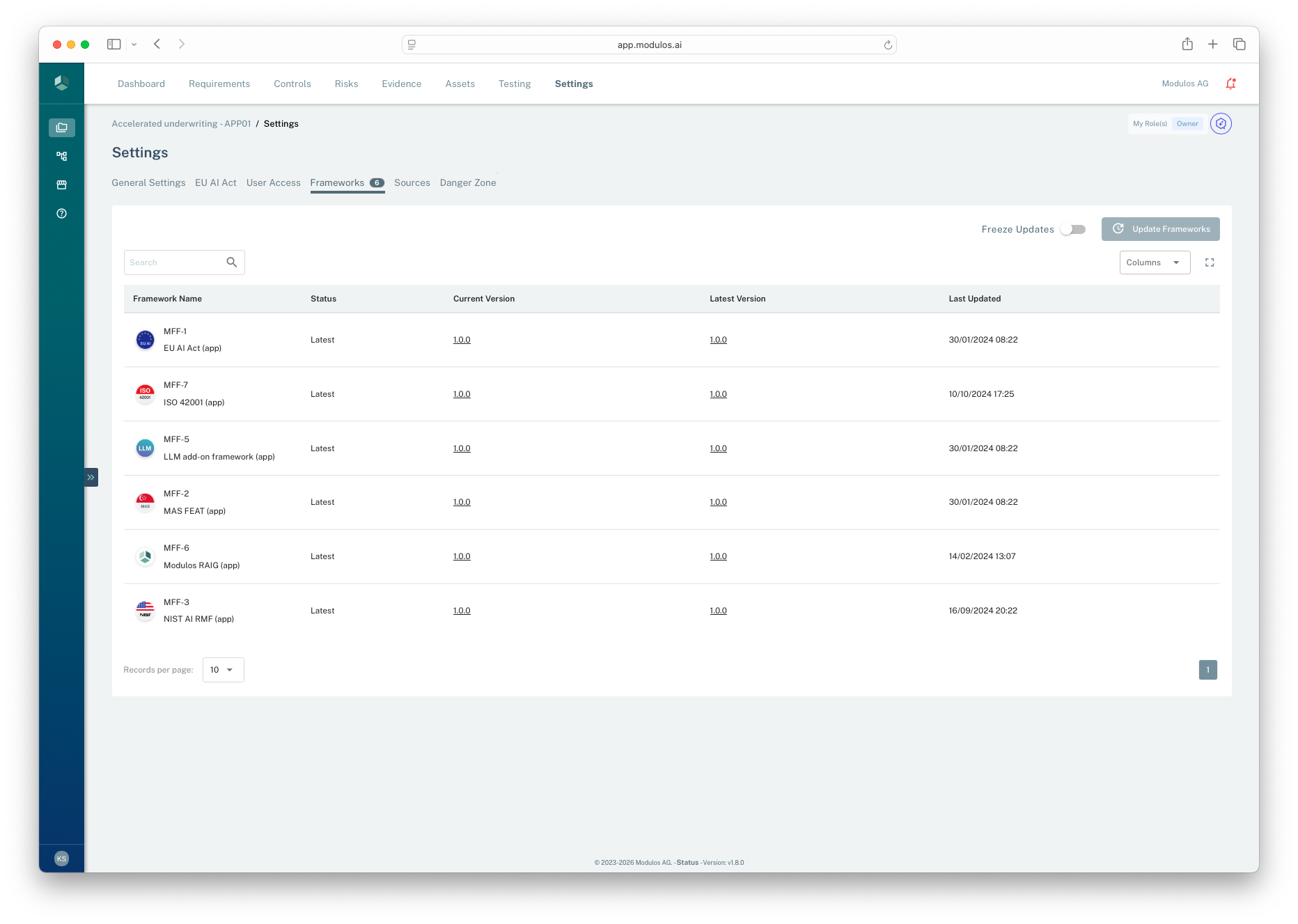
- 1Frameworks tabAI Systems pin framework versions so scope stays traceable.
- 2Freeze updatesPrevents anyone from updating frameworks while keeping editing possible.
- 3Update frameworksUpgrades the AI System to the latest available framework versions.
- 4Current vs latestCompare the version you are on to what is available in the library.
Sources vs Connectors
AI System settings include Sources, which are service accounts attached to an AI System. They are used by testing and to ground Scout in AI System data.
By contrast, Connectors are user-level accounts connected to individual users. They reflect personal access and are used when a user’s identity and permissions matter.
This distinction exists because organizations need two different trust models:
- a stable, shared service account for automation and monitoring scoped to an AI System
- a user-bound account for personal access and accountability
How to use it
1
Keep the scope current
Maintain a clear description that matches what is being governed
2
Assign roles deliberately
Use Owners, Editors, and Viewers to preserve separation of duties
3
Control framework change
Update frameworks when appropriate and freeze updates when nearing audit readiness
4
Configure Sources
Connect the AI System to the systems that provide compliance-relevant Evidence
5
Use EU AI Act settings when relevant
Capture classification context for system-scoped conformity Requirements
Important considerations
- Freezing framework updates preserves audit stability. Use it when you need the scope to stop shifting.
- Treat Sources as high-trust credentials. Prefer least-privilege service accounts and rotate when ownership changes.
- If you can’t see a tab described here, it may reflect missing permissions or module availability in your organization.
- Deleting an AI System is destructive. Export first if you need an audit trail for archival.
Related pages
Register an AI System
Register an AI System and assign initial roles and frameworks
User Management
Organization roles versus AI System roles and separation of duties
Organization Settings
Currency and language defaults that affect risk and reporting
Portfolio Overview
How AI System risk rolls up and compares to appetite