

Appearance
Agent Tests
An Agent Test is a semantic test. An AI agent reads the content of your Sources, such as code, documents, and tickets. The agent then compares the content with the Pass Criteria that you write in words. Agent Tests can check Controls that before only a person could check, because the check is a judgment that a Metric Test cannot express. The agent returns a verdict with a report.
What this is
In Modulos, Runtime Inspection has one tests list with two kinds of test:
- A Metric Test compares one metric from one Source with a threshold. See Tests & Schedules.
- An Agent Test gives an AI agent a Test Objective and Pass Criteria in your own words. The agent examines the Sources of the AI System and returns a verdict.
Use an Agent Test when the check needs the agent to read and decide, not to compare a number. For example:
- A repository holds a model card with the fields a Control asks for.
- Each incident ticket has an owner.
- The access log shows no access from outside the permitted regions.
The agent only reads. Its tools cannot change the Sources it examines.
Where in Modulos
AI System → Runtime Inspectionshows the tests list. The Type column shows an Agent or Metric badge, and the Type filter shows one kind.AI System → Runtime Inspection → New Test → Agent Testopens the New Agent Test dialog.AI System → Runtime Inspection → select an Agent Testopens the detail page with the Test and Results tabs.AI System → Settings → Sourcesholds the Sources the agent can examine.
Each Agent Test gets a code of the form AT-1. Metric Tests get codes of the form T-1.
If Agent Test is not in the New Test dialog, ask Modulos. Modulos switches Agent Tests on per organization.
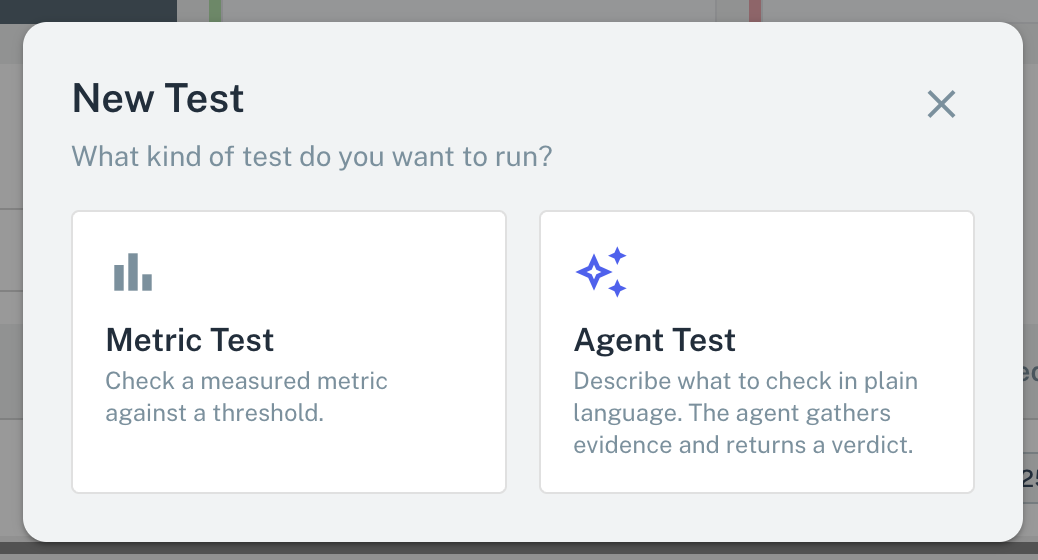
- 1Metric TestCompares one metric from one Source with a threshold.
- 2Agent TestAn AI agent examines the Sources against your Pass Criteria.
Who can do what
Permissions
- Owners and Editors can add, change, and run Agent Tests, and put them in Jobs.
- Viewers can see Agent Tests, their runs, and their reports.
The definition
An Agent Test has these fields:
| Field | What it holds |
|---|---|
| Name | A name that tells what the test examines. |
| Test Objective | The question that the agent investigates, in words. It tells the agent which facts to collect from the Sources, as the metric does in a Metric Test. It does not set the verdict. |
| Pass Criteria | The rule for the verdict, in words. It does what the threshold does in a Metric Test. Only the Pass Criteria set the verdict. Write the conditions for each verdict: passed, failed, and error. To make the test stricter, change only the Pass Criteria. |
| Owner | The member of the AI System who is accountable for the test. By default, Modulos sets you as the Owner. |
| Sources | The Sources the agent reads. If you select none, the agent reads all Sources of the AI System. Select Sources only to make the scope smaller. |
| Mapped Controls | The Controls the test monitors. A failed run sets each mapped Control that is Executed to Not executed. |
In the Test Objective and the Pass Criteria, type @ to add a mention. A mention points to a Control, a Requirement, or another concept of the AI System. The mention gives the agent the concept and its content.
Make the Test Objective and the Pass Criteria clear to a reader with no context. A general question, such as "Is the AI System compliant with the GDPR?", gives a general verdict. A narrow question that mentions the Control to examine gives a clear verdict. If the Pass Criteria are not clear, the verdict is not clear.
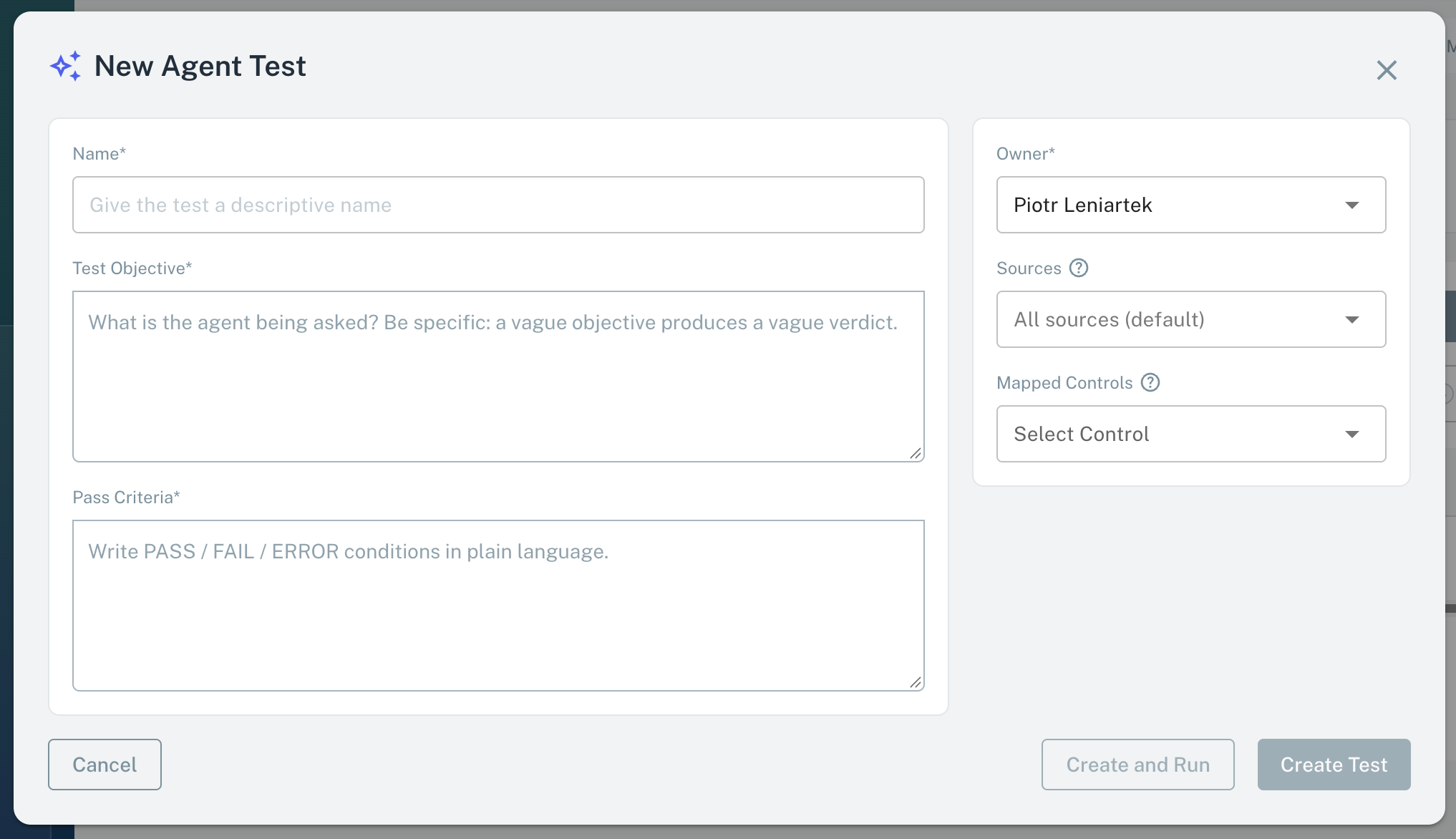
- 1Test ObjectiveWhat the agent must examine.
- 2Pass CriteriaThe conditions for pass, fail, and error. Only these decide the verdict.
- 3OwnerA member of the AI System. Modulos sets you as the Owner.
- 4SourcesAll Sources of the AI System, unless you select some.
- 5Mapped ControlsThe Controls a failed run sets to Not executed.
- 6Create and RunSaves the test and starts the first run. Create Test only saves it.
How to add an Agent Test
- Open
AI System → Runtime Inspection. - Select New Test.
- Select Agent Test.
- Give the test a Name.
- Write the Test Objective.
- Write the Pass Criteria.
- Keep yourself as Owner, or select another member of the AI System.
- If necessary, select Sources to make the scope smaller.
- If necessary, select Mapped Controls.
- Select Create Test to save the test, or Create and Run to save it and start the first run.
Create and Run opens the detail page. The report appears in the Results tab when the run finishes.
A Metric Test needs an enabled Source before you can add it. An Agent Test does not. Connect the Sources the agent must read before you run the test.
How a run works
Each time an Agent Test operates, Modulos records a run. A run:
- Records the definition at its start: Name, Test Objective, Pass Criteria, Sources, Mapped Controls, and Owner. The verdict applies to that recorded definition, also if you change the test later.
- Goes through the statuses pending and running, and ends as completed or error.
- Ends with a verdict, passed, failed, or error, and a Run Report that gives the findings.
The agent sets the verdict from the Pass Criteria only:
- passed: the facts agree with the Pass Criteria.
- failed: the facts do not agree with the Pass Criteria. A Source that the agent can read but that does not contain the data that the Pass Criteria refer to also gives failed.
- error: the agent could not collect the facts, for example because it could not read a Source. See Errors.
A run does not change after it ends. Modulos keeps the runs of a test when you change the test.
Only one run of a test can be active at a time. A second Run Now during an active run gets the message "A run of this agent test is already in progress".
What starts a run
The Triggered by column of the runs table tells what started the run:
- Run manually: a member selected Run Now or Create and Run.
- Job · name: a Job ran the test. The entry links to the Job.
To run Agent Tests on a schedule, select Create Job on the Runtime Inspection page and select the tests. One Job can hold Metric Tests and Agent Tests.
Errors
An error run did not apply the Pass Criteria. The run shows one of these messages:
| Message | Cause |
|---|---|
| "A source of this test could not be read." | The agent could not connect to a Source or read from it. |
| "The run reached its budget ceiling." | The run used the maximum work permitted for one run. |
| "The run did not finish in time." | The run went past the time limit. |
| "The organization has reached its AI usage limit for this month." | No AI usage quota of the organization remains for this month. See AI usage. |
| "The agent could not complete this run." | An internal error stopped the agent. |
Correct the cause and run the test again. An error run changes no Control.
What a failed run does to Controls
Only a completed run with the verdict failed changes Controls. For each mapped Control:
- If the Control is Executed, Modulos sets it to Not executed. The log of the Control gives the test name as the reason, and the assignee of the Control gets a notification.
- Each Requirement of that Control that is Fulfilled becomes Not fulfilled.
- A Control that is Not executed, Out of scope, or Archived does not change.
The Controls that change are the Mapped Controls recorded at the start of the run.
A passed run does not set a Control back to Executed. Execute the Control again through its Review. An error run changes no Control.
Mapping Agent Tests and Controls
- In the New Agent Test and Edit Agent Test dialogs, Mapped Controls lists the Controls of the AI System. Controls that are Out of scope or Archived are not in the list.
- On a Control page, Associated Runtime Inspections lists the Metric Tests and Agent Tests mapped to the Control, each with its latest verdict. Associate to a Test and Remove are available while the Control is Not executed.
How to read the results
The detail page of an Agent Test has two tabs:
- Test shows the Condition, that is the Test Objective and the Pass Criteria, and the Last Result with a link to the Run Report. Before the first run, it shows "No runs yet. Press Run Now to start one."
- Results lists the runs with Date, Result, Triggered by, and Duration. Select a run to read its Run Report. During a run, the page tells you that the report appears when the run finishes.
The right side of the page shows the type, the Owner, the Sources, and the Mapped Controls. Owners and Editors can change the Owner there. Edit opens the dialog for the other fields.
Scout and Agent Tests
Scout reads the Agent Tests of an AI System by code, for example AT-3, with their latest run. When you ask Scout about the tests of an AI System, it covers Metric Tests and Agent Tests and keeps them separate in the answer. See Scout.
Important considerations
- Write Pass Criteria that name the facts the agent must find, for example "each incident of the last 90 days has an owner and a closed date".
- Use the Test Objective to limit what the agent reads. A narrow objective gives a faster run and a clearer report.
- Map a test to a Control only when a failed verdict must take the Control out of Executed.
- Read the Run Report before you act on a verdict. The report gives the findings behind the verdict.
- Each run uses the AI usage quota of the organization. See AI usage.