

Appearance
Policy Templates
The Templates Catalog is a library of ready-made policy drafts that you can use as the starting point for a new policy in your organization. Templates save you from writing every policy from a blank page and give you a known-good structure aligned to a recognized framework.
What this is
A policy template is a reusable, pre-authored policy draft maintained by Modulos for every organization on the platform. Each template comes with:
- a name and a short description of what the policy covers
- a complete draft body that you can adopt as-is or edit
- a framework mapping indicating which framework the template was authored against (informational only)
Templates are centrally maintained by Modulos and are read-only inside the catalog. Today the catalog ships five templates aligned to ISO/IEC 42001:2023 — see Currently available templates below. More frameworks will be added over time.
Where in Modulos
Policy Center → Templates Catalogto browse the available templates and their framework mapping- From a template's detail view, create a new policy seeded with that template's content
Who can do what
Permissions
- Members with Policy read access can browse the Templates Catalog.
- Members with Policy create access can create a new policy from a template.
- The catalog itself is not editable by organization members — templates are maintained by Modulos.
How it works
Catalog contents
Each entry in the catalog lists the template name, a short description, and the framework it was authored for. Browsing the catalog is the easiest way to see what subjects are covered without committing to creating a policy.
Currently available templates
The catalog currently ships five templates, all mapped to ISO/IEC 42001:2023:
| Template | What it covers |
|---|---|
| AI Management System (AIMS) Foundational Document | The AIMS scope, policy framing, governance roles, and the overarching management-system commitments that anchor the rest of the ISO 42001 Control set. |
| AI Policy | The organization-wide AI policy: principles, acceptable use, accountability statements, and the link from policy to the AIMS. |
| AI Data Governance Policy | Data sourcing, quality, lineage, retention, and bias-handling commitments for data used to develop, train, and operate AI systems. |
| AI Competency Framework | Roles, required competencies, training expectations, and AI-literacy commitments for personnel involved in the AIMS. |
| AI Responsibility Allocation Matrix | A RACI-style allocation of AI-system responsibilities across owner, developer, deployer, oversight, and assurance roles. |
More templates and additional framework mappings will be added over time.
Framework mapping
The framework mapping shown on each template is informational. It tells you which framework the template was written against — for example, ISO/IEC 42001 — so you can pick the template that best matches the standard you are working toward. It does not automatically link the resulting policy to Controls or Requirements in that framework; policy-to-Control references are managed separately in project Governance.
Creating a policy from a template
When you create a policy from a template, Modulos creates a new policy in your organization seeded with the template's draft body. The new policy keeps a Source Template reference (shown in the policy's Info panel) so you can always see which template and version it was created from. From that point on the content is fully yours: you can rename the policy, edit the draft, assign an owner, and take it through the usual draft → approval → publish lifecycle. Subsequent updates to the upstream template do not propagate to policies that were already created.
Placeholders
Templates contain placeholders — highlighted tokens like {ORGANIZATION NAME} embedded in the draft at points where organization-specific information has to be filled in. Placeholders make a template usable across many organizations without forcing the catalog to guess values it can't know.
A banner at the top of the draft editor shows how many placeholders are still unreplaced (for example, "30 placeholders remaining"). The draft cannot be saved, nor submitted for approval, while any placeholder is still unreplaced — the Ask for Approval action stays disabled until the counter reaches zero. This guarantees that no policy ever reaches the review queue with template scaffolding still in the body.
To replace a placeholder, open the draft editor and overwrite the highlighted token with the correct value for your organization. The counter updates as you replace each one.
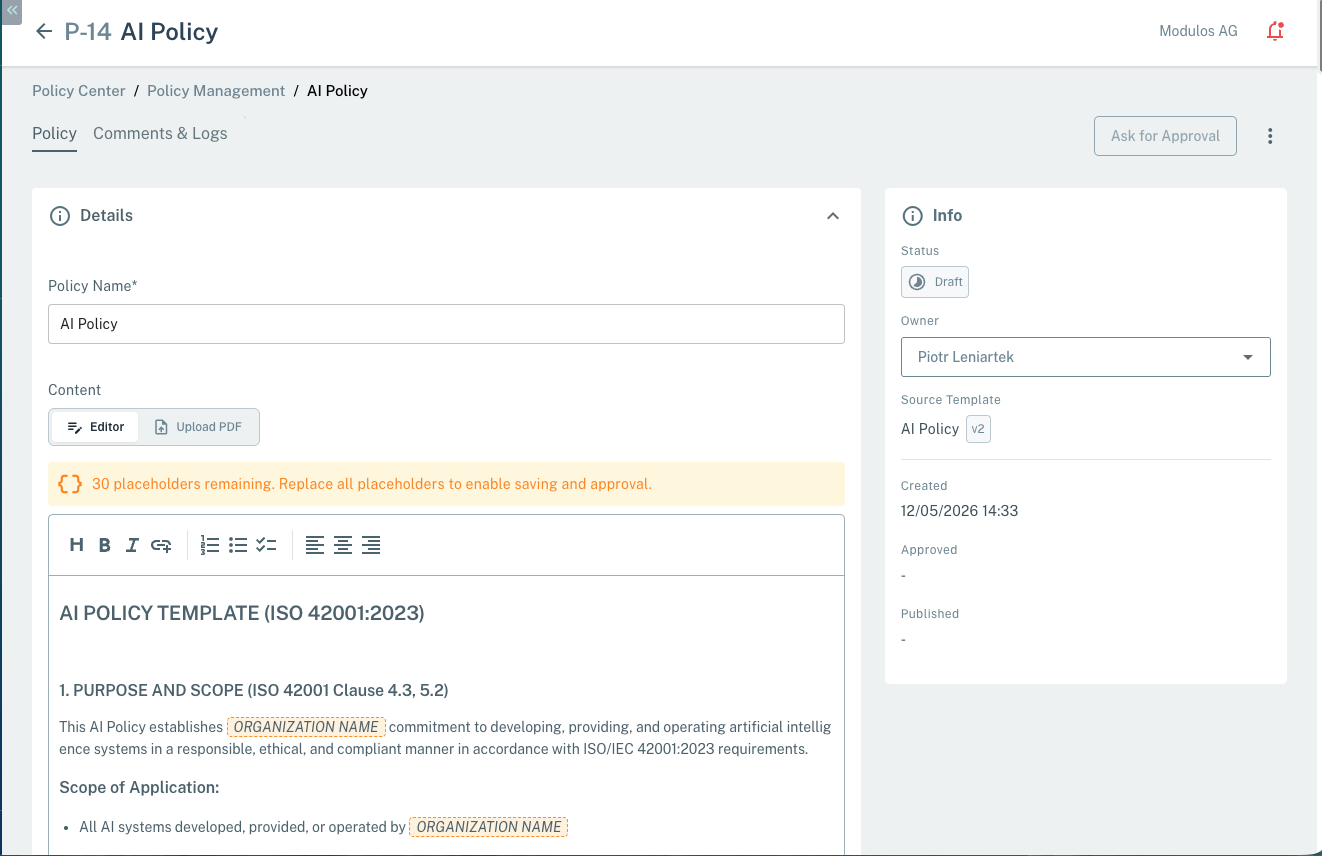
- 1Ask for Approval (disabled)Stays disabled while any placeholder is unreplaced. Becomes available only when the counter reaches zero.
- 2Source TemplateRecords which template (and template version) this policy was created from. Edits to the upstream template do not flow back into this policy.
- 3Placeholder counterShows how many placeholders are still unreplaced. The draft cannot be saved or submitted for approval until this reaches zero.
- 4Inline placeholderPlaceholders appear as highlighted tokens (e.g. ORGANIZATION NAME) at the spots that need organization-specific values.
How to use it
1
Open the Templates Catalog
In the sidebar, go to Policy Center → Templates Catalog.
2
Browse and pick a template
Review the available templates and their framework mapping. Today the catalog focuses on ISO/IEC 42001.
3
Create a policy from the template
From the template detail view, create a new policy. The new policy is seeded with the template content as its initial draft and keeps a Source Template reference.
4
Replace every placeholder
Open the draft and replace each highlighted placeholder (e.g. ORGANIZATION NAME) with your organization-specific value. The banner counter must reach zero before the draft can be saved or submitted for approval.
5
Edit the draft
Adapt the rest of the content to your organization and assign an owner if not already set.
6
Run the normal lifecycle
Ask for approval, publish, and set a renewal period — exactly as with any other policy.
Important considerations
- Templates are read-only. To request changes to a template or propose a new one, contact Modulos support.
- The framework mapping is informational. Creating a policy from an ISO/IEC 42001 template does not by itself satisfy an ISO 42001 Control — operationalizing the policy still happens through project Governance.
- A policy created from a template keeps a Source Template reference for traceability, but its content is decoupled from the catalog afterwards: edits to the upstream template do not flow into existing policies.
- Placeholders are mandatory. Saving the draft and submitting it for approval are blocked while any placeholder remains in the body — by design, to prevent policies being published with unfilled template scaffolding.