

Appearance
Organization Sources
An organization Source is a connection from the organization to an external system, with its credentials. It does not belong to an AI System. An Organization Admin connects the external system one time, for example a Microsoft tenant, the Azure subscriptions, or the Databricks workspaces of the organization. AI Discovery then reads the organization Sources and shows the AI systems that it finds.
To compare it with the Source of an AI System, see Sources.
Where in Modulos
Organization → Source & Connectors → Organization sources lists the organization Sources and adds new ones. Manage Sources on the AI Discovery page opens the same tab.
Only Organization Admins can open Organization → Source & Connectors. The Organization sources tab is its third tab. The Sources tab of that page has no Sources: it makes Source types available. See Integration controls.
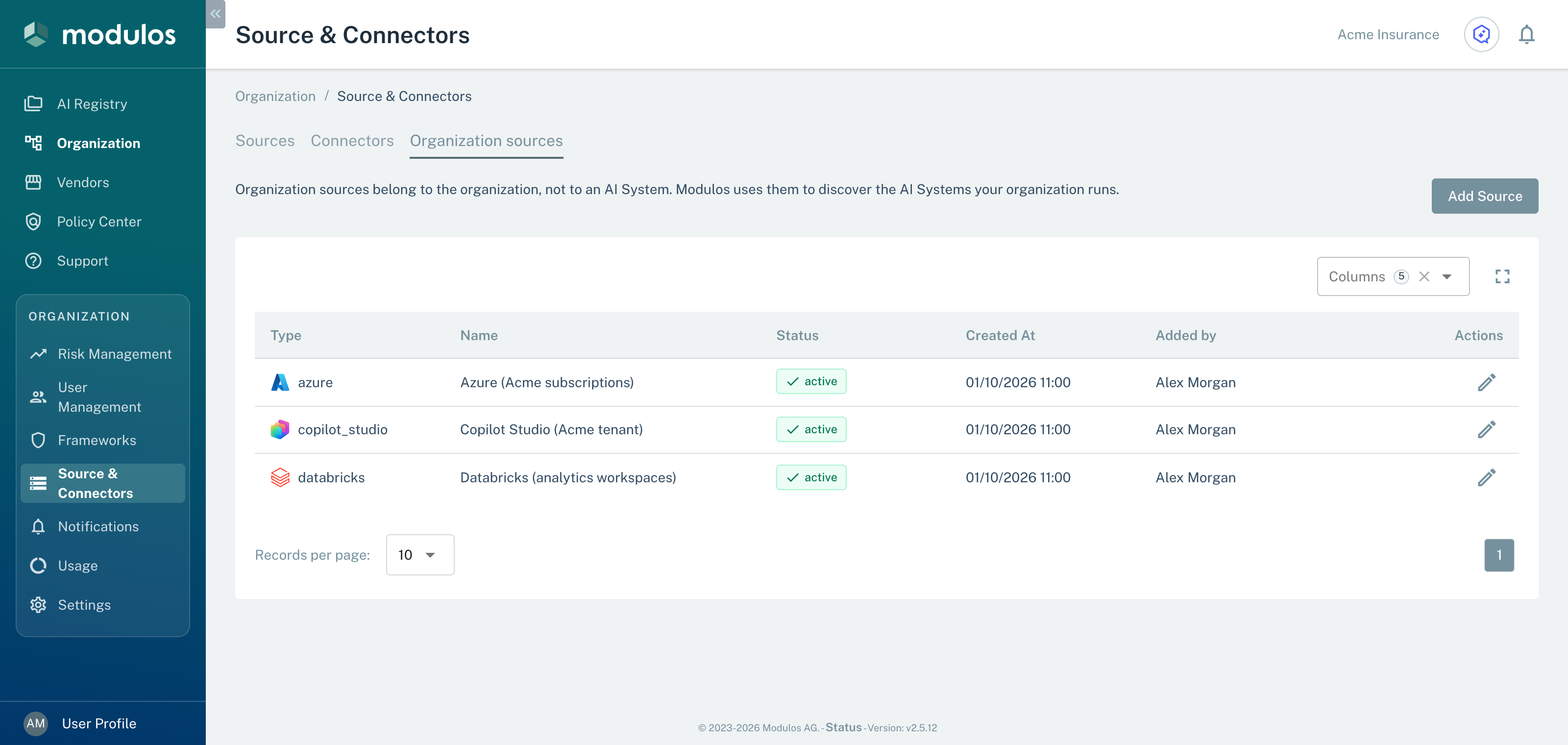
The organization Sources, with their type and their status.
- Organization sources The tab with the Sources that belong to the organization.
- Add Source Connects an external system to the organization.
- Status Shows if each Source is active or disabled. A scan of AI Discovery reads only active Sources.
- Actions Opens the Source. There you change or remove it.
Source types
Add Source on the Organization sources tab offers these Source types: Azure, Microsoft Copilot Studio, Databricks, and GitHub.
A Source type must be available before you can connect it. For a type that is not available, the dialog shows "Turn the source type on in the Sources tab to connect it."
A GitHub organization Source has a GitHub owner and a token, not one repository. See GitHub as an organization Source.
How to add an organization Source
- Go to
Organization → Source & Connectors. - Select the Organization sources tab.
- Select Add Source.
- Select the Source type.
- Enter the data of the Source. The page of the Source type tells you how to prepare the external system and what to enter: Azure, Microsoft Copilot Studio, Databricks, or GitHub.
- Select Save.
Modulos tests the connection before it saves the Source, and does not save a Source that fails the test. The name of an organization Source must be different from the names of the other organization Sources.
The table of organization Sources
The Organization sources tab shows each organization Source in a table with these columns: Type, Name, Status, Created At, Added by, and Actions. The Status column shows if the Source is active or disabled.
To change or remove an organization Source, open it from the Actions column. Then select Edit or Remove Source. Check connection in the dialog tests the connection again.
When a Source type becomes unavailable for the organization, Modulos disables the organization Sources of that type. They become active again when the type becomes available again.
This table has no Configuration check column. That column is only in the Sources table of an AI System. See Configuration check.
What reads an organization Source
These functions use the organization Sources:
- AI Discovery reads the active Azure, Microsoft Copilot Studio, and Databricks Sources in each scan. A scan does not read a disabled Source or a GitHub organization Source. See Sources that a scan reads.
- In a Global chat, Scout can show the organization Sources to an Organization Admin: the name, the type, and the status of each one. Scout does not read the external systems through these Sources. When AI Discovery is available, Scout can also show the results of the scans. See Scout.
Metric Tests, Agent Tests, the Risk Agent, and Scout in the chat of an AI System do not read the organization Sources. They read only the Sources of that AI System.
Only Organization Admins see the AI Discovery page, and only when AI Discovery is available for the organization. If you are an Organization Admin and do not see AI Discovery, contact Modulos.
How a Source follows a candidate into an AI System
An organization Source leads to the Source of an AI System in these steps:
- Connect An Organization Admin adds the organization Source with the credentials of the external system.
- Scan A scan of AI Discovery reads the active Azure, Microsoft Copilot Studio, and Databricks Sources. It shows what it finds as candidates.
- Accept An Organization Admin accepts a candidate. The new Draft AI System gets its own copy of the organization Source.
- Use The copy is a Source of the AI System. Tests and AI agents read it as they read each Source of the AI System.
Thus the Source follows the candidate into the new AI System. For example, an Azure organization Source finds a model deployment. When an Organization Admin accepts that candidate, the Draft AI System gets an Azure Source of its own, with the credentials of the organization Source. This copy has only the subscription of the deployment. It is not necessary to connect Azure again for that AI System.
You find the copy in the Connect Sources card of the registration wizard, and after the registration in AI System → Settings → Sources. To accept a candidate, see Accept a candidate.
The copy in the Draft
A detection is one item that a scan finds in a Source, and each new detection becomes one candidate. The copy of the organization Source in the Draft has these properties:
- Modulos copies the organization Source one time, when it creates the Draft, and stores the credentials again for the copy. If you change the organization Source after that, the copy does not change. When you replace a secret, change it in the organization Source and in each copy.
- The copy has only the environments, subscriptions, or workspaces where the scan found the detections, and only those that the organization Source has when you accept. A Microsoft Copilot Studio copy has only those environments, an Azure copy only those subscriptions, and a Databricks copy only those workspaces. A copy of a Microsoft Copilot Studio Source for one environment is the same as that Source.
- This limit does not change what the credentials can read in the external system. For example, with a full-tenant Microsoft Copilot Studio copy, Scout can list the agents of the full tenant. With an Azure copy, Scout can list each subscription that the service principal can see.
- The name of the copy is the name of the organization Source, then the environment names, the subscription IDs, or the workspace hosts. The copy of a Microsoft Copilot Studio Source for one environment keeps the name of the organization Source.
- If two organization Sources found the same system, the Draft gets a copy of the Source that found the system last.
- Modulos starts a configuration check of each copy.
When Modulos makes no copy
When you accept a candidate, Modulos makes no copy of the organization Source in these cases:
- The Source type is not available for the organization.
- The organization Source is disabled or removed.
- The organization Source no longer has the environments, subscriptions, or workspaces of the detections.
Modulos creates the Draft also in these cases, and shows no message. Thus examine the Sources of the Draft.
One case is different. If Modulos cannot read the credentials of the organization Source, it creates no Draft and shows "The source the item was found in could not be read. Try again." Then accept the candidate again.