

Appearance
Policy Management
What this is
Policy Management shows all Policies of the organization in Policy Center. Policy Managers use it to create Policies, to open them, and to edit their drafts. The steps from a draft to a published version are on Lifecycle & Approvals.
Where in Modulos
Policy Center → Policy Managementshows the Policies in a table, with a field to find Policies and a status filter.- Select a Policy to open it. An Unpublished Policy opens its draft. A published Policy opens the Policy page with the current version.
Who can do what
Permissions
- Only Policy Managers see Policy Management. A Policy Manager creates Policies, opens each Policy, changes the owner of a Policy, and exports a version as a PDF file.
- The Policy Owner edits the draft, opens a new draft, and archives or unarchives the Policy. See Ownership.
- All other users read the published Policies in My Tasks. See Policy Center.
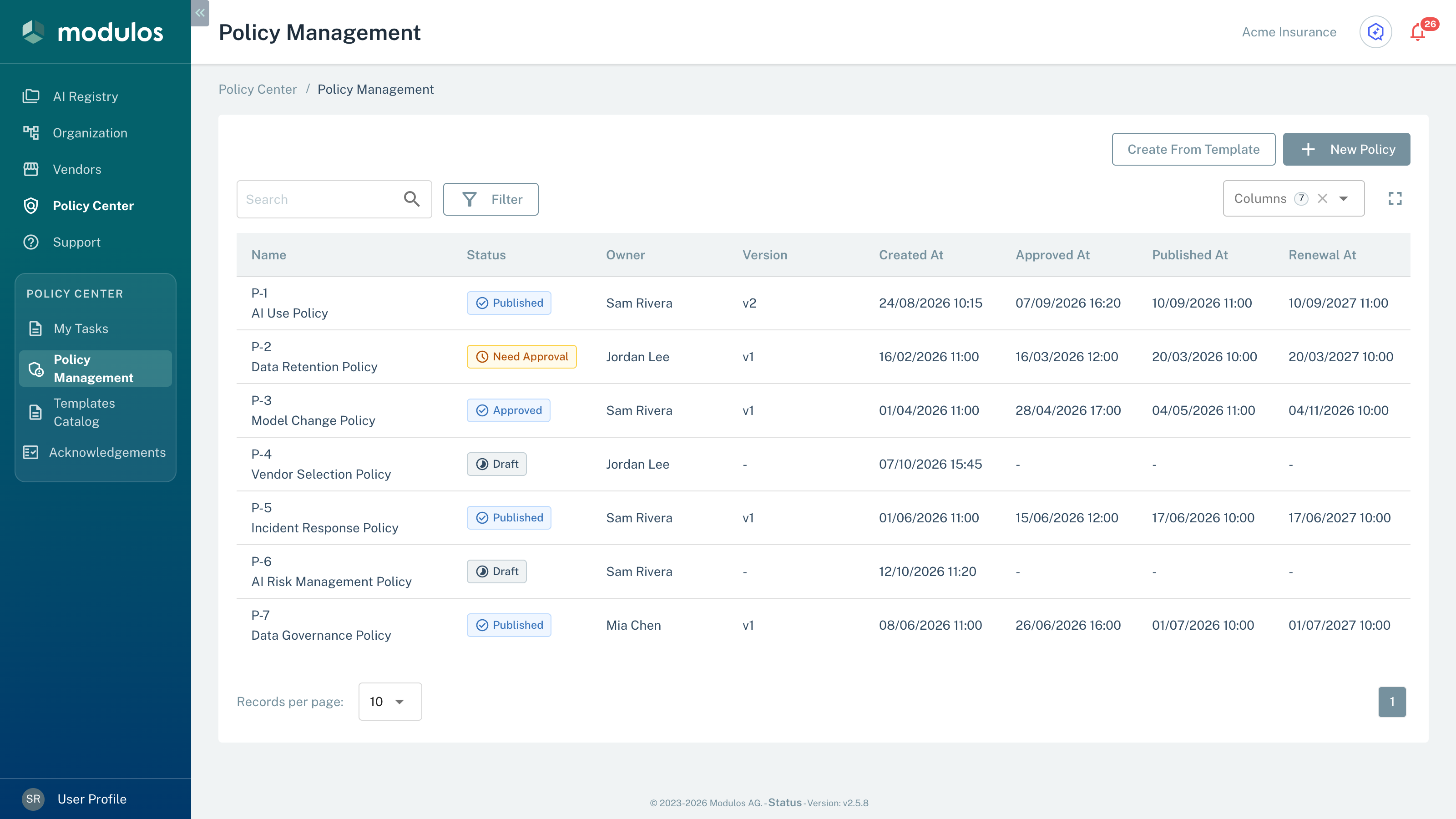
- 1FilterSelect Status to show the Policies with one status.
- 2New PolicyOpen the Create New Policy dialog.
- 3NameThe code of the Policy (for example P-1) and its name.
How it works
Unique codes
Modulos gives each Policy a code when you create it: P-1, P-2, P-3. Each code is unique in the organization. The code does not change when you change the name of the Policy. The table shows the code above the name.
Ownership
Each Policy has one owner, and the owner must have the Policy Manager role. When you create a Policy, you are its owner, unless you select a different Policy Manager. Only the owner can do these actions:
- edit the draft and send it for approval
- publish an approved version, or move it back to Draft
- open a new draft
- archive or unarchive the Policy
Each Policy Manager can change the owner in the Owner field of the Info panel. The Owner field shows only active users with the Policy Manager role.
Find and filter Policies
The Policy Management table has these parts:
- The Search field finds Policies by name or code.
- Filter has the Status filter, which shows one status: Draft, Published, Archived, Need Approval, or Approved. The Draft, Need Approval, and Approved filters show the Policies that have a version with that status. With no status selected, the table shows all Policies that are not archived.
- The columns are Name, Status, Owner, Version, Created At, Approved At, Published At, and Renewal At. You can sort the table by each column, but not by Owner or Renewal At.
The Status column shows one status for each Policy. For an archived Policy, it shows Archived. For the other Policies, it shows Need Approval or Approved while a version waits for approval or publication. Else it shows Published or Draft.
Policy status
Each Policy has a status (Unpublished, Published, or Archived), and each version has its own status. Lifecycle & Approvals tells you what each status means.
Policy page
The Policy page shows the current published version of a Policy:
- The Policy tab shows the content. Its Info panel shows Status, Owner, Version, Source Template (for a Policy from a template), Created, Approved, Published, Renewal At, and Renewal Period.
- The Comments & Logs tab shows the comments and the log of the Policy (see Audit trail).
- The Version History tab shows all published versions. Select a version to open it.
- Open Draft (owner only) makes a new draft with the name and the editor text of the current version. The new draft does not get a PDF file of the current version. To use the PDF file again, upload it in the new draft. Open Draft shows only when all versions of the Policy are published. Else, the banner "A draft version exists for this policy." links to that version with View Draft.
- The ⋮ menu has Export, which downloads a PDF file that Modulos makes from the editor text of the version. The export does not include the content of an uploaded PDF file. For the owner, the menu also has Archive Policy.
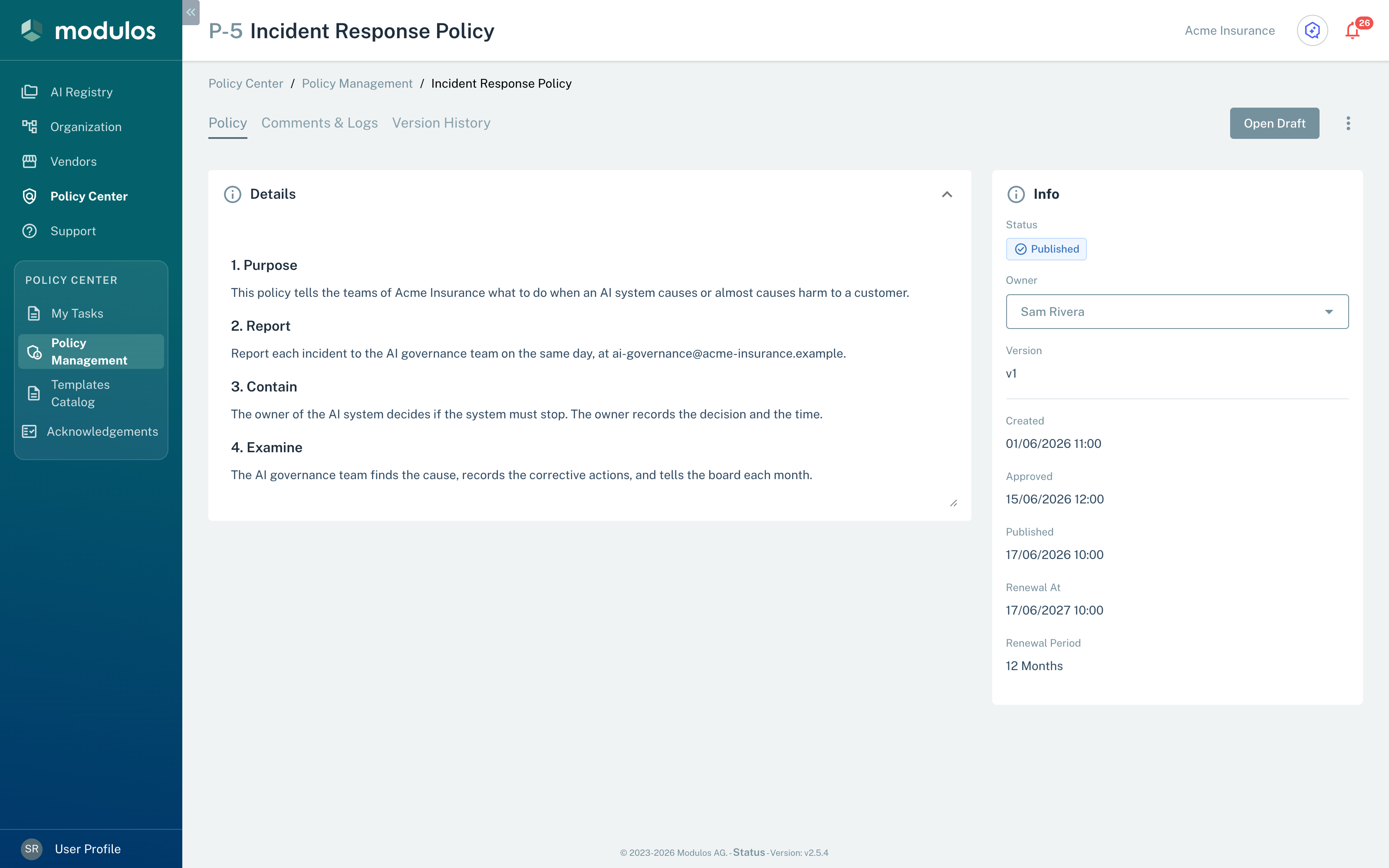
- 1OwnerEach Policy Manager can select a different owner here.
- 2Policy, Comments & Logs, Version HistoryThe content, the comments and log, and all published versions.
- 3Open DraftStart a new version. The ⋮ menu has Export and Archive Policy.
Draft content
The owner edits a draft on its page. The Details section of the draft has the Policy Name field (mandatory) and the Content of the version. The content has two modes:
- Editor: write the text in the editor.
- Upload PDF: upload one PDF file of up to 100 MB. Modulos shows the PDF as the content of the version.
How to use it
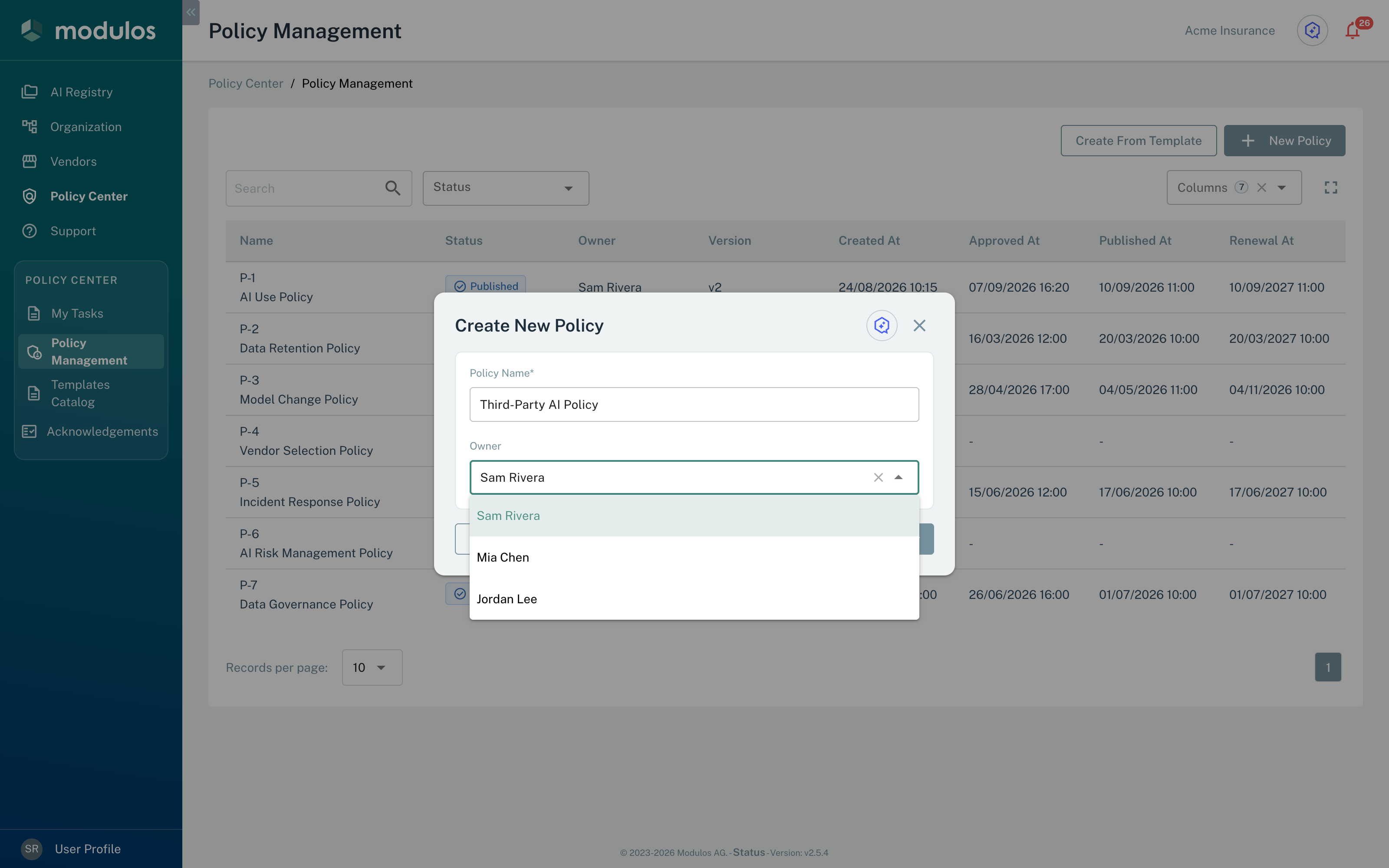
- 1Policy NameThe name of the Policy. You can change it in the draft.
- 2OwnerKeep your name, or select a different Policy Manager.
1
Open the dialog
In Policy Management, select New Policy. The Create New Policy dialog opens. To start from a template, select Create From Template.
2
Name the Policy and set the owner
Enter the Policy Name. In Owner, keep your name or select a different Policy Manager. Select Create Policy. Only the owner can do the next steps.
3
Edit the draft
Modulos opens the draft. Write the content in Editor, or select Upload PDF and add a PDF file. Select Save.
4
Ask for approval
Select Ask for Approval. The other Policy Managers receive a notification.
5
Publish
When a Policy Manager approves the version, select Publish. Select the Renewal Period, then select Publish in the dialog.
Important considerations
- Modulos does not let you deactivate a user who owns Policies that are not archived, or remove the Policy Manager role from that user. First, change the owner of each of these Policies.
- A version has the editor text or a PDF file, but not the two. When you save in Upload PDF mode with a PDF file, Modulos removes the editor text. When you save changed editor text, Modulos removes the PDF file. Select Save to keep your changes. If you go to a different page with changes that you did not save, Modulos asks for confirmation.