

Appearance
Tests & Schedules
A test gives a condition for a metric. A schedule gives the time when Modulos checks the condition. Together, they check Control outcomes continuously.
This page covers Metric Tests. Runtime Inspection has one tests table with two types of test: Metric Tests, and Agent Tests. An AI agent judges an Agent Test against Pass Criteria in your own words.
What this is
A Metric Test has these parts:
- one Source
- one metric
- one operator
- one expected value
- an optional schedule
One condition keeps a test easy to read for Viewers and auditors. It also gives a short answer to the question: what does this test prove?
Where in Modulos
AI System → Runtime Inspectionshows the tests and lets you filter them.AI System → Runtime Inspection → New Test → Metric Testopens the Create New Test dialog.AI System → Runtime Inspection → select a testlets you run, edit, and link the test, and read its results.AI System → Settings → Sourceshas the Sources that your tests use.AI System → Jobsshows the Jobs of the AI System. See Jobs.
If your organization does not use Agent Tests, New Test opens the Create New Test dialog immediately. If your organization does not use Agent Tests and no Source is enabled, New Test is not active.
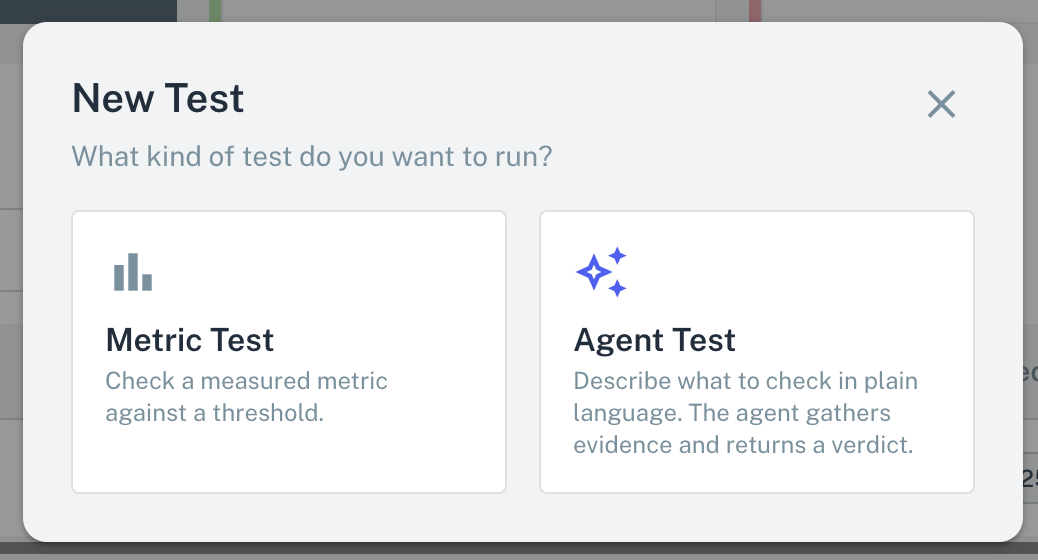
- 1Metric TestCompares one metric from one Source with a threshold. The card is not active when no Source is enabled.
- 2Agent TestAn AI agent examines the Sources against your Pass Criteria.
How to add a Metric Test
- Open
AI System → Runtime Inspection. - Select New Test.
- Select Metric Test. If no Source is enabled, the card is not active.
- Type a Test Name. If necessary, add a Description.
- Select the Source.
- Select the Metric. Type the metric name and select Check, or select a metric that the Source shows. For an Azure or AWS Source, select the resource before the metric.
- Select the Operator and type the Value. Modulos infers the metric type from the Source.
- Keep Schedule Testing and set a Frequency and a Time, or select Run it manually.
- Select Create Test.
The test gets a code such as T-1, and its page opens. On that page, set the assignee and link the Controls. See Ownership and linking.
Who can do what
Permissions
- Owners and Editors can create, edit, turn on, and run tests.
- Viewers can read tests and results. They cannot run or change tests.
How test conditions work
Operators and metric types
The operators that you can select change with the metric type:
| Metric type | Supported operators | Examples |
|---|---|---|
| String | Equal to, Not equal to | “status equals ok” |
| Number | Greater than, Greater than or equal, Equal to, Less than, Less than or equal | “error rate less than 0.01” |
Modulos infers the metric type when it checks the metric against the Source.
Evaluation behavior
When a test runs, Modulos reads the latest available value of the metric in a lookback window. Then it checks the condition.
A test accepts small differences in timing. You usually want the most recent signal, not a data point from one single second.
Runtime test
A schedule fires, an operator evaluates, a result is emitted.
Schedule
Runs on cadence (e.g. daily)
Evaluation
1
Fetch latest datapoint
2
metric < threshold3
Emit result
Passed Failed Error
Tests evaluate the most recent signal available within the lookback window. Outside the window, the result is Error, not Failed.
Schedules
A Metric Test can run by hand or on a schedule. Set this in the Schedule section of the Create New Test dialog, or after that with Edit. Select Schedule Testing or Run it manually.
A schedule has:
- a Frequency: Daily, Weekly, Monthly, or Quarterly
- a time of day
Modulos shows schedule times in your local time zone.
Schedule days
- A Weekly test runs on Sunday.
- A Monthly test runs on the first day of the month.
- A Quarterly test runs on the first day of January, April, July, and October.
Jobs explains how Modulos counts these days.
A test with a schedule runs as a Job. Modulos makes the Job and gives it the name of the test. You can read its runs on the Jobs page. If you turn off this Job there, the test gets no schedule.
To run more than one test on one schedule, use Create Job on the Runtime Inspection page. See Jobs.
Ownership and linking
The page of a test has these settings:
- Status: Enabled or Disabled. A disabled test does not run. Set the test to Enabled before you select Test Now.
- Assigned To: the member who examines failures and errors.
- Associated Controls: the Controls that the test monitors. Associate to a Control shows the Controls of the AI System that are not Archived or Out of Scope.
Link a test when the Control is in use. On a Control page, Associate to a Test is available while the Control is Not Executed.
A failed or error result sets each linked Control that is Executed to Not Executed. See What a failed result does to Controls.
How to use it
1
Choose a Control outcome
Pick a signal that shows if the Control works
2
Select New Test, then Metric Test
Agent Test is the other type: a check that an AI agent judges against your Pass Criteria
3
Select a Source
Use Prometheus or Datadog for pull metrics, or Modulos Client for pushed metrics
4
Set the condition
Select an operator and an expected value for the metric type
5
Add a schedule
Select a frequency that matches how fast a change matters
6
Assign and link
Assign an owner and link the test to the Control
Important considerations
- Test outcomes, not each implementation step. Some high-signal tests are better than many tests with noise.
- If a test returns error frequently, the cause is in the integration or the observability platform, not in the Control.
- Give the units and the direction: “p95 latency less than 250 ms” is clearer than “latency ok”.
- Frequent schedules cause many notifications. Start with daily or weekly runs. Use a higher frequency only when fast feedback is necessary.
Related pages
Operating Model
Where testing fits into continuous governance
Jobs
Run tests on a schedule or together, and read the runs
Agent Tests
Checks that an AI agent does on the Sources, judged against your Pass Criteria
Sources
Set up Sources and see which types give data for tests
Controls
How Controls change to Executed and how Reviews work in AI Systems
Results & Remediation
Read results and make a remediation loop