

Appearance
Project Settings
Project settings control how a project is configured over time: scope metadata, EU AI Act scoping, user access, frameworks and versions, and project-level sources.
What this is
Project settings are where you:
- keep the scope statement up to date
- assign project roles and preserve separation of duties
- control how frameworks are applied and updated over time
- configure sources that power testing and provide context for Scout
Where in Modulos
Project → Settings
In the current UI, settings are organized into tabs:
- General Settings: name, description, language, and lifecycle stage
- EU AI Act: scoping and classification for AI system projects when the EU AI Act framework is applied
- User Access: assign project roles to users
- Frameworks: add frameworks, inspect versions, update to the latest version, and freeze updates
- Sources: configure project-level sources used by testing and Scout grounding
- Danger Zone: destructive operations like deleting a project
Who can do what
Permissions
- Project Owners manage project settings and user access.
- Editors, Reviewers, and Auditors can typically view project settings but cannot change them.
- Organization Admins typically have full administrative access across projects and can intervene when needed.
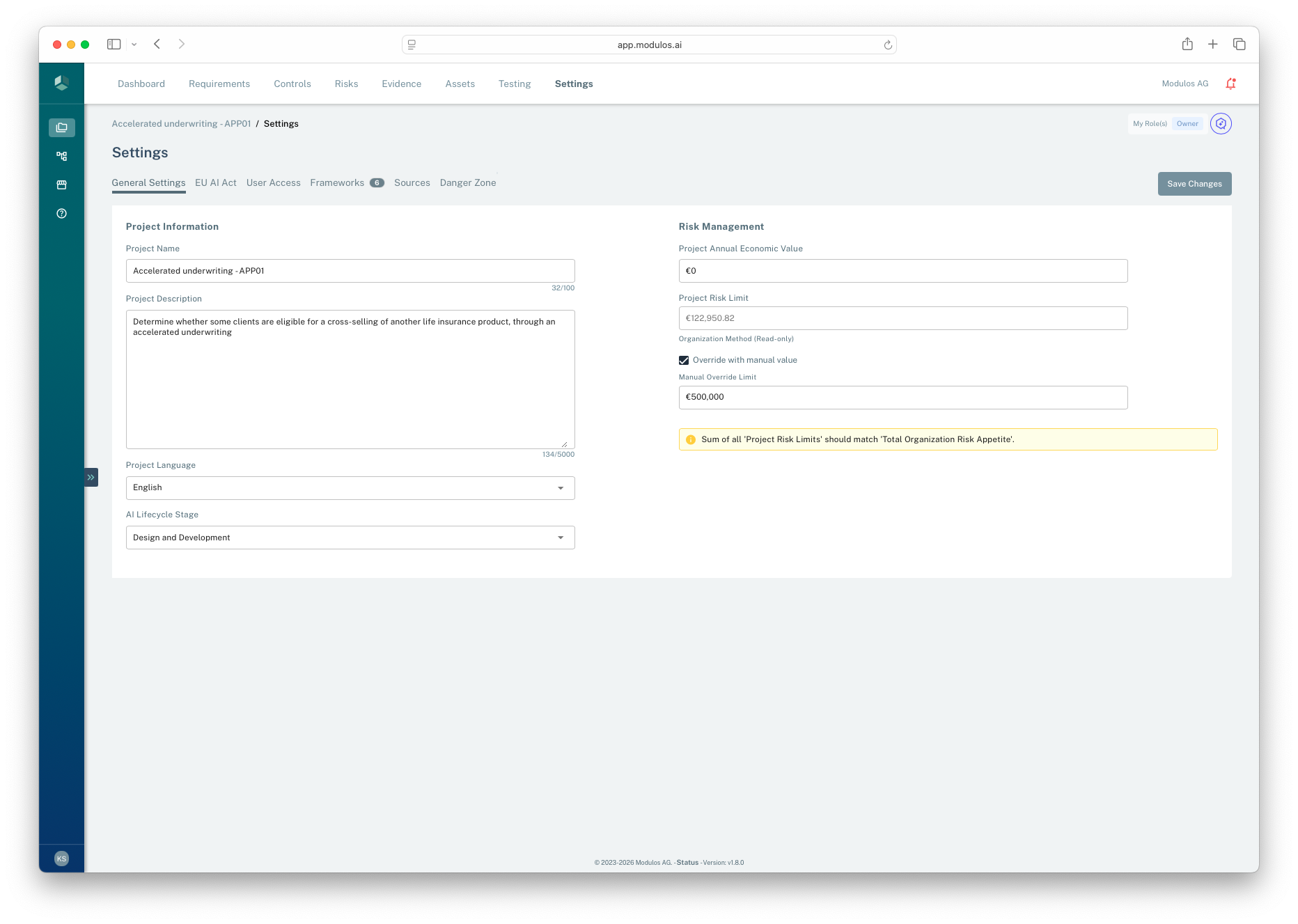
- 1Settings tabsNavigate between general settings, access, frameworks, sources, and more.
- 2Scope statementKeep the project description current and audit-ready.
- 3Lifecycle stageFor AI system projects, this supports segmentation and reporting.
- 4Risk limitsProject limits support monetary risk governance and delegation.
- 5Guardrail warningsWarnings appear when organizational budgets and project limits are inconsistent.
How it works
General Settings
General settings define the stable project metadata:
- Name and description: the description should function as your scope statement
- Project language: default UI language for the project
- AI lifecycle stage: available for AI system projects as a reporting and segmentation aid
If your organization uses risk quantification, general settings also include:
- Annual economic value: a scale indicator used in risk governance discussions and prioritization
- Project risk limit: derived from organization risk budgets and used for utilization comparisons
- Manual override: owners can override a project risk limit when governance requires it
EU AI Act
EU AI Act settings are shown for AI system projects when the EU AI Act framework is applied.
This area captures classification and scope inputs that drive:
- traceability in technical documentation
- which requirements apply and how they are interpreted
- reviewer and auditor context for conformity-style evidence
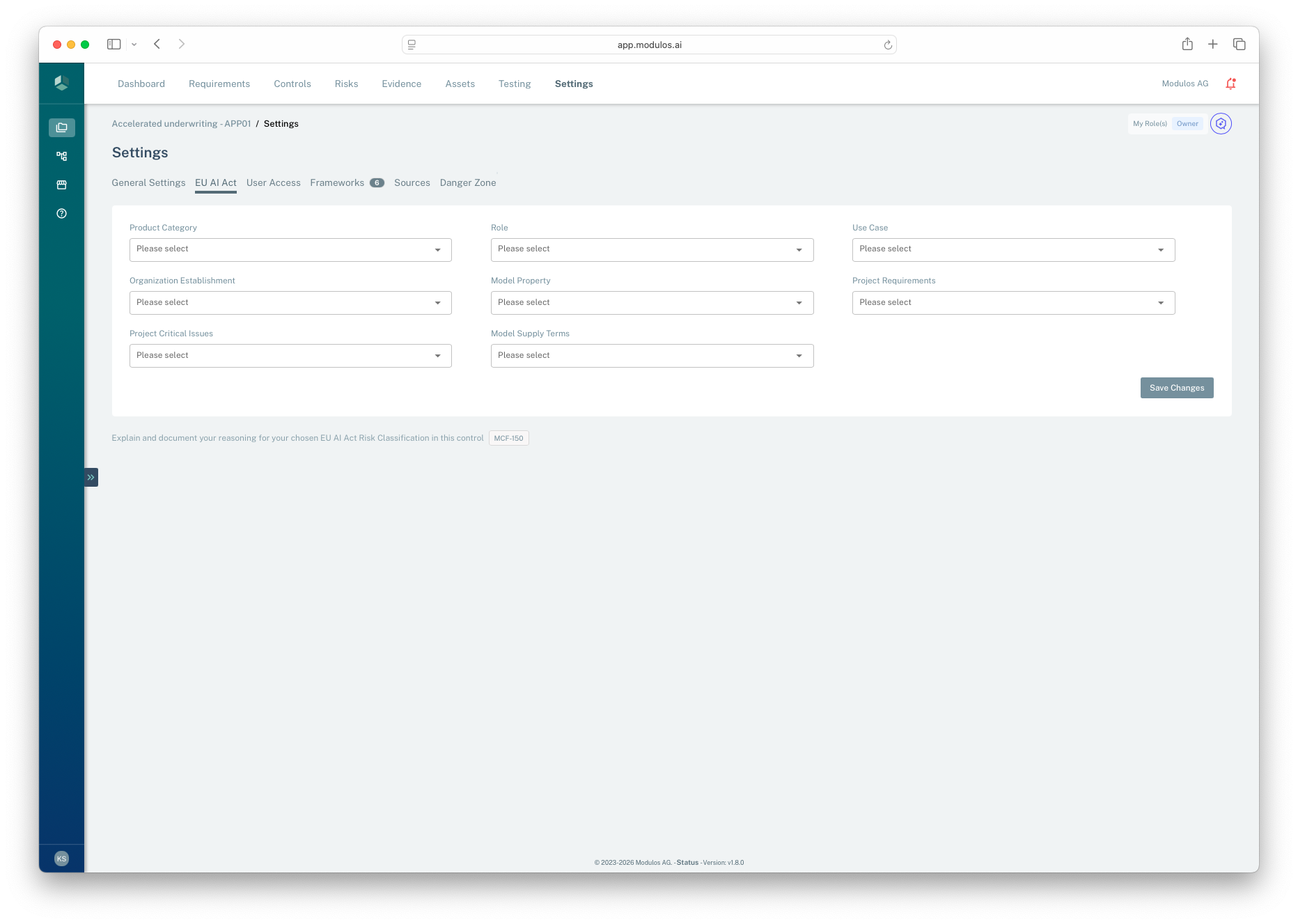
- 1EU AI Act tabAppears for AI system projects when the EU AI Act framework is applied.
- 2Classification fieldsCapture scope and classification context for traceability and review.
- 3Save changesOwners save classification updates to the project configuration.
User Access
User access is where project owners assign project roles:
- Owner: configure, assign roles, and manage settings
- Editor: implement controls and attach evidence
- Reviewer: approve or reject review requests for status changes
- Auditor: read-only assurance access
Frameworks and versioning
Frameworks define a project’s compliance scope, and they are versioned. Each project is pinned to specific framework versions so you can keep audits stable while still adopting updates when you choose.
In Project → Settings → Frameworks you can:
- add frameworks to create a traceable requirement and control structure
- inspect the current version and the latest available version
- open the change log for a framework version to understand what changed
- update frameworks to the latest version when you are ready
- freeze framework updates when nearing audit readiness to preserve stability
When you update frameworks, Modulos may introduce new requirements and controls, or adjust mappings. Existing evidence and status history remain, but new or changed items may need implementation and review.
Best practice:
- update frameworks early in a program when change is expected
- freeze updates when you need the scope to stop shifting for audit completion
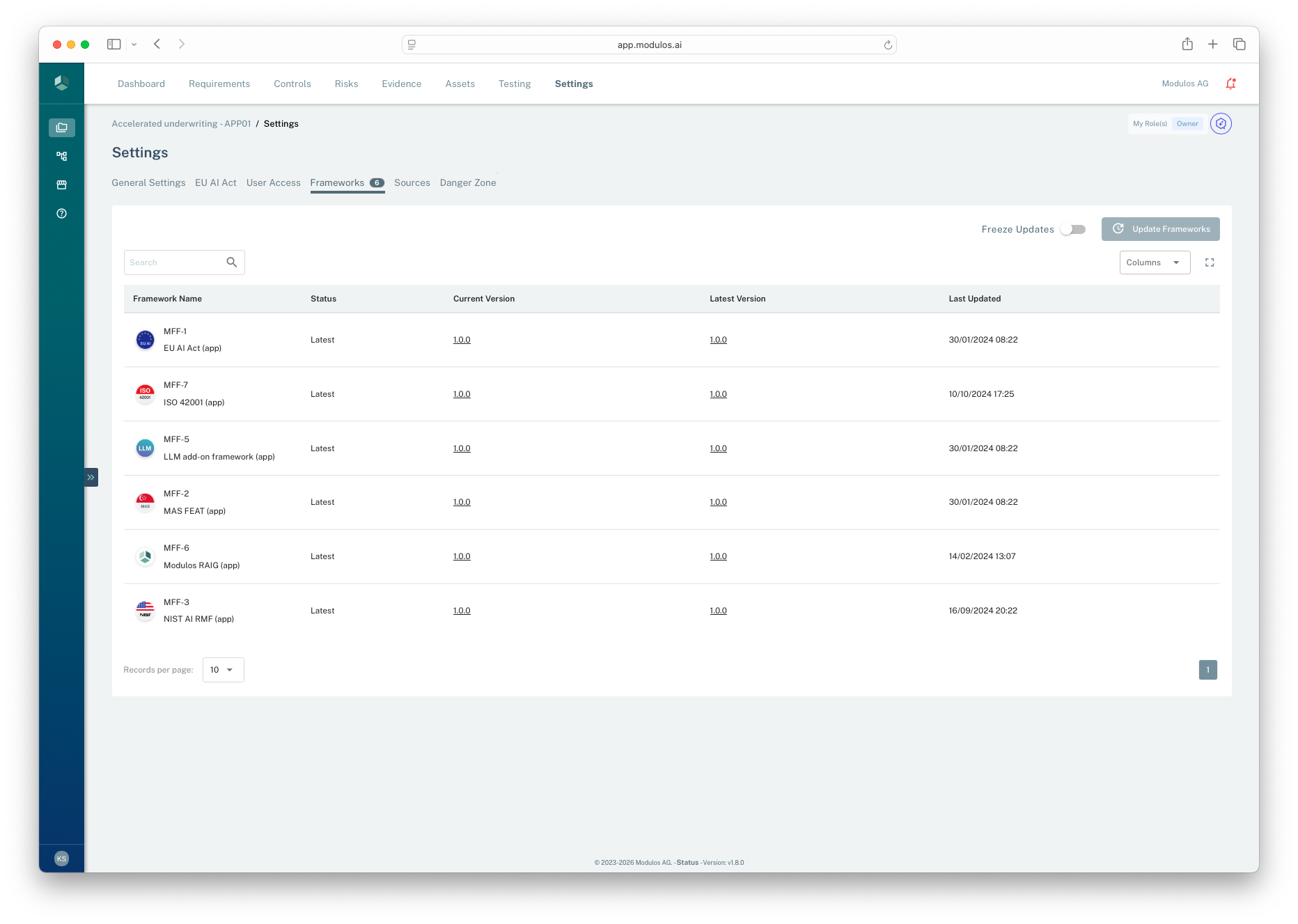
- 1Frameworks tabProjects pin framework versions so scope stays traceable.
- 2Freeze updatesPrevents anyone from updating frameworks while keeping editing possible.
- 3Update frameworksUpgrades the project to the latest available framework versions.
- 4Current vs latestCompare the version you are on to what is available in the library.
Sources vs connectors
Project settings include sources, which are project-level service accounts attached to a project. They are used by testing and to ground Scout in project data.
By contrast, connectors are user-level accounts connected to individual users. They reflect personal access and are used when a user’s identity and permissions matter.
This distinction exists because organizations need two different trust models:
- a stable, shared service account for project-level automation and monitoring
- a user-bound account for personal access and accountability
How to use it
1
Keep the scope current
Maintain a clear description that matches what is being governed
2
Assign roles deliberately
Use owners, editors, reviewers, and auditors to preserve separation of duties
3
Control framework change
Update frameworks when appropriate and freeze updates when nearing audit readiness
4
Configure sources
Connect the project to the systems that provide compliance-relevant evidence
5
Use EU AI Act settings when relevant
Capture classification context for system-scoped conformity requirements
Important considerations
- Freezing framework updates preserves audit stability. Use it when you need the scope to stop shifting.
- Treat sources as high-trust credentials. Prefer least-privilege service accounts and rotate when ownership changes.
- If you can’t see a tab described here, it may reflect missing permissions or module availability in your organization.
- Deleting a project is destructive. Export first if you need an audit trail for archival.
Related pages
Create a Project
Scope a project and assign initial roles and frameworks
User Management
Organization roles versus project roles and separation of duties
Organization Settings
Currency and language defaults that affect risk and reporting
Portfolio Overview
How project risk rolls up and compares to appetite