

Appearance
Sources
Sources are project-level service accounts that let Modulos retrieve operational signals and compliance-relevant context for a project.
Where in Modulos
Project → Settings → Sources
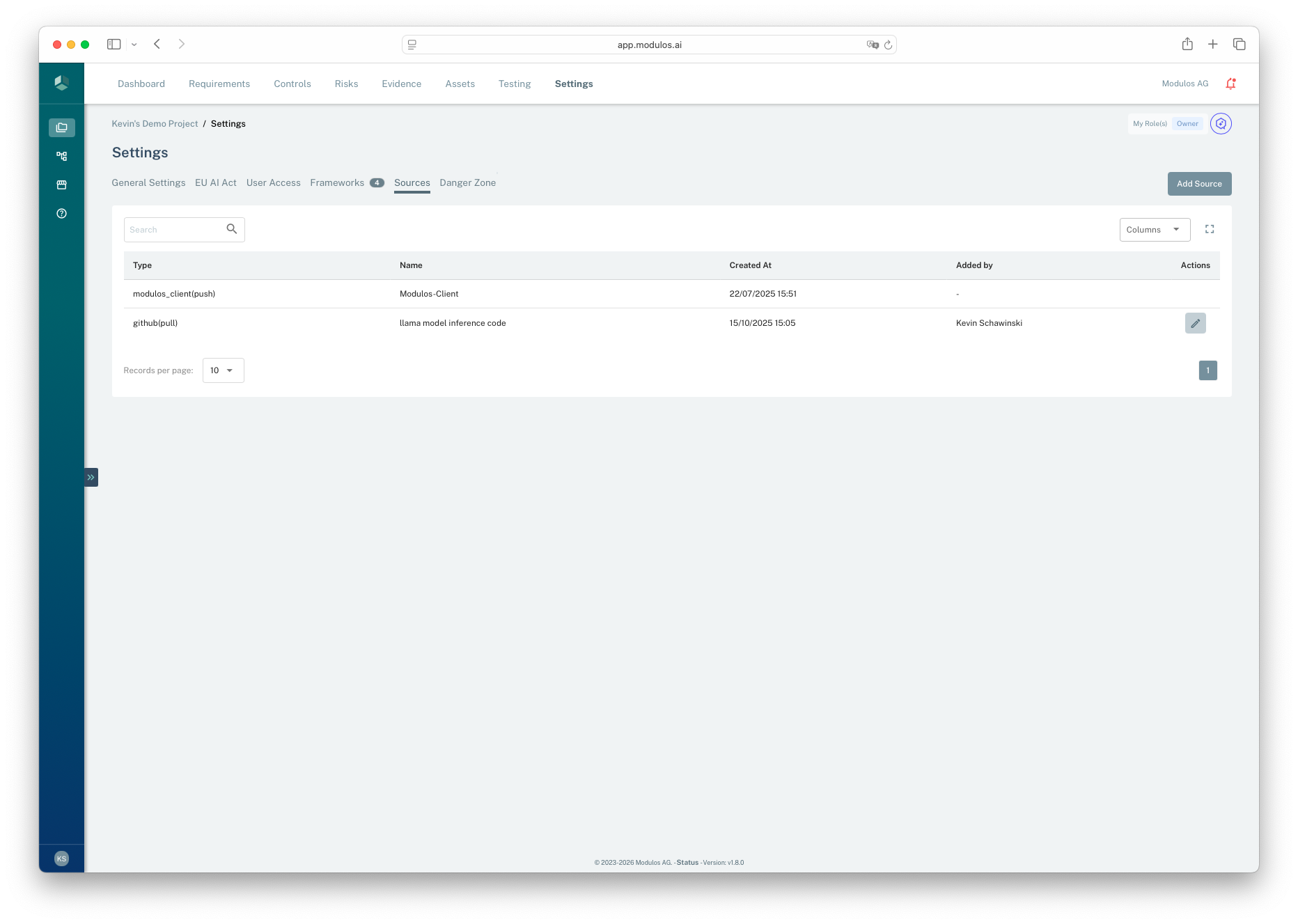
- 1Sources tabProject-level sources live in Project Settings.
- 2Add SourceAdd a new integration source to the project.
- 3Type and modeEach source is labeled with its type and whether it is pull or push.
Who can do what
Permissions
- Owners and Editors can create, update, and delete sources.
- Reviewers and Auditors can view sources for assurance and audit purposes.
Sources vs connectors
Sources are not the same as Scout connectors:
- Sources are attached to a project and are intended for service-to-service access.
- Connectors are attached to a user and typically use OAuth for user-scoped access.
Sources
Service accounts attached to projects
- Shared across the project
- Used for automation and monitoring
- Designed for least privilege and rotation
Connectors
User accounts connected to users
- Bound to a person
- Used for user-scoped access
- Reflects individual permissions and accountability
Why this matters
Different permission model
Different rotation and lifecycle
Different audit story
Supported source types
Modulos supports multiple source types, but not every source type can power automated tests.
Organization controls
Organization admins can enable or disable specific Source types organization-wide through the Admin Panel. If you don't see an expected Source type, check with your organization admin.
Sources used for automated tests
These sources provide metrics that can be evaluated by tests:
- Prometheus
- Datadog
- Langfuse
- Azure
- AWS: for infrastructure monitoring via CloudWatch metrics
- Vijil: for AI security and testing metrics
- Modulos Client: available by default and used for push-style metrics and artifacts
Sources used for project context
These sources are commonly used to support governance work, but they do not currently provide testing metrics:
- GitHub
Tests require metrics
Automated tests require a metrics-capable source such as Prometheus, Datadog, Langfuse, Azure, AWS, Vijil, or Modulos Client.
Each source has a mode:
- Pull: Modulos connects out to retrieve data
- Push: an external agent or client pushes data into Modulos
How it works
When you create a source, Modulos:
- stores the source configuration at the project level
- tests connectivity before saving
- stores secrets securely and does not expose them back to the UI after creation
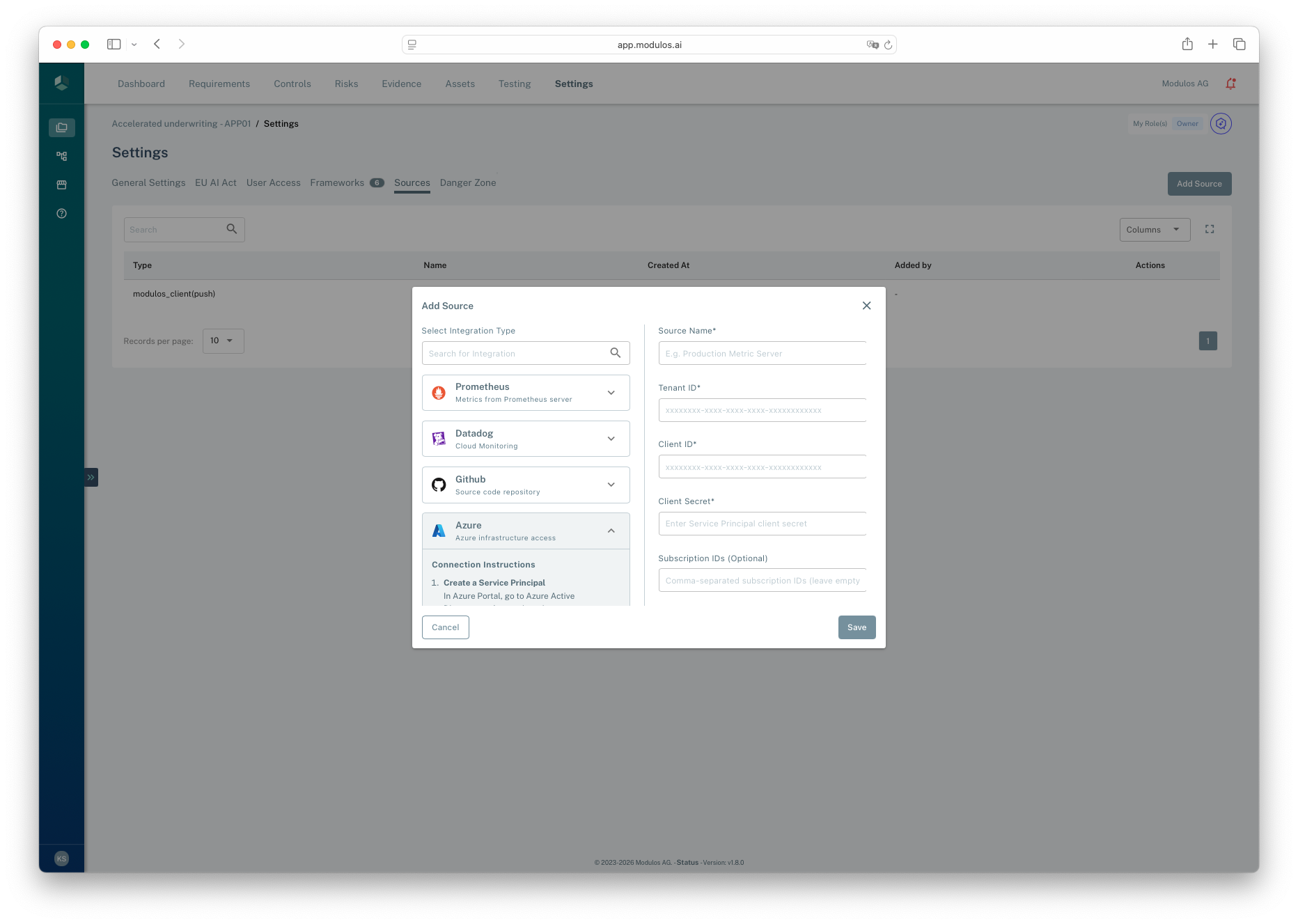
- 1Integration typeSelect the system you want to connect to the project.
- 2Configuration fieldsEnter the credentials and settings for the selected integration.
- 3SaveModulos validates the connection before saving the source.
Metrics and discovery
Tests run on metrics. In practice, there are two ways to provide them:
- Pull metrics from Prometheus or Datadog by selecting an existing metric name from your monitoring system.
- Push metrics using Modulos Client, where your code logs metric values to Modulos.
Security best practices
Treat sources as production integrations:
- create dedicated service accounts with least privilege
- rotate tokens and secrets regularly
- scope access to only the projects and repositories you need