

Appearance
Policy Management
What this is
Policies are living documents. They start as drafts, go through an approval process, and are published to the organisation. When the renewal period expires, the cycle starts again with a new draft — keeping every policy current and every decision recorded.
Where in Modulos
- Sidebar → Policy Center → Policy Management to see all policies, filter by status, and open a policy
- Policy detail to view the published content, open a draft, manage ownership, and review version history
Who can do what
- Members with Policy read access can view published policies and their history.
- Members with Policy create access can create new policies and open drafts.
- Members with Policy edit access can edit draft content, assign owners, and manage policy status (archive / restore).
- Policy Managers (organisation role) approve and reject policy versions for publication. :::
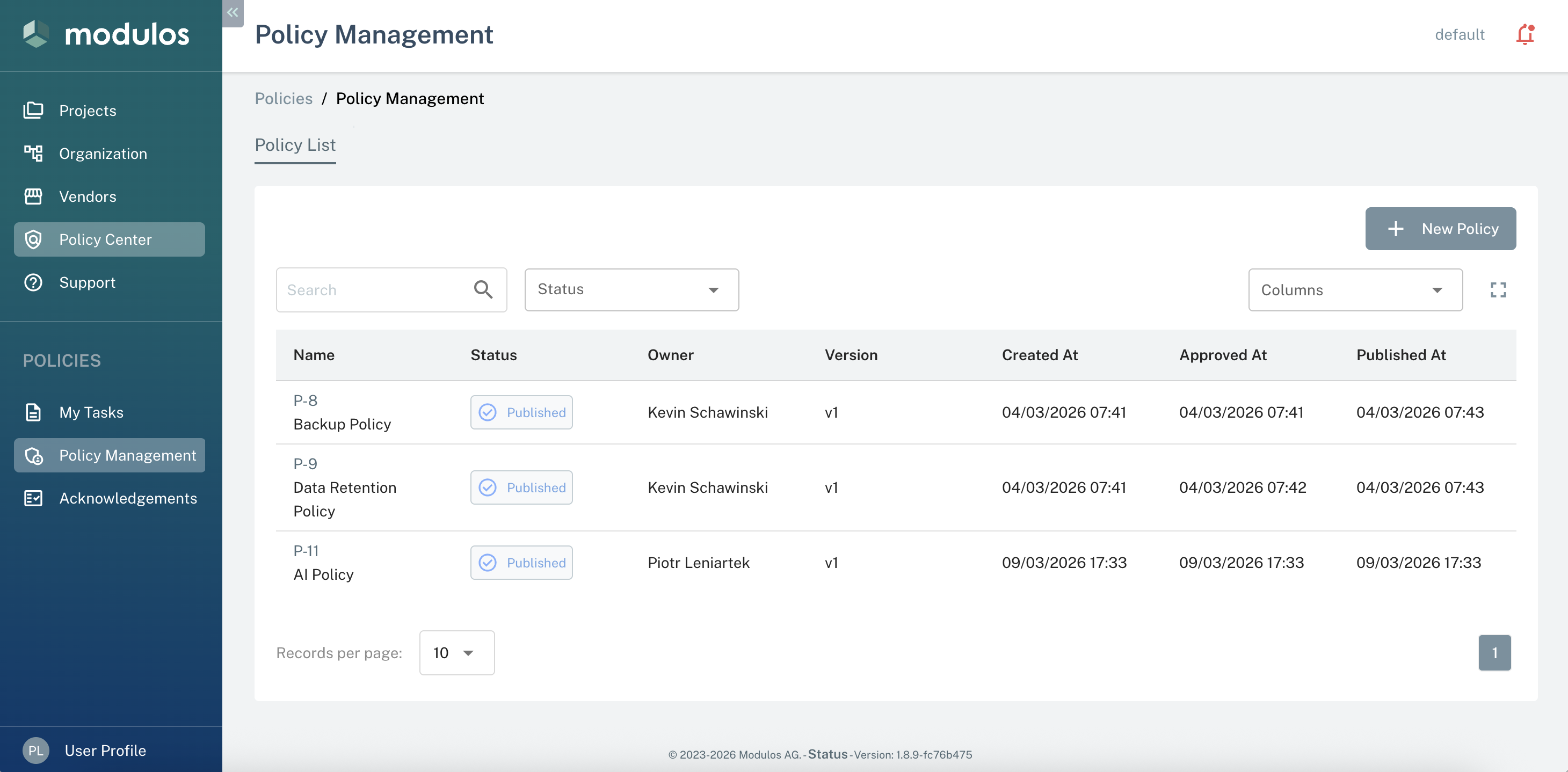
- 1Status filterFilter the list to All Active, Draft, Published, Need Approval, Approved, or Archived.
- 2SearchSearch by policy name or unique code (e.g. P-003).
- 3Create policyOpens the create dialog to name the policy and optionally assign an owner.
- 4Unique codeAuto-generated per organisation. Use this code to reference the policy in controls or documents.
- 5Status badgeShows the combined status of the policy and its current draft version.
How it works
Unique codes
Every policy receives a sequential code (P-001, P-002, …) automatically when it is created. Codes are unique within your organisation and do not change when a policy is renamed, making them safe to reference in controls, tickets, or external documents.
Ownership
Each policy has one assigned owner. The owner is responsible for keeping the policy current and is the person who can:
- open new draft versions
- archive or restore the policy
- change the owner assignment to another member
Ownership can be changed at any time from the policy detail view by anyone with edit access.
Search and filter
The Policy Management table supports:
- Free-text search by policy name or unique code
- Status filter: All Active, Draft, Published, Need Approval, Approved, Archived
- Sortable columns: name, status, unique code, version number, created date, approved date, published date
Policy status
A policy has its own top-level status that reflects whether it has ever been published:
| Status | Meaning |
|---|---|
| Unpublished | Created but no version has been published yet |
| Published | At least one version has been published |
| Archived | Removed from the active policy set; can be restored |
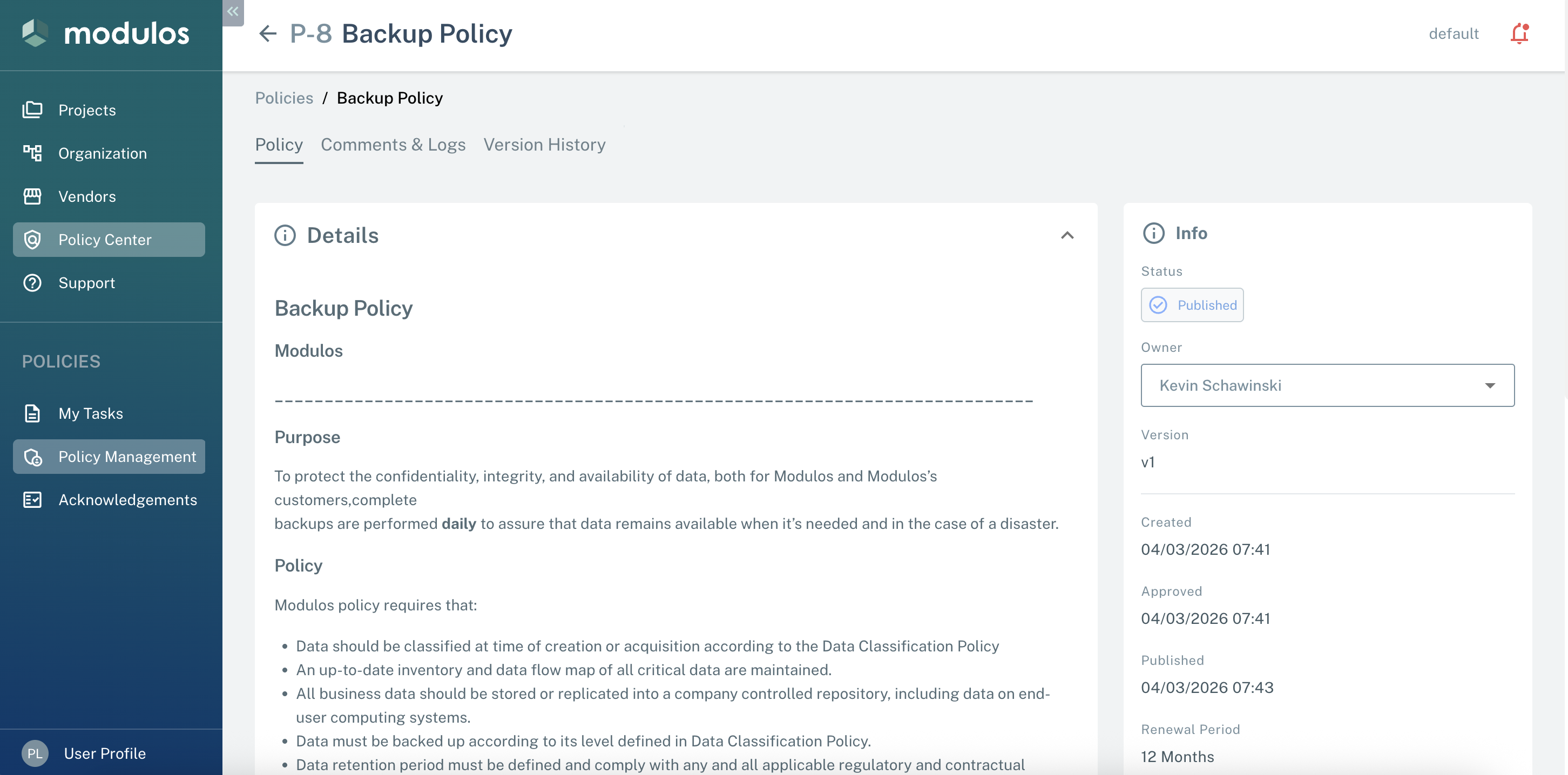
- 1Status and ownerCurrent policy status and owner assignment. Owners with edit access can reassign the policy here.
- 2TabsPolicy shows published content. Comments & Logs shows discussion and audit trail. Version History shows all published versions.
- 3Action buttonsArchive or restore the policy, or open a draft to begin a new version.
How to use it
1
Create a policy
Click Create policy, give it a name, and optionally assign an owner. The policy is created with an initial draft version.
2
Assign an owner
From the policy detail, set or change the owner — the person accountable for keeping this policy current.
3
Edit the draft
Open the draft version and write the policy content using the rich-text editor. Give it a version name.
4
Request approval
When the draft is ready, click Ask for Approval. Policy Managers are notified to review it.
5
Publish
Once approved, click Publish. The draft becomes the current published version and a version number is assigned.
6
Set a renewal period
At publish time, choose a renewal period (3, 6, or 12 months). You will be notified when the policy is due for review.