

Appearance
Scout
Scout is Modulos’ conversational assistant. It helps you navigate governance work in a project, find gaps, and draft better documentation — grounded in your Modulos data and (optionally) the systems you connect.
What this is
Scout is designed to help you move faster without turning governance into a “system of record” exercise. It’s most useful when you need to connect the dots across frameworks, requirements, controls, evidence, and risk — and turn that understanding into concrete next steps.
What Scout can help with
- Answer questions about frameworks, requirements, controls, evidence, risks, and tests in your project.
- Identify what's missing for audit readiness (for example, which controls still need evidence).
- Draft structured text you can paste into control reports, policies, and internal documentation.
- Create evidence directly from Scout answers to capture AI-assisted documentation and analysis.
- Pull in external context from connected systems (for example, code, tickets, or docs) when you choose a connector or source.
- Answer questions about specific users and their roles or responsibilities in the project.
What Scout can access
Today, Scout can reason across:
- Modulos objects: frameworks, requirements, controls, evidence, and risks (including risk categories and threat vectors).
- Organization risk taxonomy: your organization’s risk categories and library.
- Selected external systems (optional):
- Connectors (user accounts): GitHub, Bitbucket, Atlassian (Confluence + Jira), Google Drive
- Sources (project service accounts): GitHub, Azure, AWS, Vijil
If you don’t see Scout or external integrations, ask your organization admin.
Where in Modulos
Scout is available within a project via the assistant chat (right-side drawer).
Conversations are saved so you can come back and continue work over time.
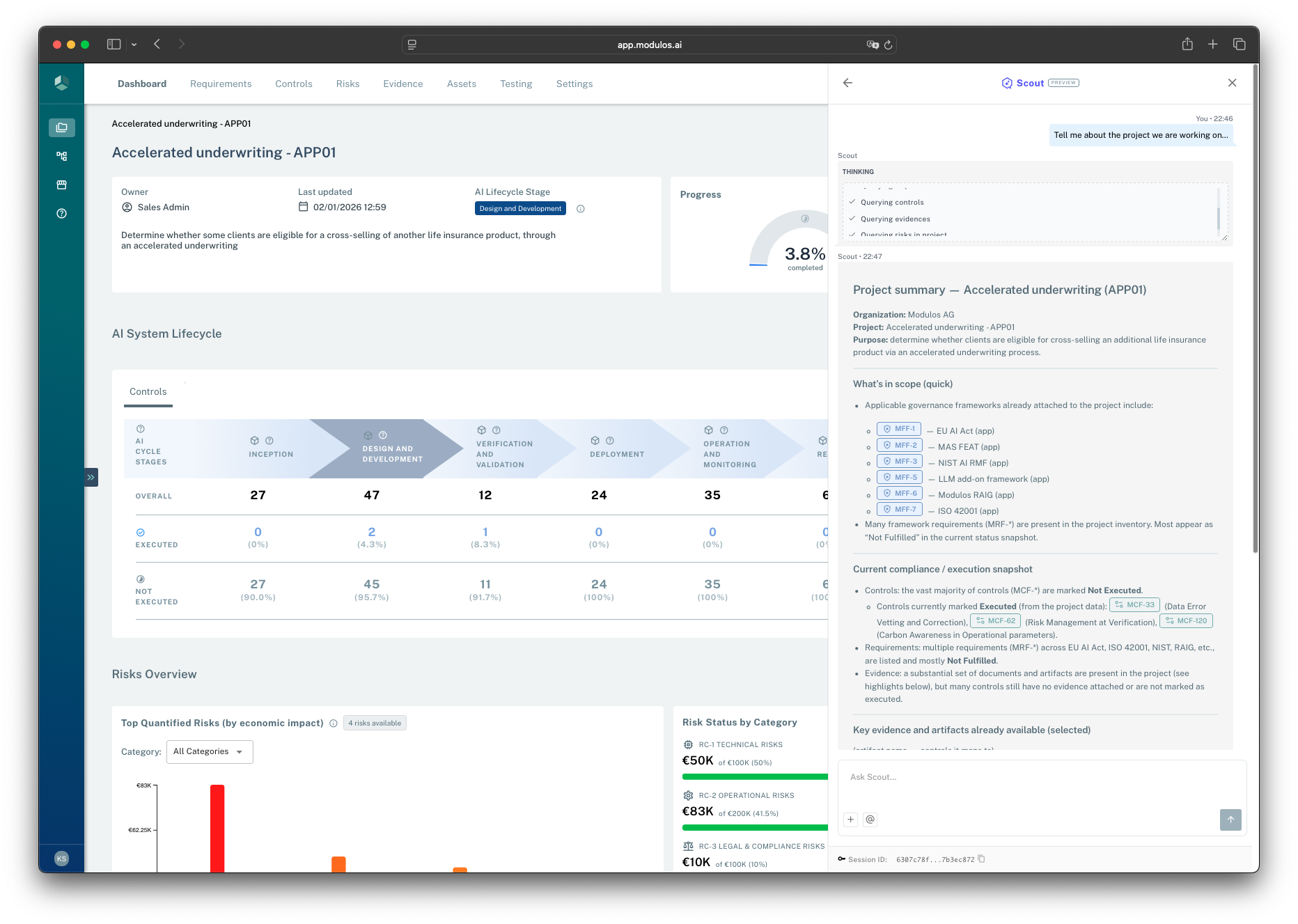
- 1Scout drawerOpen Scout to ask questions within your current project context.
- 2Thinking stepsFollow what Scout is looking up while it prepares an answer.
- 3Grounded answerScout answers using your project objects and identifiers so you can validate quickly.
- 4Ask ScoutAsk follow-ups, refine scope, or request a specific output format.
- 5Session IDShare this with Support if you need help diagnosing an issue.
Who can do what
Permissions
Scout answers questions within your Modulos access permissions and within the scope of any connector or source you select.
- Project owners and editors typically use Scout to find gaps, draft documentation, and prepare reviews.
- Reviewers and auditors typically use Scout to understand how a control is supported by evidence and what the audit trail contains.
Hint
If you don’t see Scout, external integrations, or mentions, ask your organization admin.
How it works
At a high level, Scout:
- uses your current project context (frameworks → requirements → controls → evidence, plus risks)
- lets you ground questions with
@mentions (so you’re talking about the same objects your reviewers will see) - optionally researches external context through the connector or source you select
- produces a structured answer you can verify and act on
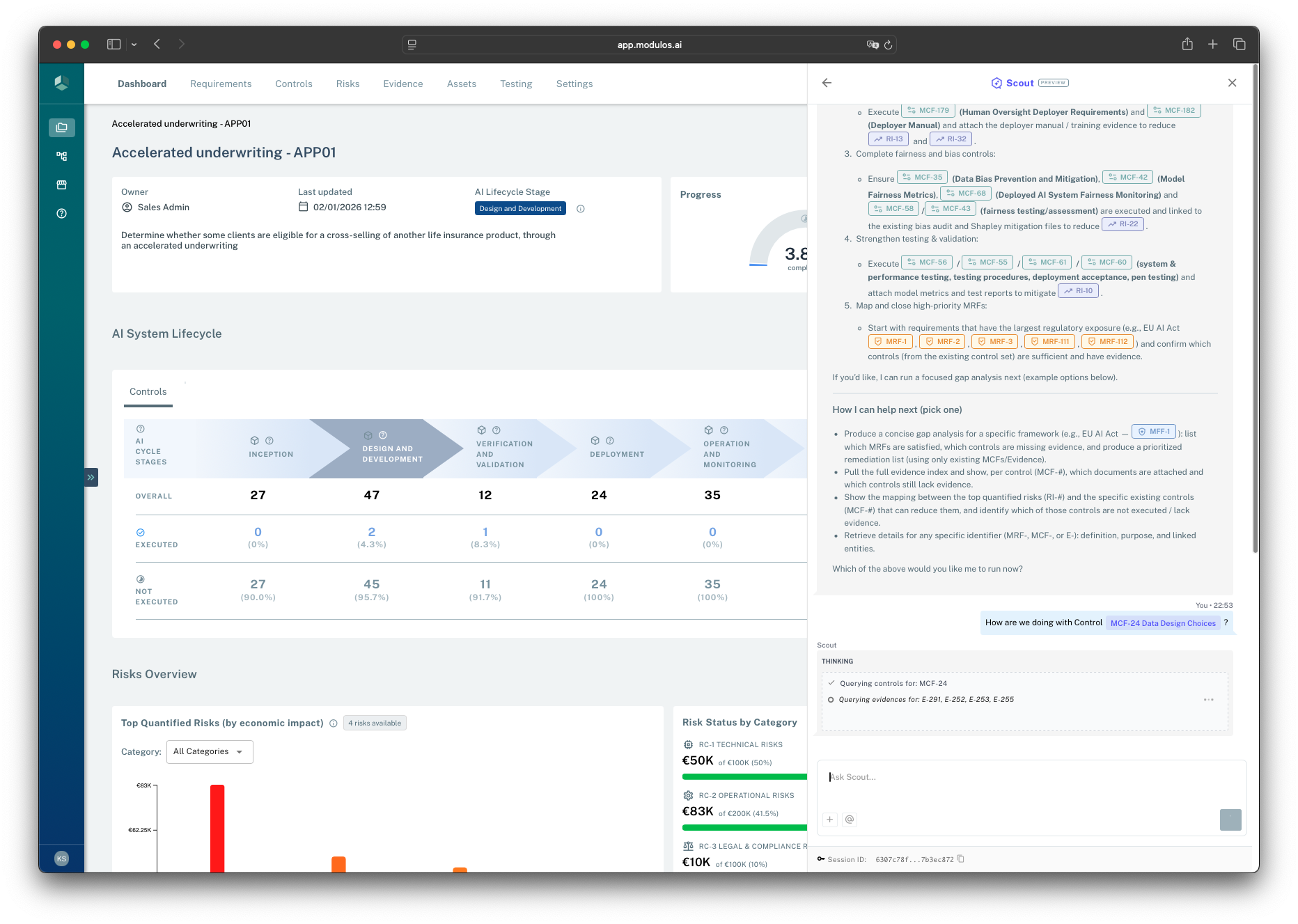
- 1Link chipsReferences are rendered as link chips. Hover for a quick preview and click to open the underlying item.
- 2Thinking stepsProgress indicators show what Scout is looking up while it works.
- 3Follow-up promptContinue the thread with clarifications or with a specific control, requirement, evidence item, or risk.
Creating Evidence from Scout answers
Scout answers can be saved directly as evidence in your project. This is useful when Scout generates documentation, analysis, or structured text that serves as an artifact for a control:
- After Scout provides an answer, you can create evidence from the response
- The evidence is saved with a reference to the conversation for traceability
- You can then link the evidence to relevant controls as you would with any other evidence
This keeps governance artifacts grounded in their source conversation and makes it easier to maintain an audit trail for AI-assisted documentation.
Mentions keep answers grounded
When you type @, Modulos suggests project objects you can mention directly (for example a specific control, evidence item, or risk). This helps Scout:
- anchor the response to specific objects (instead of generic guidance)
- reference the right identifiers consistently
- make it easier for reviewers to validate your work
Mentionable concepts include controls, requirements, frameworks, evidence, risks (including risk categories and threat vectors), and tests.
You can also mention users to ask questions about specific team members. Type @ and select a user from your organization to ask Scout about their role, responsibilities, or contributions in the project.
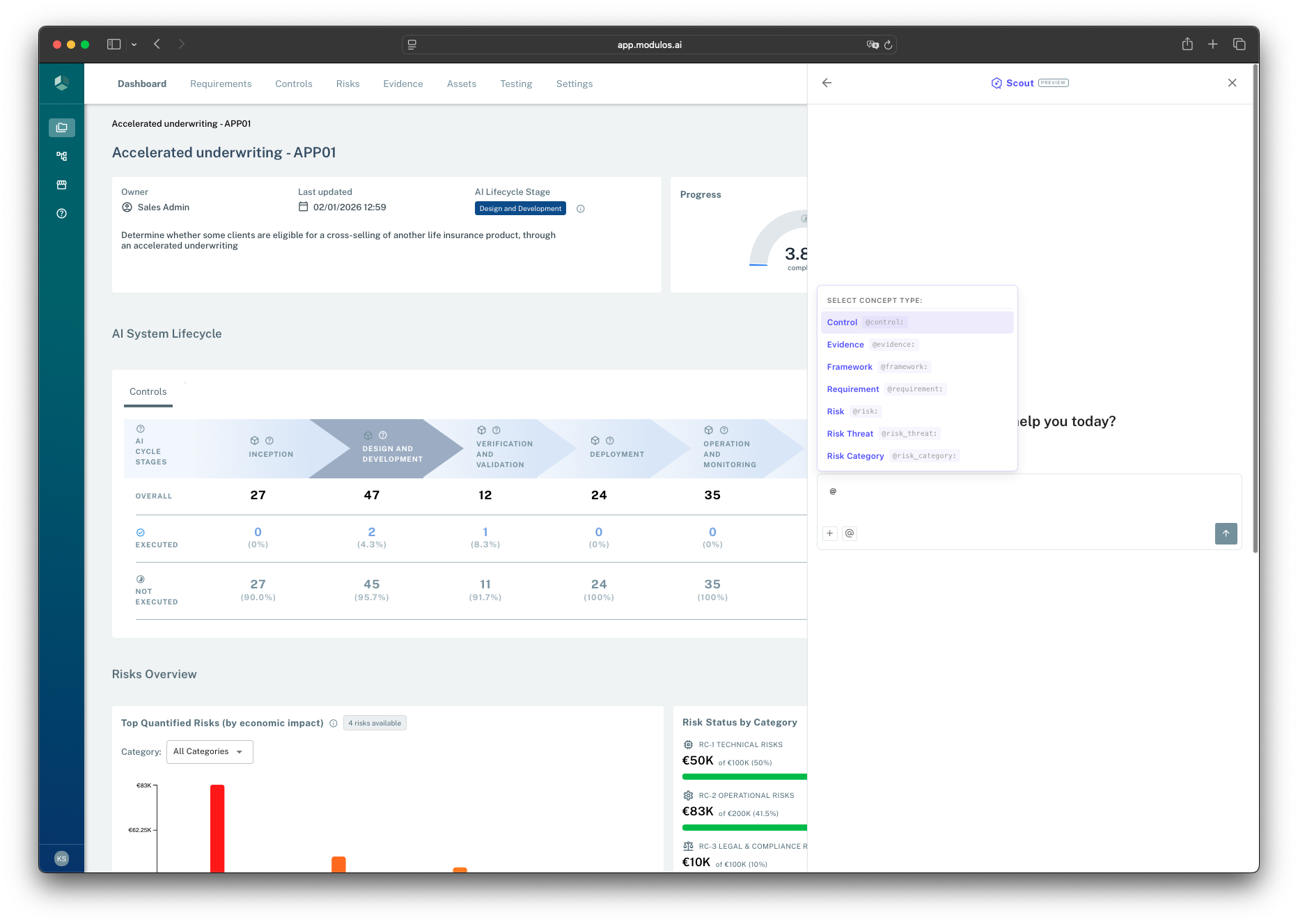
- 1Mention menuType @ in the input to open the mention selector.
- 2Concept typesSelect a type, then choose the specific control, evidence item, requirement, risk, or user to reference.
Link chips and tooltips
Scout (and the wider platform) renders references as link chips. They make answers faster to verify and easier to act on:
- Clickable navigation: click a chip to open the referenced item (control, requirement, evidence, risk) in the platform.
- Hover preview: hover a chip to see a tooltip-style preview with the item’s name and key details.
- Less ambiguity: chips reduce “which control did we mean?” by anchoring work to identifiers.
Link chips appear automatically when Scout references objects, and when you reference objects using mentions or unique codes (for example MCF-24, MRF-232, E-261).
Sources vs connectors
- Sources are service accounts attached to a project. They’re shared across the project and designed for stable, project-level access.
- Connectors are user accounts connected to a user. They’re personal and reflect the permissions of the connected account.
This matters because Scout can combine a shared operational view (sources) with user-scoped access (connectors) depending on what your question requires.
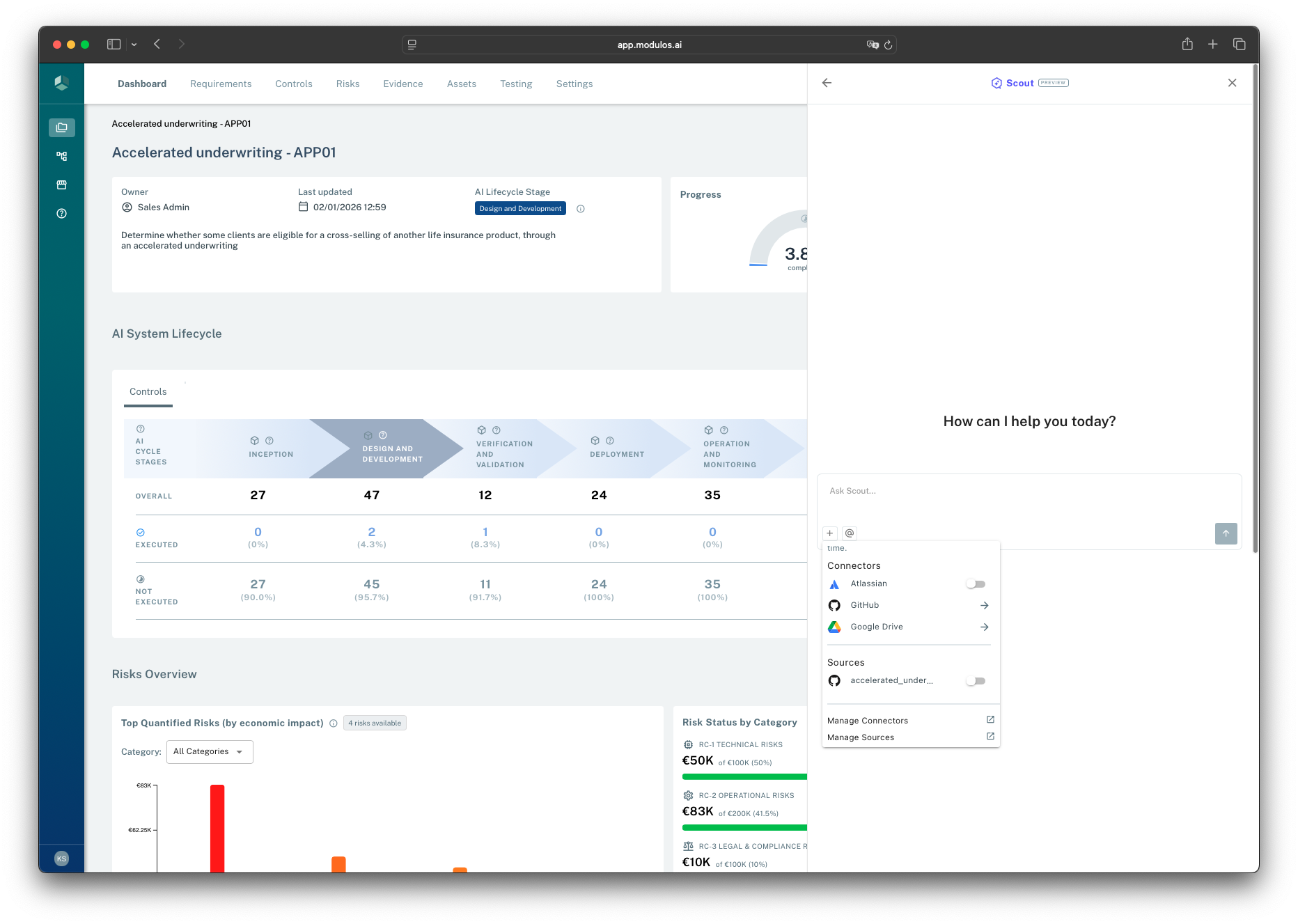
- 1Context selectionChoose what Scout can use for external research in this conversation. You can select multiple sources and connectors simultaneously.
- 2ConnectorsUser accounts, scoped to your permissions in the connected system.
- 3SourcesProject service accounts, shared across the project for stable access.
Scout depends on your descriptions
Scout uses your organization description and project description as core context in every conversation. If these are empty or generic, Scout's answers will be less specific to your situation.
Before relying on Scout, ensure:
- Your organization description covers what your business does, where you operate, and key facts (Organization Settings)
- Your project description covers the AI system's purpose, technology, users, and deployment context (First Steps)
How to use Scout effectively
- Start specific: mention the object you care about (for example a control or requirement).
- Ask for what you actually need: gaps, evidence quality, or suggested draft text.
- If the answer depends on external context, select a connector or source and ask Scout to include it.
- Treat outputs as a draft: validate claims against evidence and linked artifacts.
Hints for better answers
- Use
@mentions when you care about a specific item (control, requirement, evidence, or risk). - Ask for an output format (for example “5 bullets”, “a table”, or “a short draft for a control report”).
- If you want audit-ready work, ask Scout to reference relevant identifiers (MRF/MCF/E) in the response.
Example prompts
- “For
@control MCF-24, what evidence is linked, and what’s still missing before we should mark it executed?” - “For
@requirement MRF-232, which mapped controls are still not executed?” - “Summarize the strongest evidence for
@control MCF-25in 5 bullets suitable for a control report.” - “We selected the GitHub connector. Where in the repo do we document data retention, and what would count as evidence for it?”
Important considerations
- Scout is advisory. It does not approve work or change statuses for you.
- Access boundaries apply: Scout can only use what you can access in Modulos, plus what the selected connectors or sources can access.
- Scout can use multiple sources and connectors simultaneously to combine context from different systems in a single conversation.
- For Google Drive, Scout can only access the files you explicitly select/allow.
- Scout can make mistakes. Use it to accelerate your work, then validate against evidence and the audit trail.
Validate before you act
Use Scout to draft and accelerate work, but rely on the audit trail for decisions:
- confirm key claims against linked evidence and artifacts
- treat missing evidence as a to-do list, not an approval
- if Scout is unsure, ask it what information would change the answer
Don’t paste secrets
Avoid pasting credentials, tokens, or sensitive personal data into chat. Prefer attaching relevant documents as evidence or using connectors/sources so access stays auditable.