

Appearance
Control Assessment Agent
The Control Assessment Agent produces a structured draft assessment for a control, grounded in the control definition and the evidence linked to it. It helps teams run consistent readiness conversations without turning every review into a blank page.
What this is
When you run the agent, it generates:
- a readiness score from 0 to 100
- a short summary of what the current evidence does and does not support
- gaps with analysis and evidence references
- recommendations with evidence references
- a list of evidence sources used
The output is a draft. Humans remain accountable for what gets accepted, edited, and saved.
Where in Modulos
You run the Control Assessment Agent from the control detail view.
Project → Controls → select a control → Assessmentto run the agent and review outputProject → Controls → select a control → Assessment → Save Assessmentto store the assessment as part of the audit trail
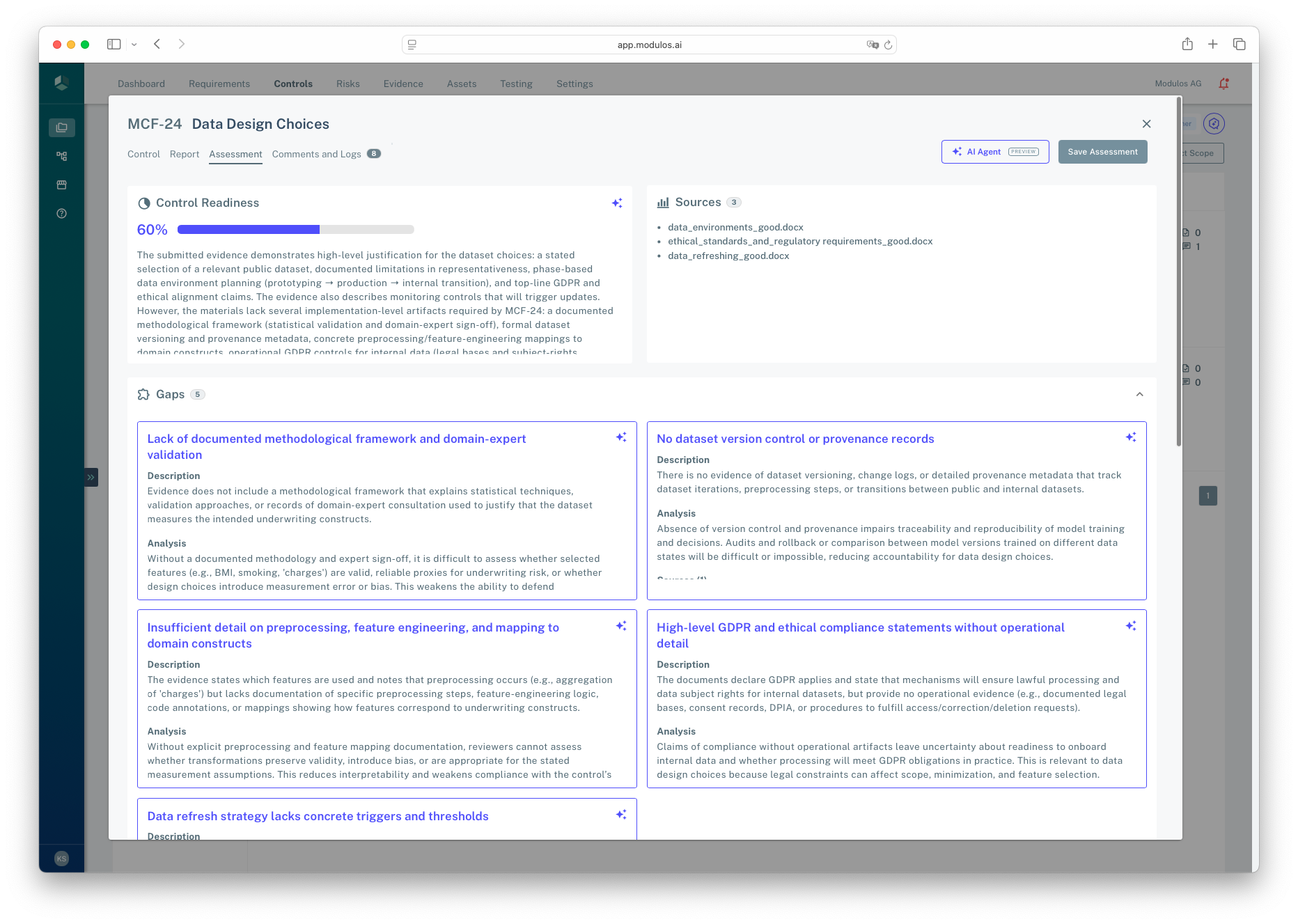
- 1AI AgentGenerate or refresh the assessment draft from the control definition and linked evidence.
- 2Save AssessmentPersist the draft as a saved assessment record for review and audit.
- 3Readiness score and summaryA structured snapshot of how well the control is supported by current evidence.
- 4SourcesThe evidence items the agent used as inputs.
- 5GapsWhere evidence is missing, insufficient, or misaligned, with references back to sources.
Who can do what
Permissions
You need project permissions to run the agent and to save assessments.
- Project owners and editors typically run the agent, review the draft, and save the assessment.
- Reviewers and auditors typically read saved assessments and follow evidence references back to artifacts.
If you don’t see the AI Agent button or the Assessment tab, ask your project owner or organization admin.
How it works
When you run the agent, Modulos:
- takes the control’s question, description, and guidance
- finds the evidence linked to the control
- searches within that evidence for relevant passages
- generates a structured assessment in the project language
Evidence references in gaps and recommendations point back to the underlying artifacts, so reviewers can verify the basis.
How to use it
- Attach the most relevant evidence to the control.
- Open the control’s Assessment tab and select AI Agent.
- Read the summary, then review gaps and recommendations.
- Update evidence and control report content as needed, then re-run the agent.
- When the draft matches your judgement, select Save Assessment.
Important considerations
- The readiness score is not a certification. Use it to focus review effort, not as an approval decision by itself.
- If evidence is missing, the agent will correctly report gaps. Treat this as a checklist to collect the right artifacts.
- Run assessments early and re-run when evidence changes. Controls become harder to change once executed.
- AI can make mistakes. Validate claims and references against the underlying evidence.