

Appearance
Lifecycle & Approvals
Every policy in Modulos is versioned. Each version follows a structured path from draft to publication, with an explicit approval step in between. This keeps the decision trail complete and auditable.
What this is
The lifecycle operates at two levels:
- Policy status — the top-level record: is the policy published, unpublished, or archived?
- Version status — the individual draft: where is this version in its review process?
These two statuses work together. A policy becomes Published when its first version reaches the Published version status.
Policy status
| Status | Meaning |
|---|---|
| Unpublished | Created; no version has been published yet |
| Published | At least one version is published; this is the current live policy |
| Archived | Removed from the active set; visible only in the archived filter; can be restored at any time |
Archiving and restoring are performed by the policy owner (or any member with edit access) from the policy detail view.
Version status
| Status | Meaning |
|---|---|
| Draft | Work in progress; only the author and policy managers can see it |
| Need Approval | Submitted for review; Policy Managers are notified |
| Approved | Approved by a Policy Manager; ready to publish |
| Published | Live version; immutable |
One draft at a time
A policy can have at most one active draft at a time. If a published policy already has a draft, the "Open Draft" button opens the existing draft rather than creating a new one.
Approval workflow
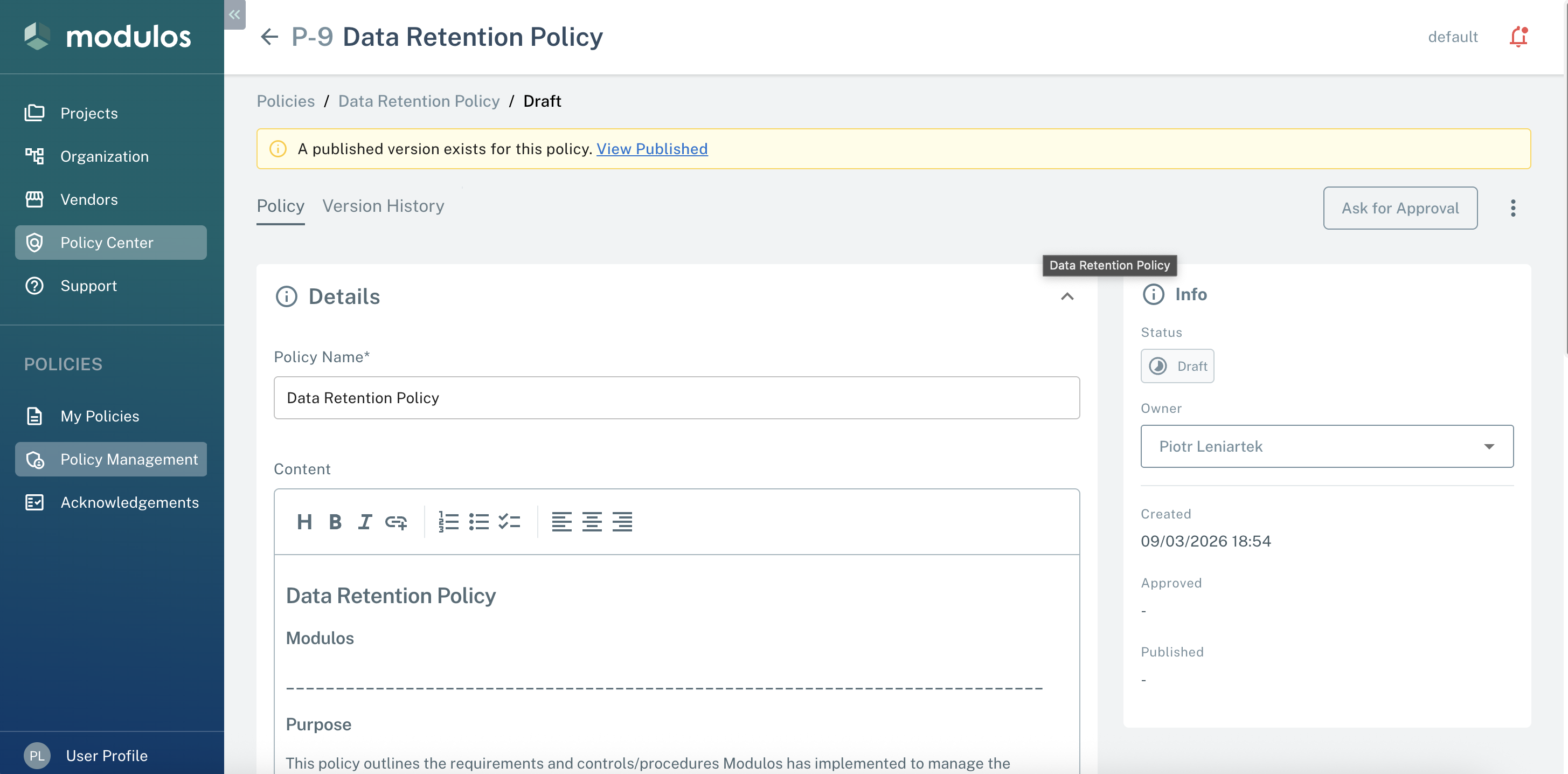
- 1Version statusShows the current status of this draft version.
- 2Ask for ApprovalSubmits the draft to Policy Managers for review. All users with the Policy Manager role are notified.
- 3Rich-text editorWrite and format the full policy document here. Changes are saved explicitly with the Save button.
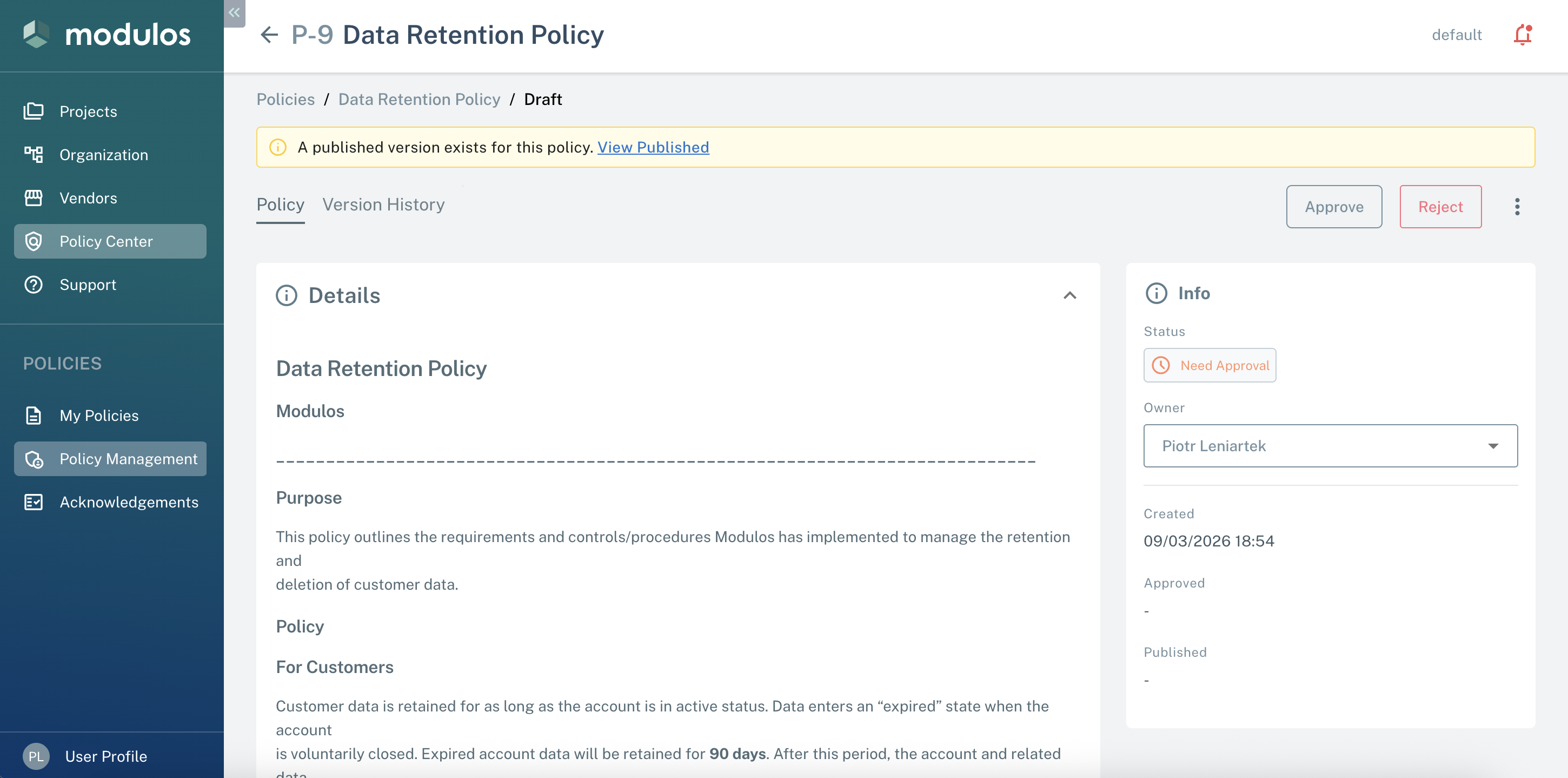
- 1ApproveMoves the version to Approved status. The author is not yet notified — the approved version still needs to be published.
- 2RejectOpens a dialog to enter a rejection reason. The reason is posted as a comment and the version returns to Draft.
- 3Version HistoryEvery approval, rejection, and status change is recorded here with a timestamp and the acting user.
Step-by-step
1
Author saves the draft
The policy owner (or any editor) writes the content and saves. The version stays in Draft until explicitly submitted.
2
Ask for Approval
The author clicks Ask for Approval. The version moves to Need Approval and all Policy Managers receive a notification.
3
Policy Manager reviews
A Policy Manager opens the version, reads the content, and either approves or rejects it.
4
Rejection (if needed)
If rejected, the Policy Manager provides a reason. The reason appears as a comment and the version returns to Draft for revisions.
5
Approval
When approved, the version moves to Approved. The policy owner can now publish it.
6
Publish
The owner clicks Publish. The version becomes immutable, receives a version number, and the policy status changes to Published.
Publishing and version numbers
When a version is published:
- It receives a sequential version number (1, 2, 3, …) within the policy
- It becomes immutable — the content cannot be edited
- The renewal period clock starts (if a renewal period was set)
- The policy status changes to
Published(or remainsPublishedif a prior version already exists)
The published version is always shown on the policy detail page. Previous published versions are accessible from the Version History tab.
Archival and restore
Archiving removes a policy from the active policy set without deleting it. Archived policies:
- are excluded from the default list view (use the Archived filter to find them)
- retain their full version history and audit trail
- can be restored at any time by clicking Restore Policy in the policy detail
Renewal
When publishing a version, you can set a renewal period: 3 months, 6 months, or 12 months. After the renewal window, the policy owner receives a notification prompting them to open a new draft and start the review cycle again.
Renewal notifications are sent at multiple points around the due date — 30 days before, 7 days before, on the day, and at intervals after — so the policy never silently expires.
Setting a renewal period
A renewal period is optional. If you do not set one, the policy remains published indefinitely and no renewal reminders are sent. Renewal periods are most useful for policies that must be reviewed on a regulatory or contractual schedule.
Audit trail
Every status transition — submission, approval, rejection, publication, archival, restore — is recorded automatically in the Comments & Logs tab. Each entry includes the timestamp, the acting user, and any written reason (for rejections). This log is append-only and cannot be edited.